Twitch Stream Quality Setup Guide
Streaming high-quality content on Twitch requires a well-planned setup and a good understanding of the technical aspects involved. In this comprehensive guide, we will walk you through the process of setting up your stream for optimal performance, covering equipment, software, and platform-specific settings.
Equipment Requirements
- A decent computer or gaming console with a reliable processor, memory, and storage
- A high-quality webcam for capturing video and audio
- A good quality capture card for capturing game footage (if needed)
- A stable internet connection with a minimum upload speed of 5 Mbps
Software Requirements
- OBS Studio (Open Broadcasting Software) - a free and open-source streaming software
- Twitch Streamlabs - a free streaming software that integrates with Twitch
- Other software may be required for specific equipment or features
Configuring OBS Studio for Twitch
To set up OBS Studio for Twitch, follow these steps:
- Create a new scene in OBS Studio
- Add a video capture device (webcam or capture card)
- Add an audio device (microphone or audio input)
- Configure the video settings (resolution, frame rate, bitrate, etc.)
- Configure the audio settings (sample rate, bitrate, etc.)
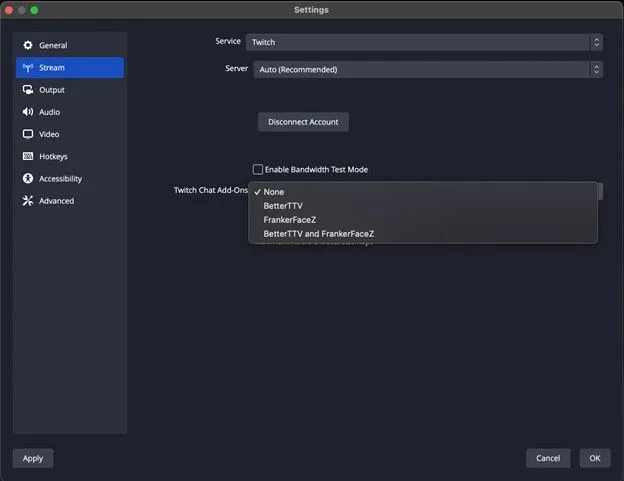
- Set up the Twitch streaming settings (channel, stream key, etc.)
Twitch Ingest Recommendations
Twitch provides ingest recommendations to help you achieve the best possible stream quality. These recommendations include:
- Using a reliable ingest server
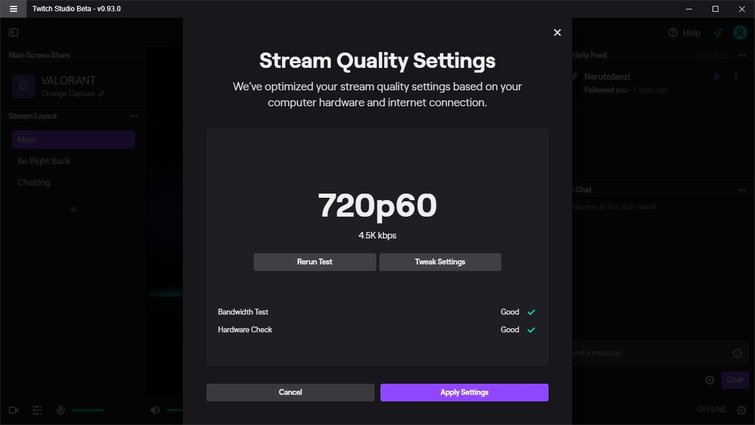
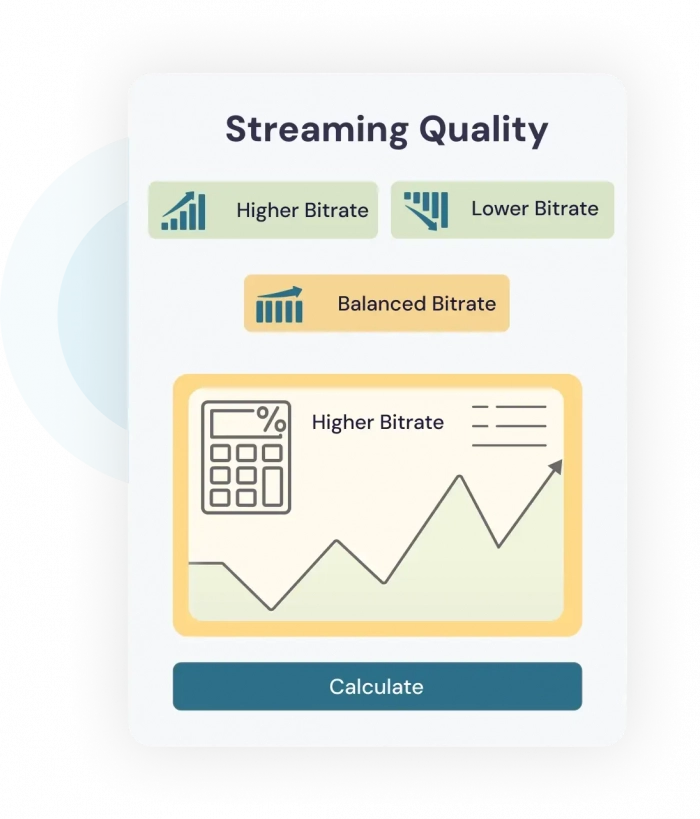
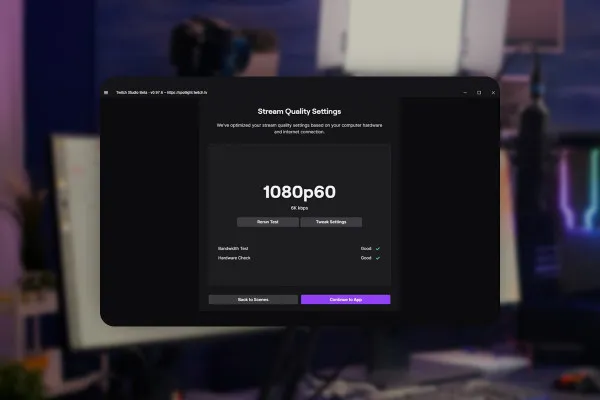
- Optimizing your bitrate and resolution for your internet connection
- Configuring your OBS Studio settings for optimal performance

Bitrate and Resolution Settings
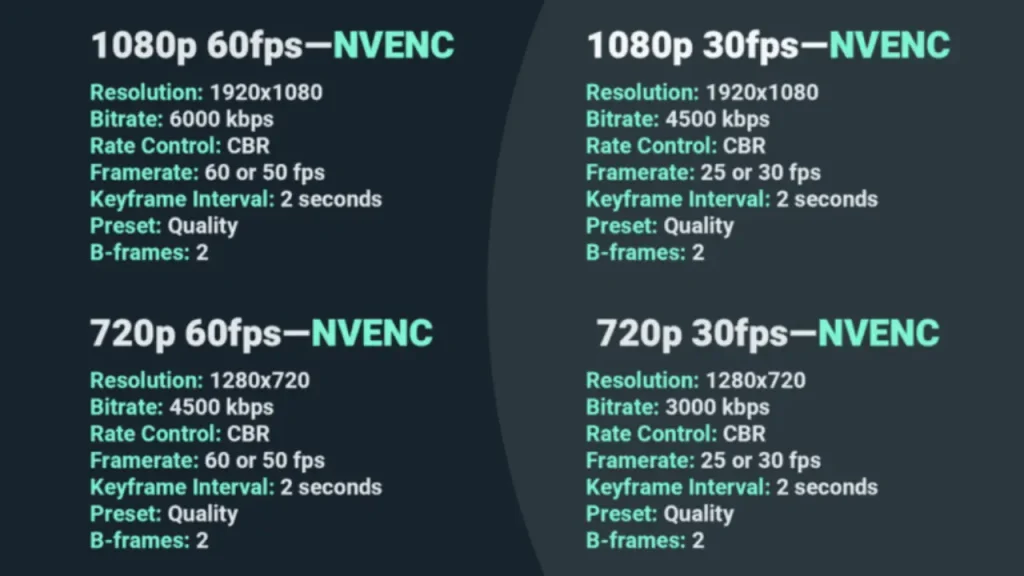
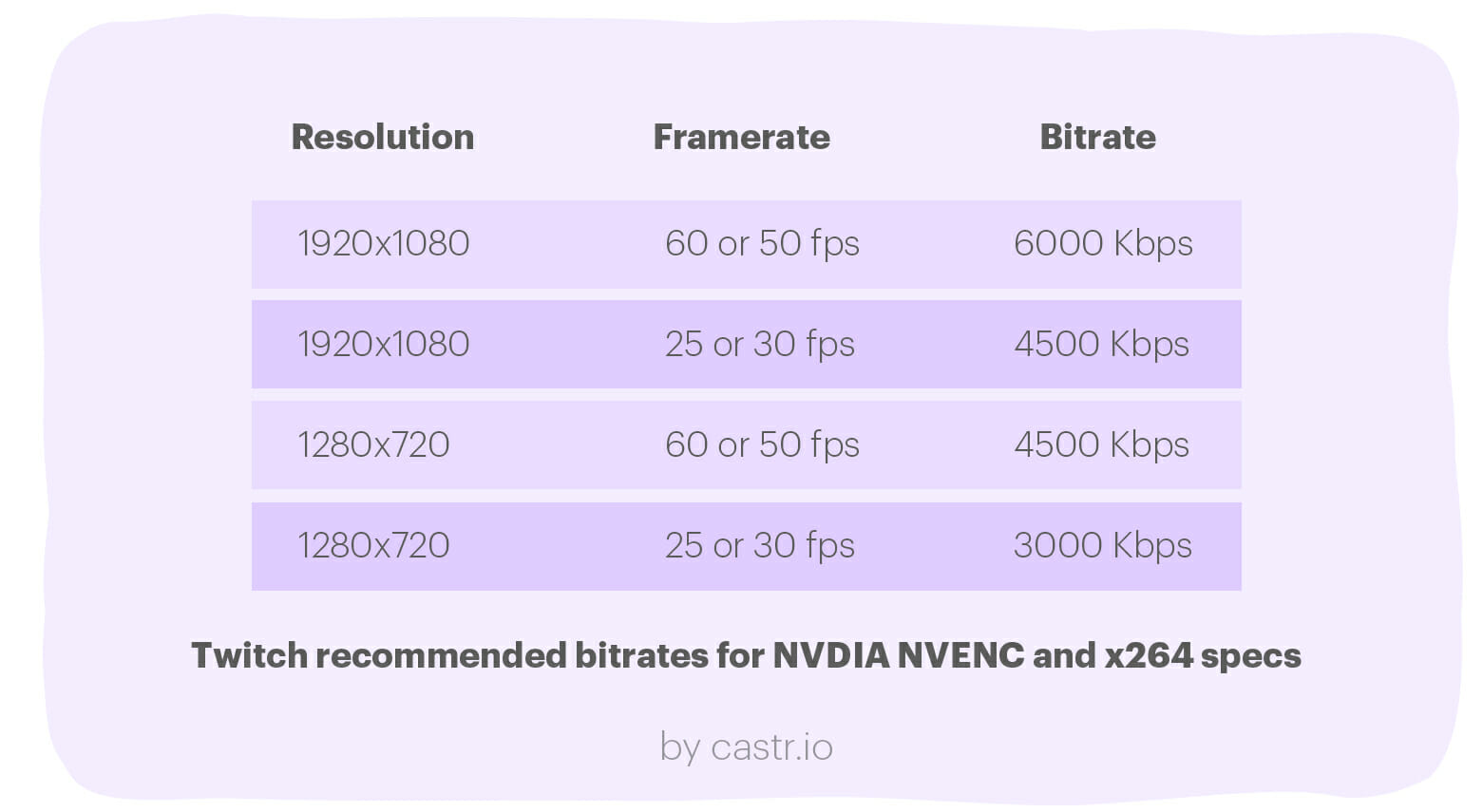
The bitrate and resolution settings are critical to achieving high-quality streams. Twitch recommends the following settings:
- Bitrate: 6000 kbps (or higher, depending on your internet connection)
- Resolution: 1080p (or higher, depending on your equipment)
- Frame rate: 60 FPS (or higher, depending on your equipment)
Audio Configuration
Configuring your audio settings is essential for high-quality streams. Make sure to:
- Use a high-quality microphone or audio input
- Configure the audio settings in OBS Studio (sample rate, bitrate, etc.)
- Test your audio levels to ensure they are optimal
Platform-Specific Settings
Twitch has specific settings for different platforms, including:
- Twitch Live
- Twitch VODs
- Twitch Clips
Conclusion
Setting up a high-quality stream on Twitch requires a good understanding of the technical aspects involved. By following this guide, you should be able to set up your stream for optimal performance and achieve high-quality streams. Remember to always check Twitch's ingest recommendations and platform-specific settings to ensure the best possible stream quality.