Take a Screenshot on Mac: A Comprehensive Guide
Takingscreenshotson Mac is a crucial skill for anyone who uses a Mac, from students to professionals. Whether you need to capture a full screen, a window, or a portion of the screen, this article will guide you through the various ways to take screenshots on a Mac.
Why Take Screenshots on Mac?
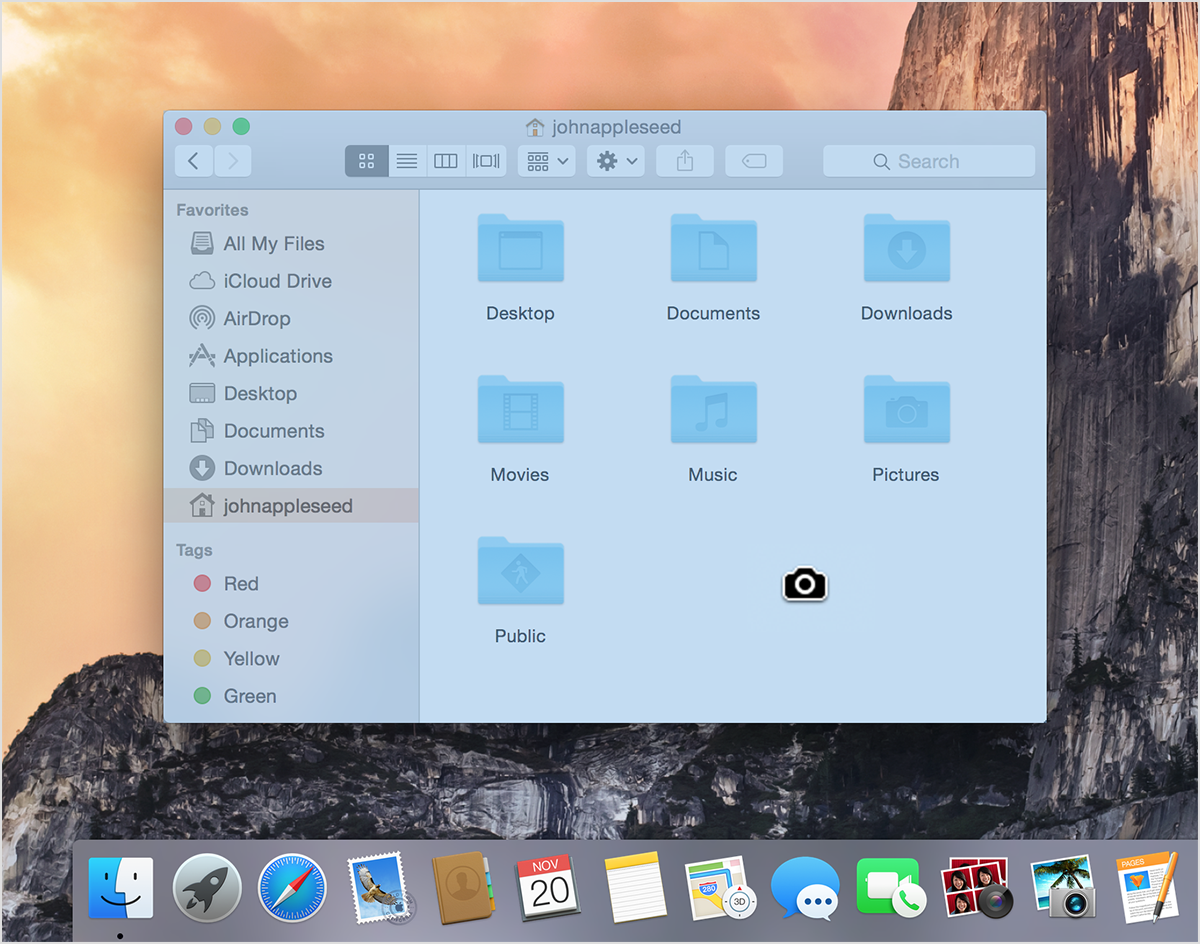
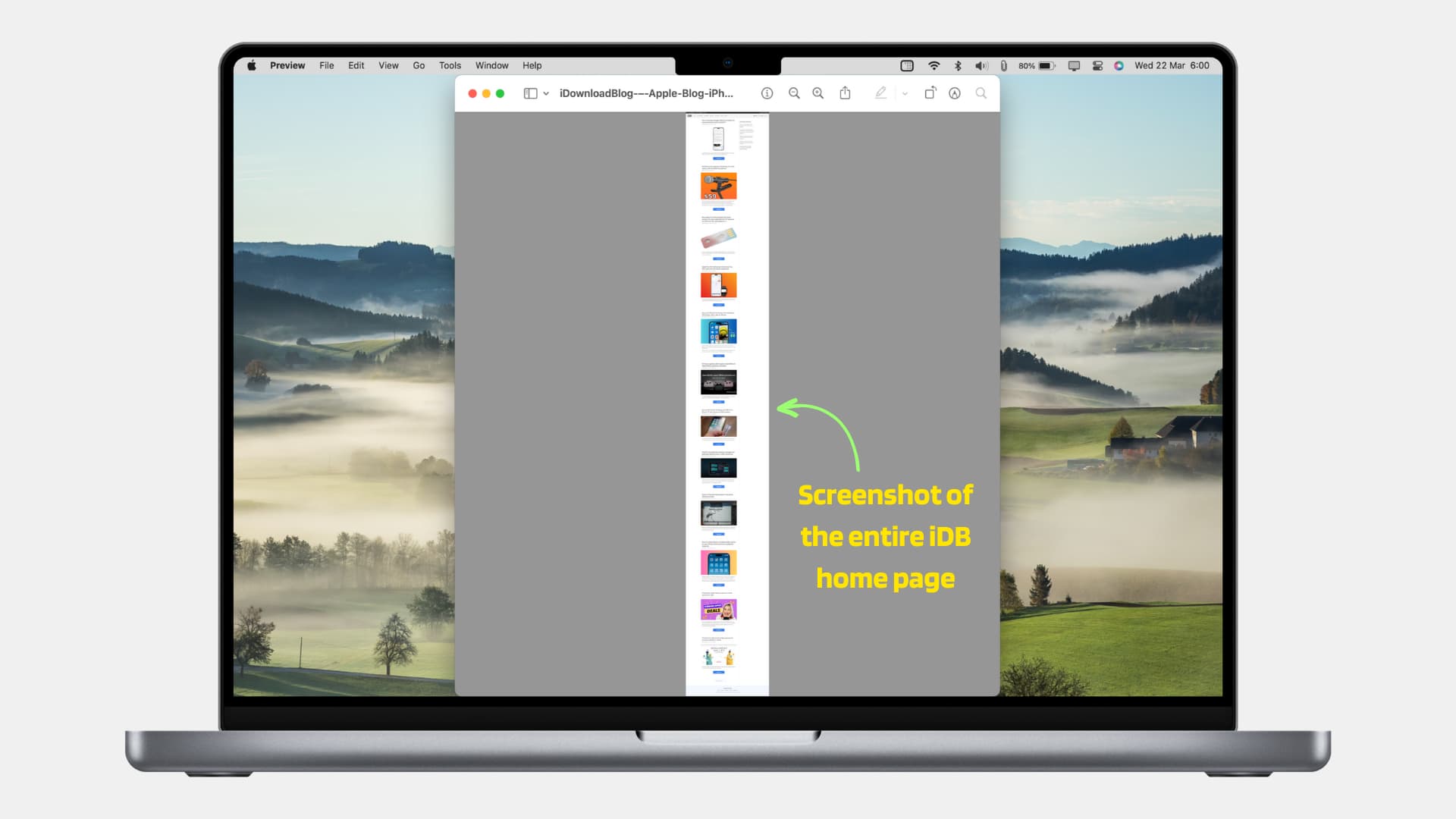
There are many reasons why you would want to take a screenshot on your Mac. For instance, you might need to capture a full screen to share with a colleague or a tutorial to explain a complex concept. Maybe you want to capture a specific window or menu to troubleshoot an issue, or perhaps you need to save a portion of the screen for a project. Whatever your reason, taking a screenshot on Mac is a straightforward process that can be done in various ways.
Keyboard Shortcuts to Take a Screenshot on Mac
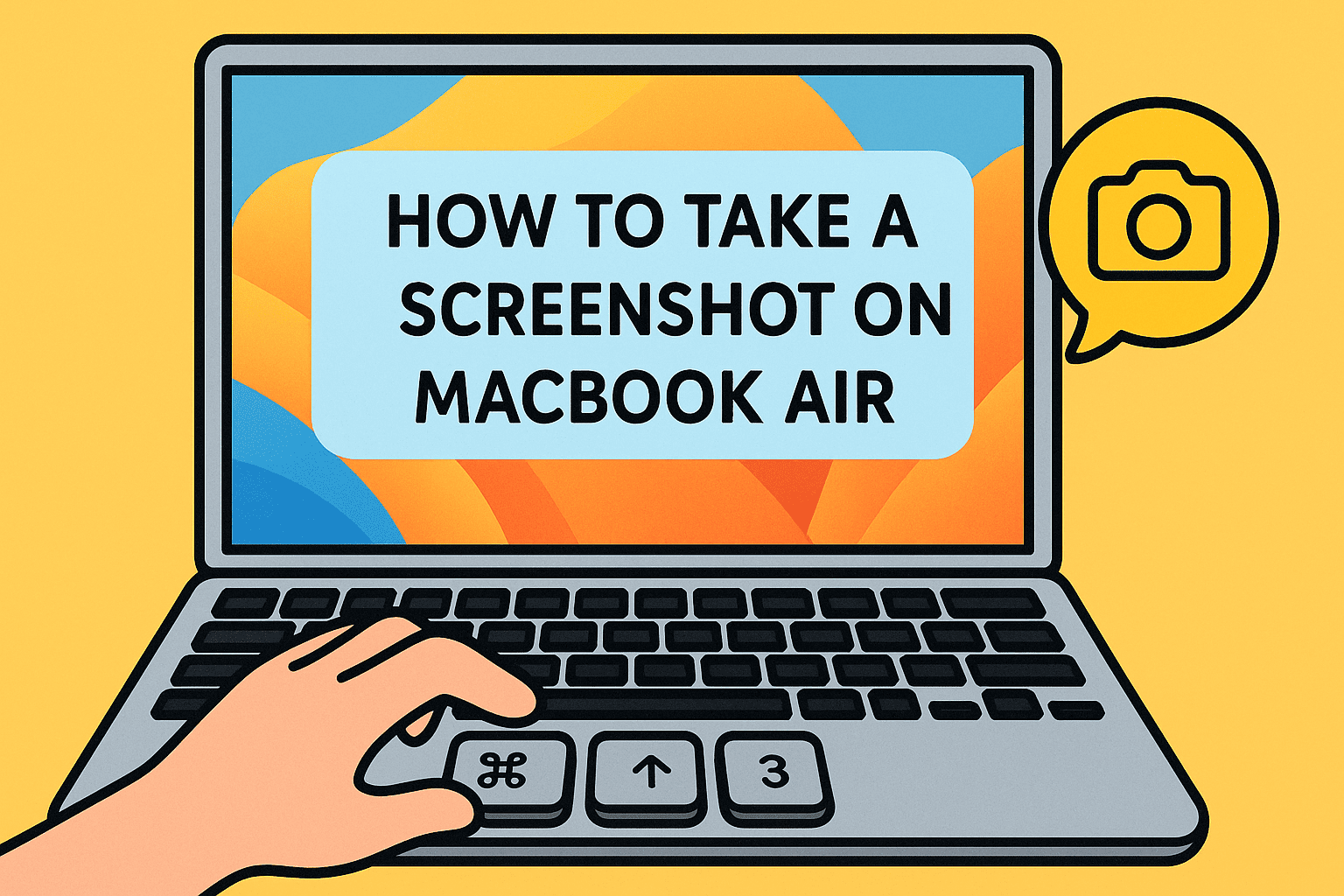
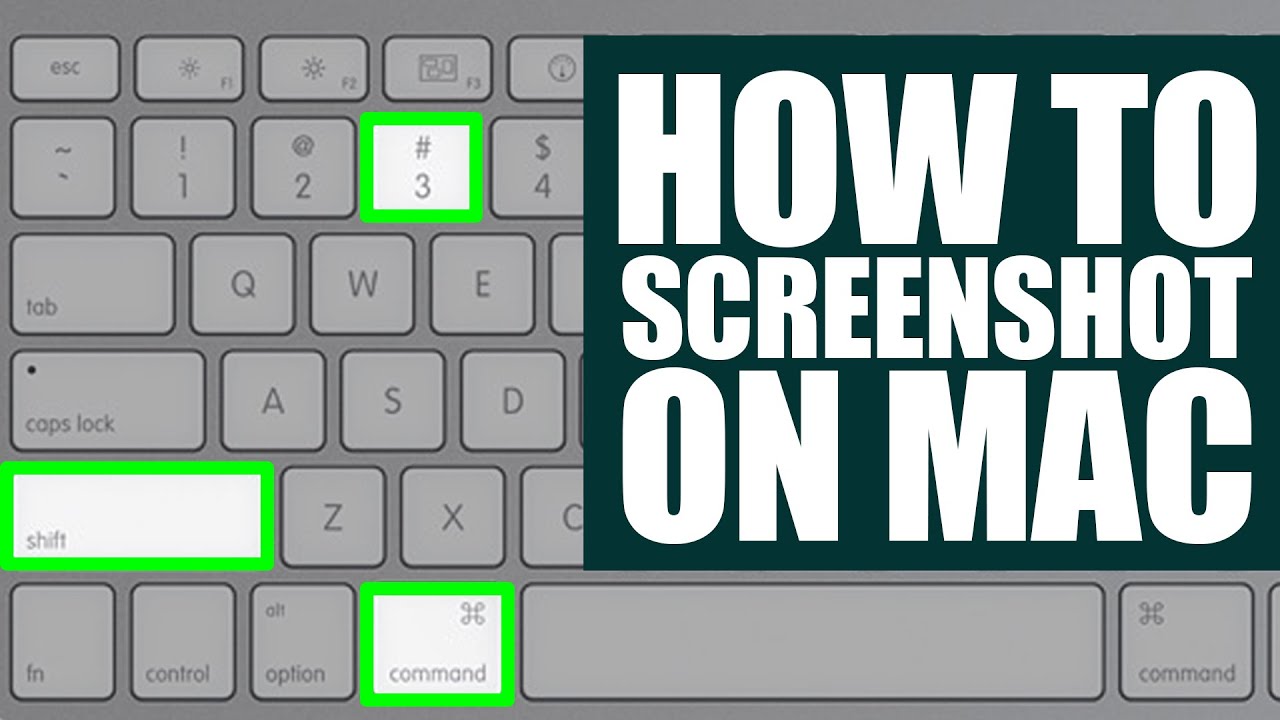
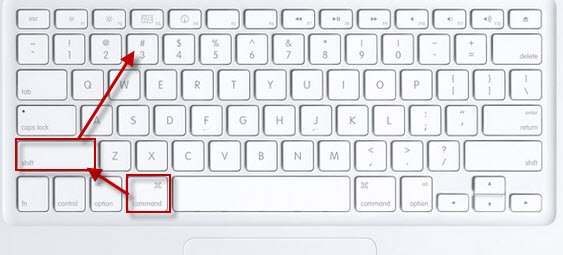
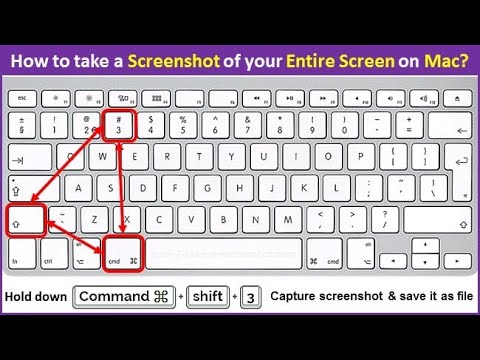
One of the quickest ways to take a screenshot on Mac is by using keyboard shortcuts. Here are the various shortcuts you can use to capture different types of screenshots:
- Shift-Command-3: Captures a screenshot of the entire screen
- Shift-Command-4: Captures a portion of the screen
- Shift-Command-4 and then select an area: Allows you to select a specific area of the screen to capture
- Shift-Command-4 and then press Space: Captures a screenshot of the window or menu
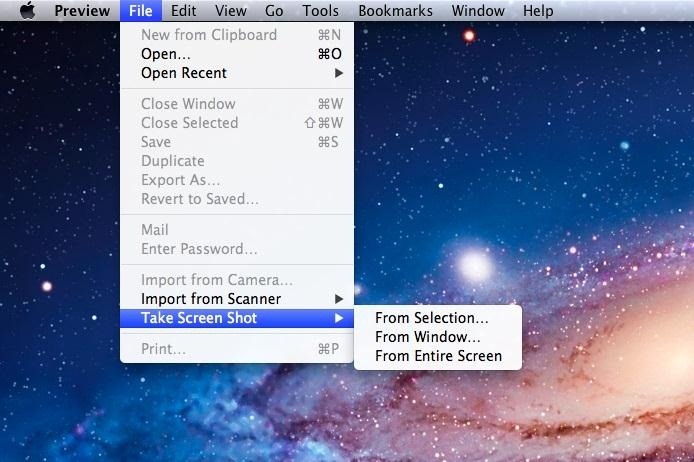
These keyboard shortcuts are available in all Macs running macOS 10.14 (Mojave) or later. If you're running an older version of macOS, you can still use these shortcuts, but you might need to adjust the screen capture tool to use the desired shortcut.
Screenshot App: A Powerful Screen Capture Tool
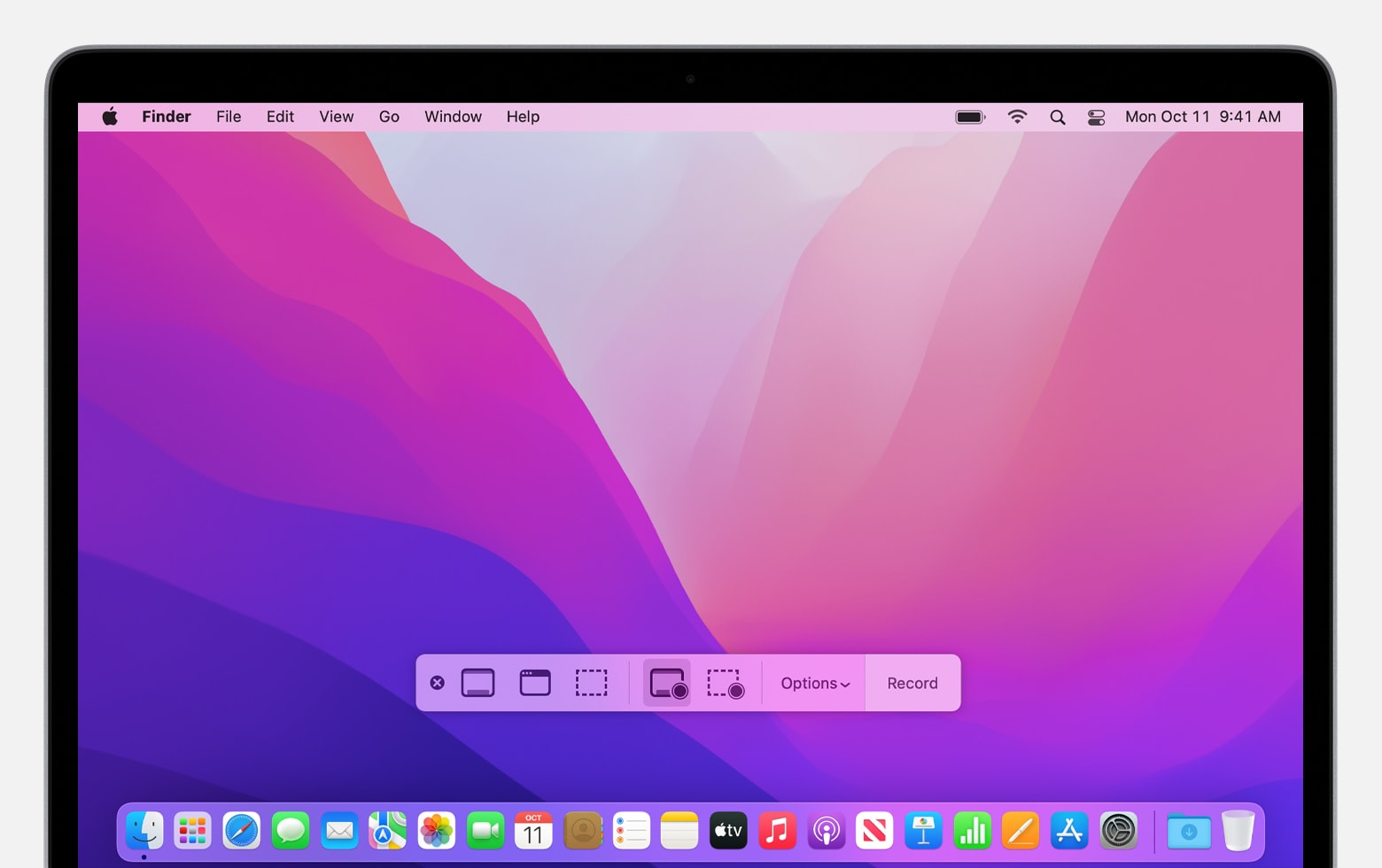
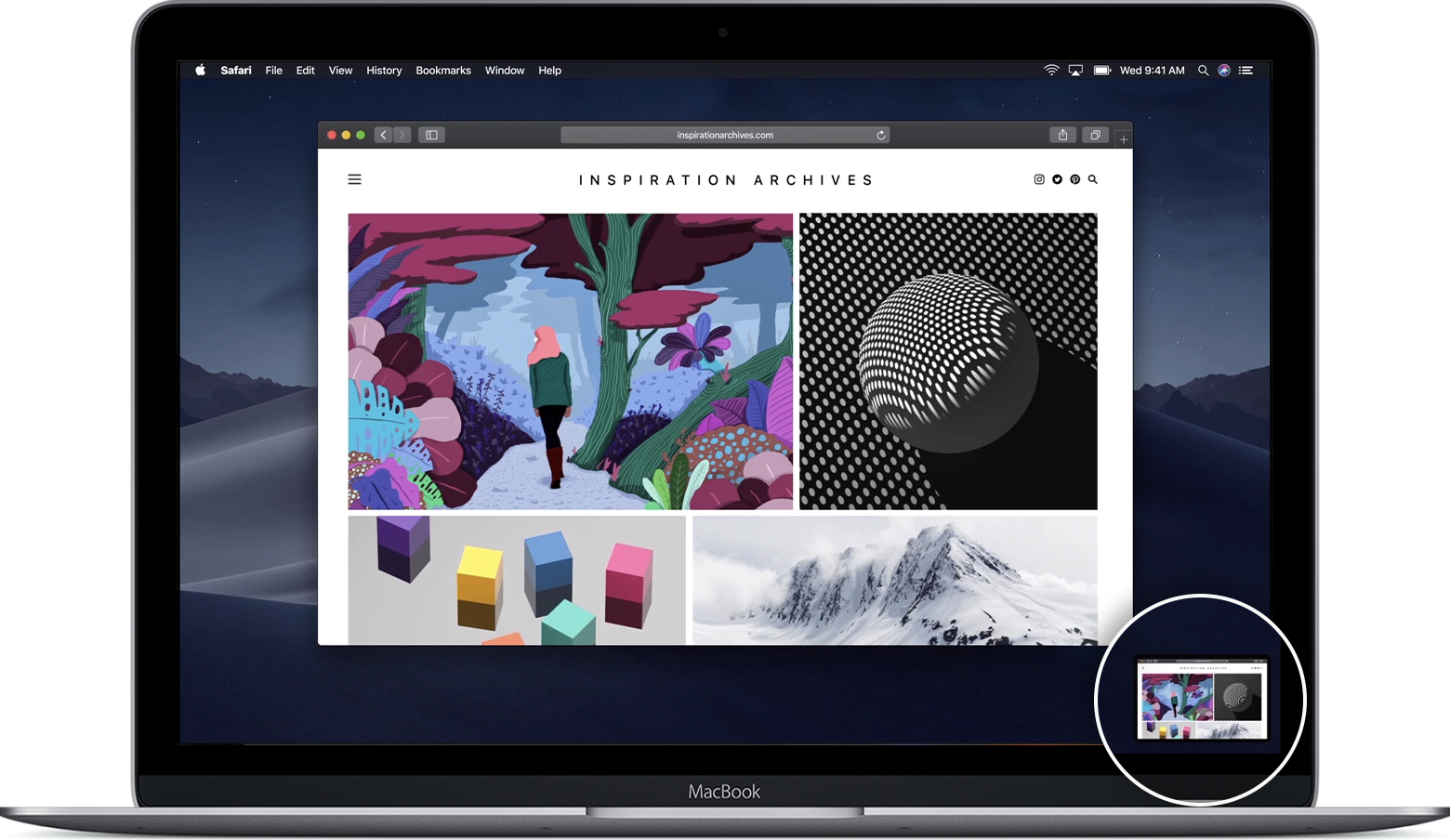
Since macOS Mojave, Apple has introduced a new screen capture interface that unifies the screenshot and screen recording features on Mac. The Screenshot app provides a panel of tools that let you easily take screenshots and screen recordings, with options to control what you capture.
With the Screenshot app, you can:
- Set a timer delay or a custom timer
- Include the pointer or clicks
- Save to a specific folder or use the built-in file browser
- Share directly to Mail, Messages, or other apps
Third-Party Screen Capture Tools
There are several third-party screen capture tools available for Mac that offer additional features and functionality. Some popular options include:
- Skitch: Offers image editing and annotation tools
- Snagit: Provides advanced image editing and capture features
- Flashback Express: Offers quick and easy screen capture and recording
These tools can be useful if you need more advanced features or specific tools to capture or edit your screenshots.
Conclusion
Taking a screenshot on Mac is a simple process that can be done in various ways. Whether you use keyboard shortcuts, the Screenshot app, or third-party tools, this article has provided you with the information and tools you need to capture perfect screenshots on your Mac.
Recommended Reading:
- Apple Support: Take a Screenshot on Your Mac
- Macworld: 6 Tips for Taking Screenshots on Your Mac
- LifeWire: How to Take a Screenshot on a Mac
Remember to check the list of keyboard shortcuts above to find the perfect way to capture your desired screenshot. Happy screenshotting!