Ways to Secure Laptop Wi-Fi Network
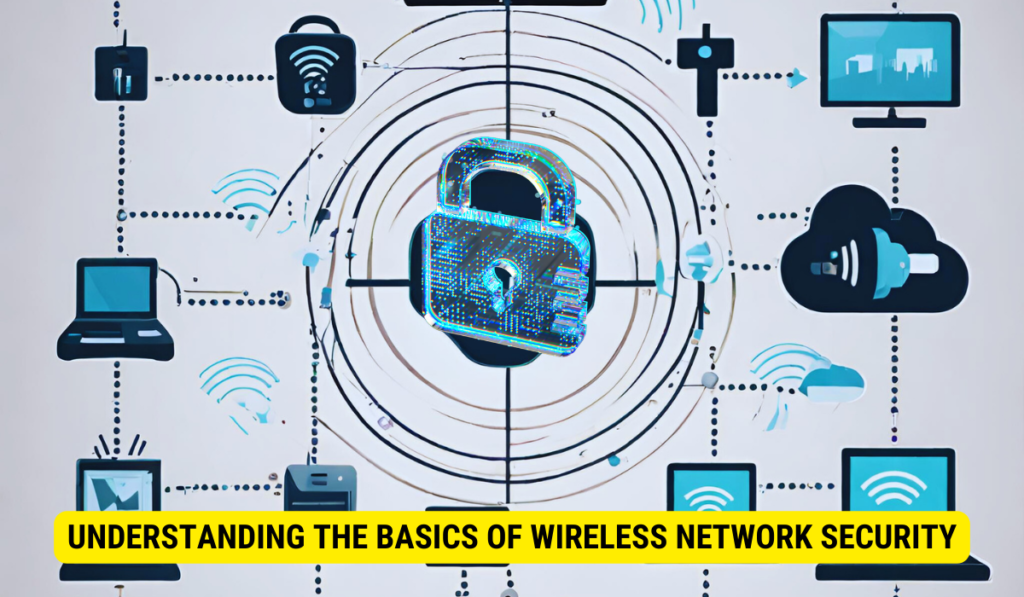
With the increasing reliance on wireless networks, securing your laptop's Wi-Fi network has become a top priority. Hackers and cybercriminals are constantly on the lookout for vulnerable networks to exploit, which can lead to theft of sensitive information, bandwidth, and even financial loss. In this article, we will explore the ways to secure your laptop Wi-Fi network and protect yourself from potential threats.
Why Secure Your Laptop Wi-Fi Network?
Your home network may have a range of wireless devices connected to it, including computers, phones, IP cameras, voice assistants, smart TVs, and connected appliances. Leaving your network unsecured can expose your devices to hacking attempts, resulting in stolen data, malware, and other cyber threats. By securing your Wi-Fi network, you can protect your devices and sensitive information from unauthorized access.
Ways to Secure Your Laptop Wi-Fi Network
1. Use WPA3 Encryption
WPA3 (Wi-Fi Protected Access 3) is the latest encryption protocol for wireless networks. It provides enhanced security features, including individualized data encryption and a more robust authentication process. To use WPA3 encryption, check if your router and devices support it, and follow the setup instructions provided by your router manufacturer.
2. Set a Strong Network Password
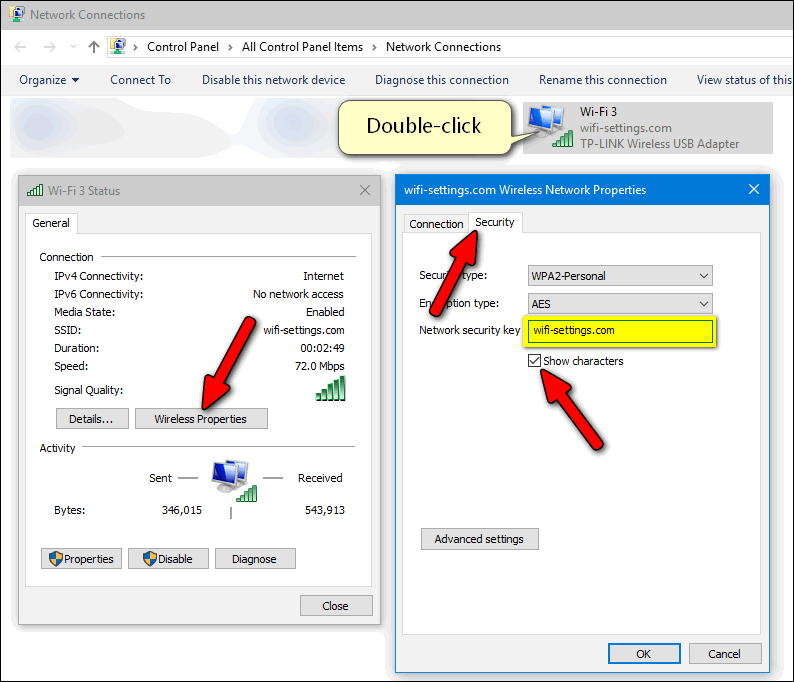
A strong network password is the first line of defense against unauthorized access. Use a combination of uppercase and lowercase letters, numbers, and special characters to create a password that is difficult to guess. Avoid using easily guessable information, such as your name, birthdate, or common words.
3. Enable Network Encryption
Network encryption is a crucial step in securing your laptop Wi-Fi network. Enable WPA2 or WPA3 encryption on your router to protect your network from eavesdropping and tampering.
4. Regularly Update Your Router's Firmware
Router firmware updates often include security patches and bug fixes. Regularly update your router's firmware to ensure you have the latest security features and protection against known vulnerabilities.
5. Change Your Network Name and Password Regularly
Change your network name and password regularly to prevent unauthorized access. A strong network name and password can help prevent hackers from easily accessing your network.
6. Use a VPN (Virtual Private Network)
A VPN creates a secure, encrypted connection between your laptop and the internet. This prevents hackers from intercepting your data and protects your identity online.
7. Limit Network Access
Limited network access means restricting access to your network to only authorized devices. Use MAC address filtering or guest networks to limit access to your network.
8. Use a Network Scanner
A network scanner can help you identify and remove devices that are not authorized to access your network.
9. Monitor Your Network Activity
Monitor your network activity regularly to detect any suspicious activity. Use network monitoring tools to identify potential security threats and take action to prevent them.
10. Use Two-Factor Authentication
Two-factor authentication adds an extra layer of security to your network. Require a second form of verification, such as a password or biometric data, to access your network.
Conclusion
Securing your laptop Wi-Fi network is crucial in today's digital landscape. By following the ways outlined in this article, you can protect your devices and sensitive information from unauthorized access and cyber threats. Regularly update your router's firmware, use WPA3 encryption, and change your network name and password regularly to ensure your network remains secure.
Additional Resources
For more information on securing your laptop Wi-Fi network, check out the following resources:





.png "Setting up a wireless network in Windows - Microsoft Support")