How to Troubleshoot WiFi Connectivity Issues: A Step-by-Step Guide
Are you tired of dealing with WiFi connectivity issues? Do you struggle to maintain a stable internet connection? You're not alone. WiFi connectivity problems are common, but they can be easily resolved with the right troubleshooting steps. In this guide, we'll walk you through the process of identifying and fixing common WiFi connectivity issues.
Step 1: Check Your WiFi Network
Before you start troubleshooting, ensure that your WiFi network is active and working on other devices. Check the following:
- Make sure your router is turned on and the lights are flashing.
- Check if other devices, such as smartphones or laptops, can connect to your WiFi network.
- Verify that your WiFi password is correct and that you're using the correct network name (SSID).
Step 2: Restart Your Router
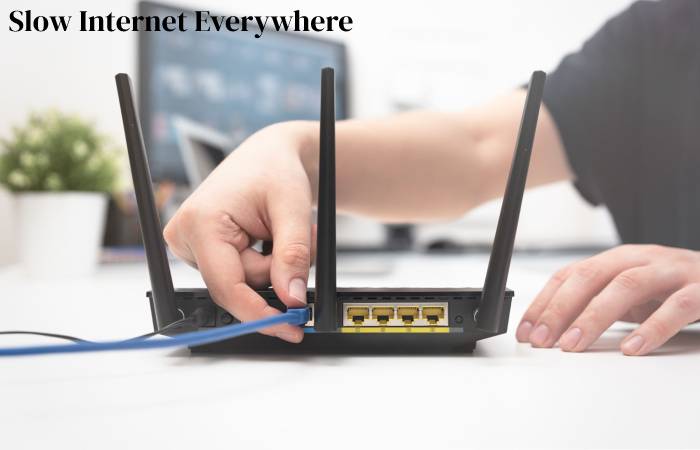
Restarting your router is often the simplest solution to WiFi connectivity issues. Power off your router, wait 30 seconds, and then turn it back on. This will reset the router and may resolve any connectivity problems.
Step 3: Check for Interference
Interference from other devices or physical obstructions can cause WiFi connectivity issues. Check the following:
- Other wireless devices, such as cordless phones or microwaves, may be interfering with your WiFi signal.
- Physical obstructions, such as walls or furniture, may be blocking the WiFi signal.
Step 4: Update Your Router's Firmware
Outdated router firmware can cause WiFi connectivity issues. Check your router's firmware and update it to the latest version if necessary.
Step 5: Check for Malware
Malware can cause WiFi connectivity issues by interfering with your internet connection. Run a virus scan on your device to detect and remove any malware.
Step 6: Check Your Internet Service Provider (ISP)
Issues with your ISP can cause WiFi connectivity problems. Contact your ISP to check for any outages or maintenance in your area.
Step 7: Reset Your WiFi Settings

Resetting your WiFi settings can resolve connectivity issues. Check your device's settings and reset the WiFi settings to their default values.
Step 8: Contact Your ISP or Router Manufacturer
If none of the above steps resolve the issue, contact your ISP or router manufacturer for further assistance. They may be able to provide additional troubleshooting steps or repair your device.
Common WiFi Connectivity Issues and How to Troubleshoot Them
The following are some common WiFi connectivity issues and how to troubleshoot them:
Slow WiFi Speeds
Solution: Check for interference, update your router's firmware, and optimize your WiFi settings.
WiFi Network Not Found
Solution: Check your WiFi password, ensure your router is turned on, and verify your network name (SSID).
WiFi Connection Drops
Solution: Check for interference, update your router's firmware, and optimize your WiFi settings.
WiFi Connectivity Issues with IoT Devices
Solution: Check the device's settings, ensure the device is connected to the correct network, and reset the device's WiFi settings.
Conclusion
WiFi connectivity issues can be frustrating, but they can be easily resolved with the right troubleshooting steps. By following the steps outlined in this guide, you can identify and fix common WiFi connectivity issues and maintain a stable internet connection. Remember to check for interference, update your router's firmware, and optimize your WiFi settings to ensure a smooth online experience.