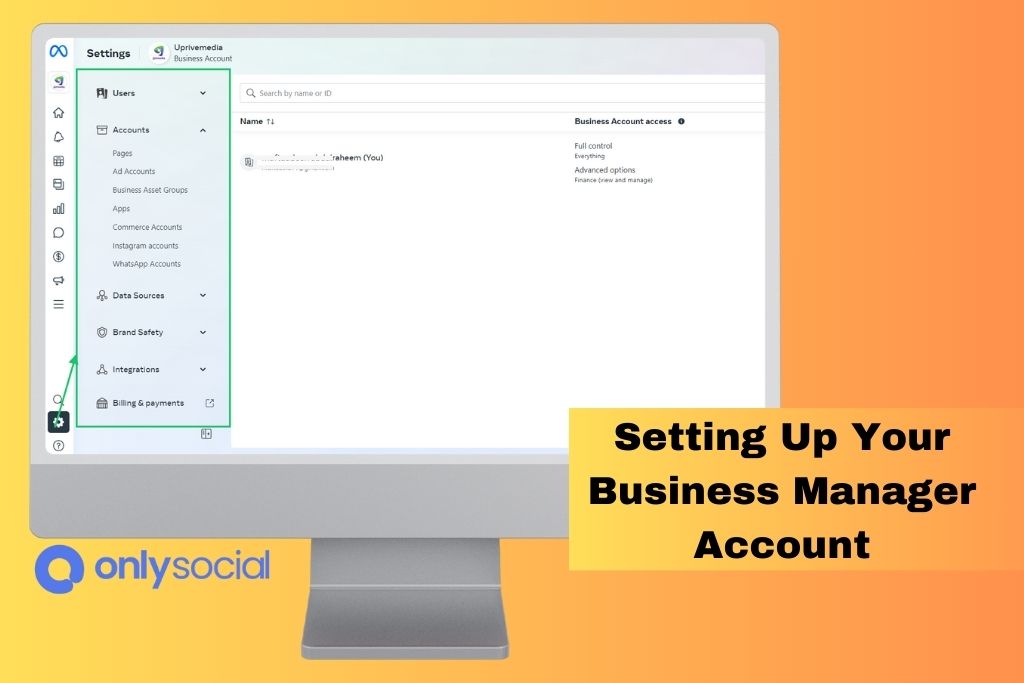
How to Set Up Facebook Business Manager: A Comprehensive Guide
As a business owner or marketing professional, managing multiple social media accounts and campaigns can be overwhelming. That's where Facebook Business Manager comes in – a centralized platform that allows you to manage all your Facebook and Instagram assets in one place. In this article, we'll take you through a step-by-step guide on how to set up Facebook Business Manager for your brand.
Benefits of Using Meta Business Manager
Facebook Business Manager, also known as Meta Business Manager, offers several benefits for businesses. With this platform, you can:
- Centralize your Facebook and Instagram management in one place
- Manage multiple ad accounts and campaigns
- Track your business's performance with analytics and insights
Why Businesses Should Use Meta Business Manager
Meta Business Manager is an essential tool for businesses that want to streamline their social media management and marketing efforts. By setting up Facebook Business Manager, you can:
- Save time and effort on managing multiple social media accounts
- Improve your team's collaboration and productivity
- Gain better insights into your business's performance and growth
- Scale your marketing efforts with ease
Step-by-Step Guide to Setting Up Facebook Business Manager
Setting up Facebook Business Manager is a straightforward process that involves the following steps:
Step 1: Create a Business Manager Account
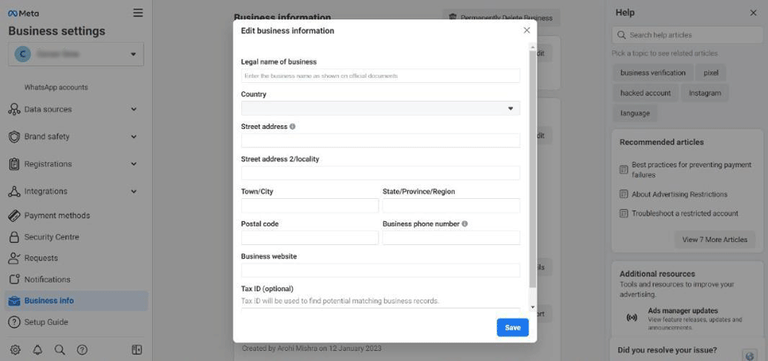
To get started, you need to create a Business Manager account. Go to business.facebook.com and click on "Create New Business Manager" to get started. You'll need to provide some basic information about your business, such as your name, email address, and password.
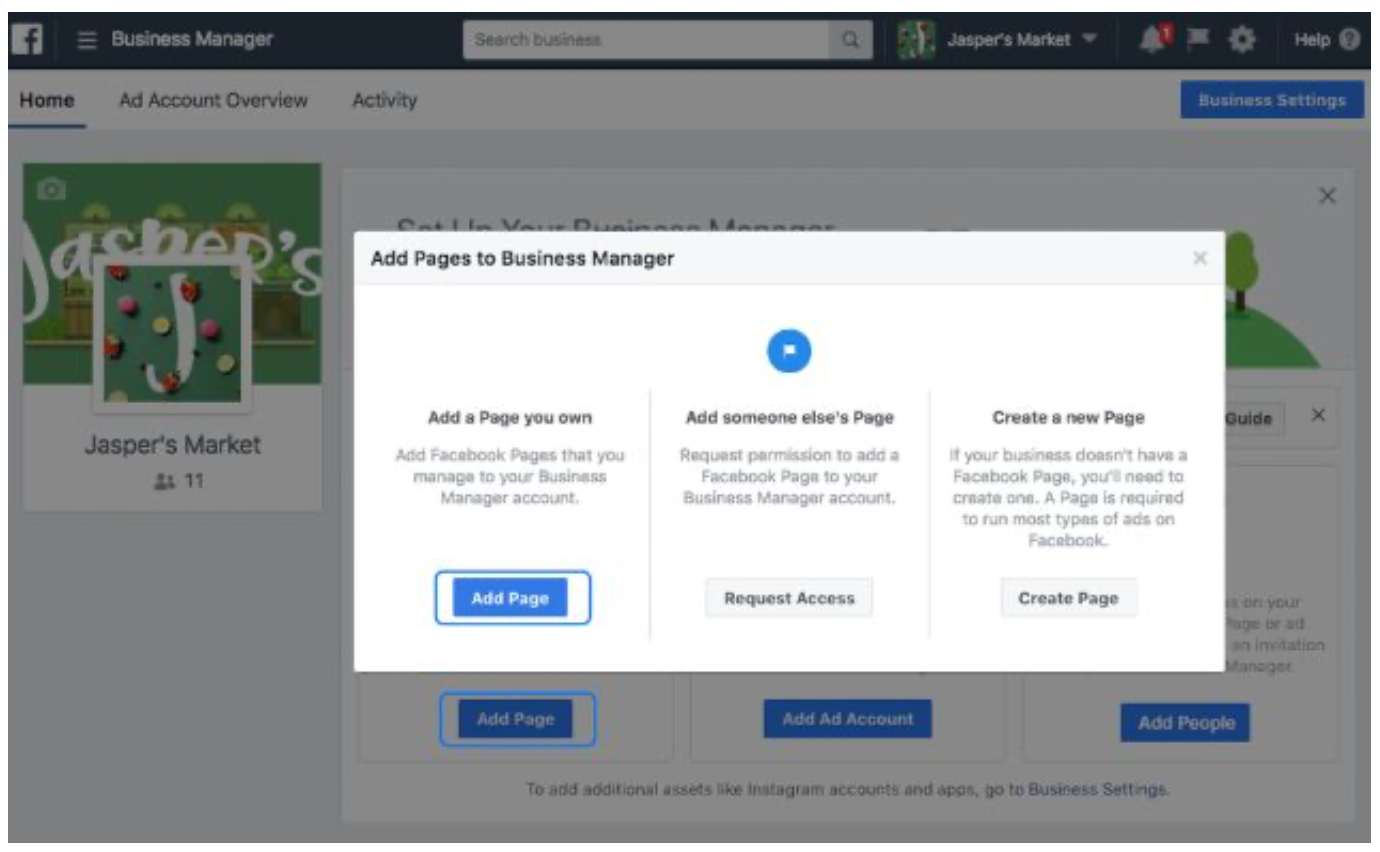
Step 2: Set Up Your Facebook Pages
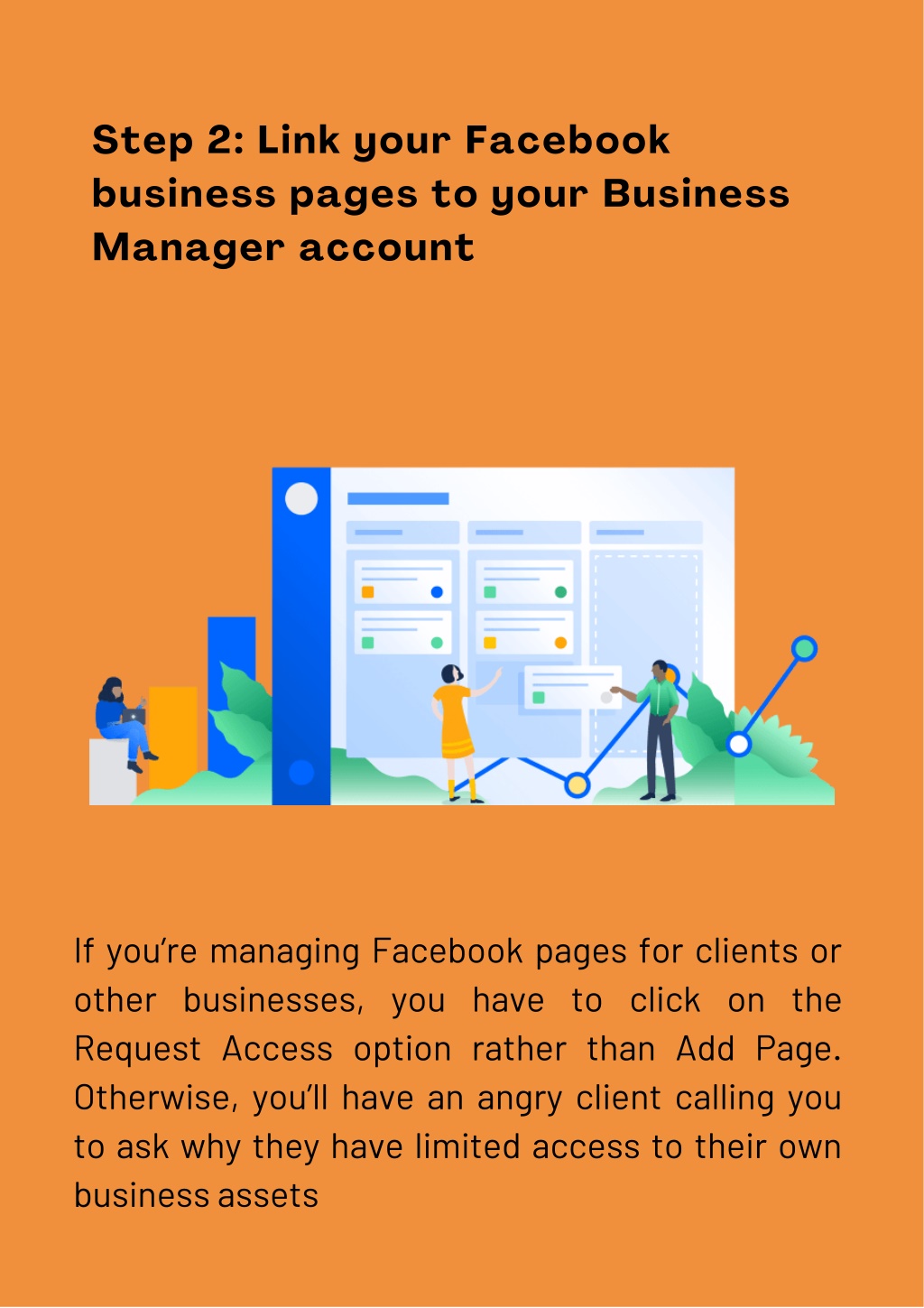
Once you've created your Business Manager account, you'll need to set up your Facebook pages. Go to facebook.com and create a new page for your business. You can use this page to share updates, promotions, and other content with your audience.
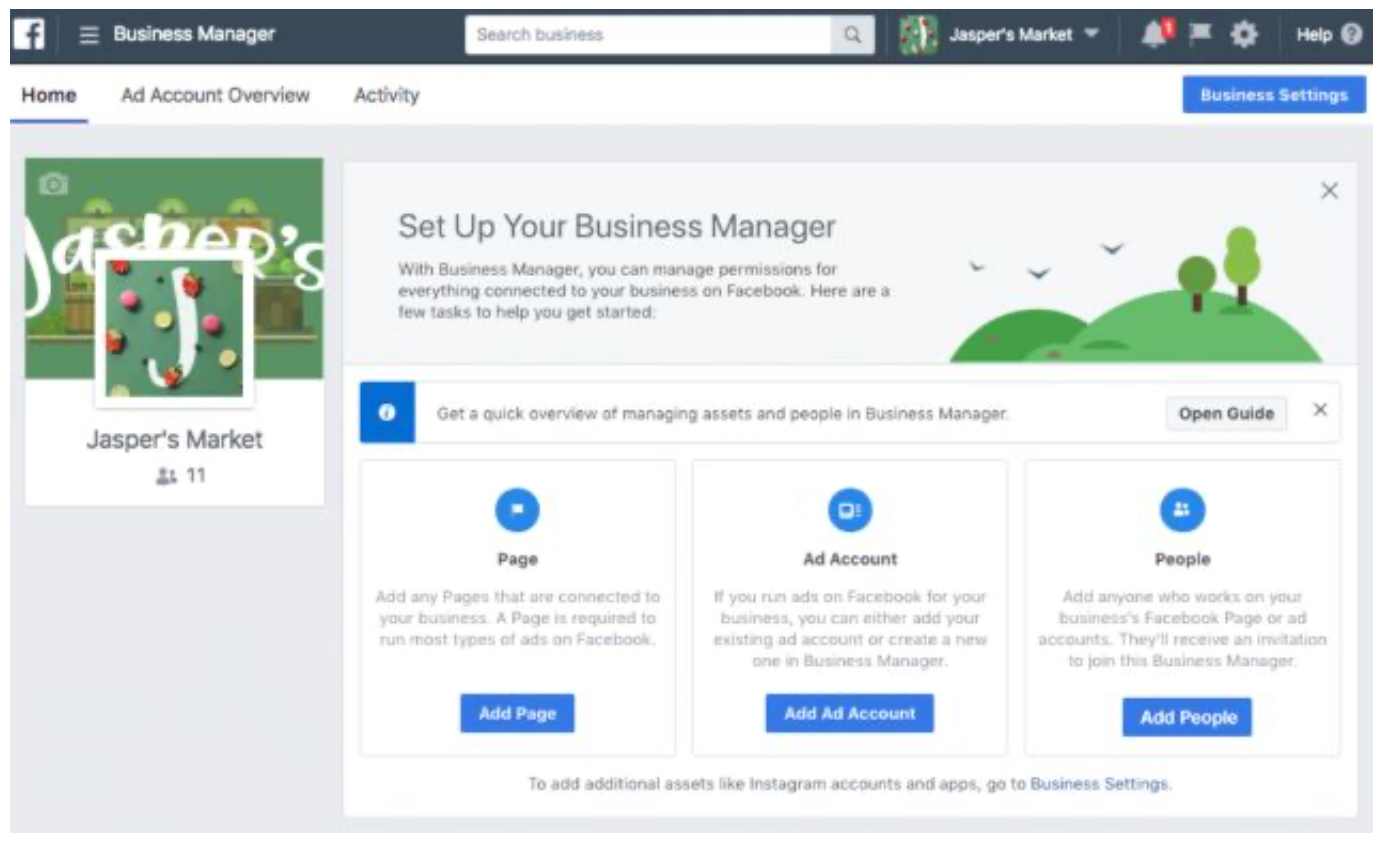
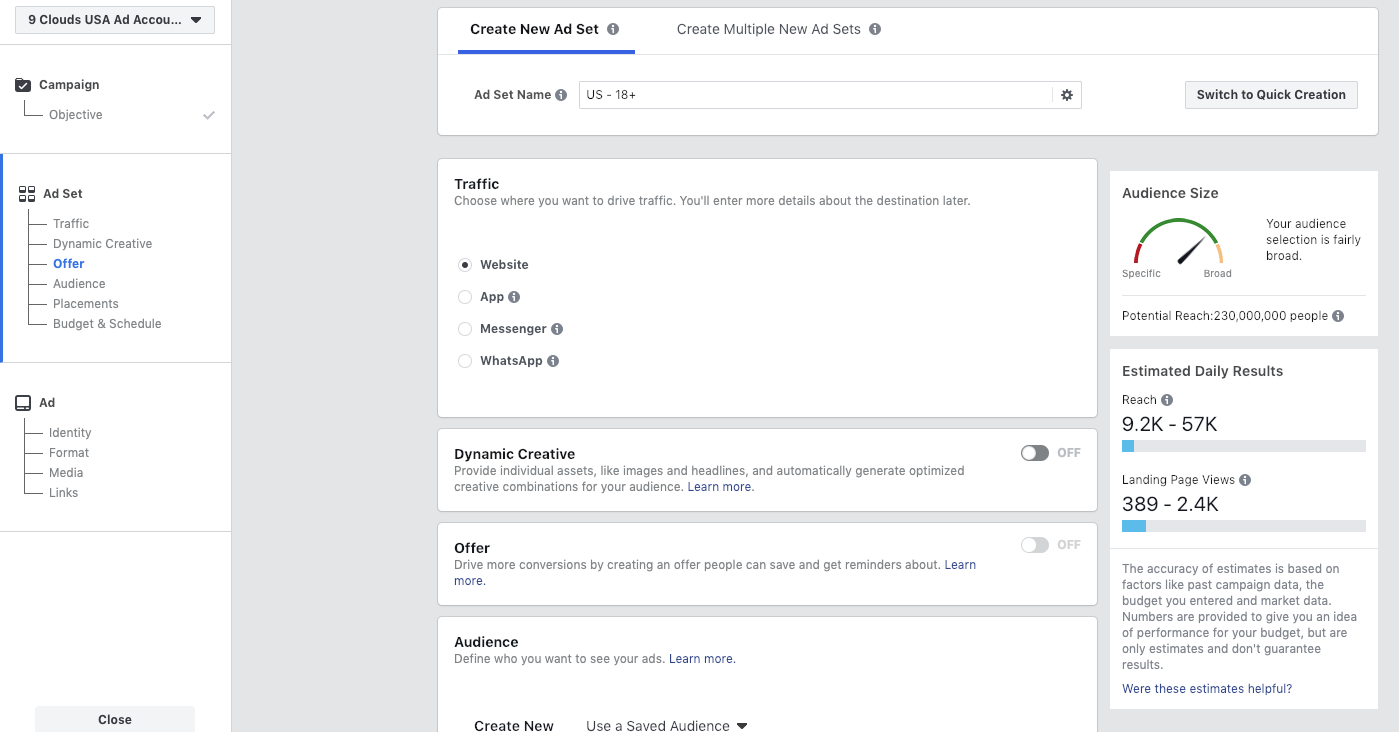
Step 3: Create a Facebook Ad Account
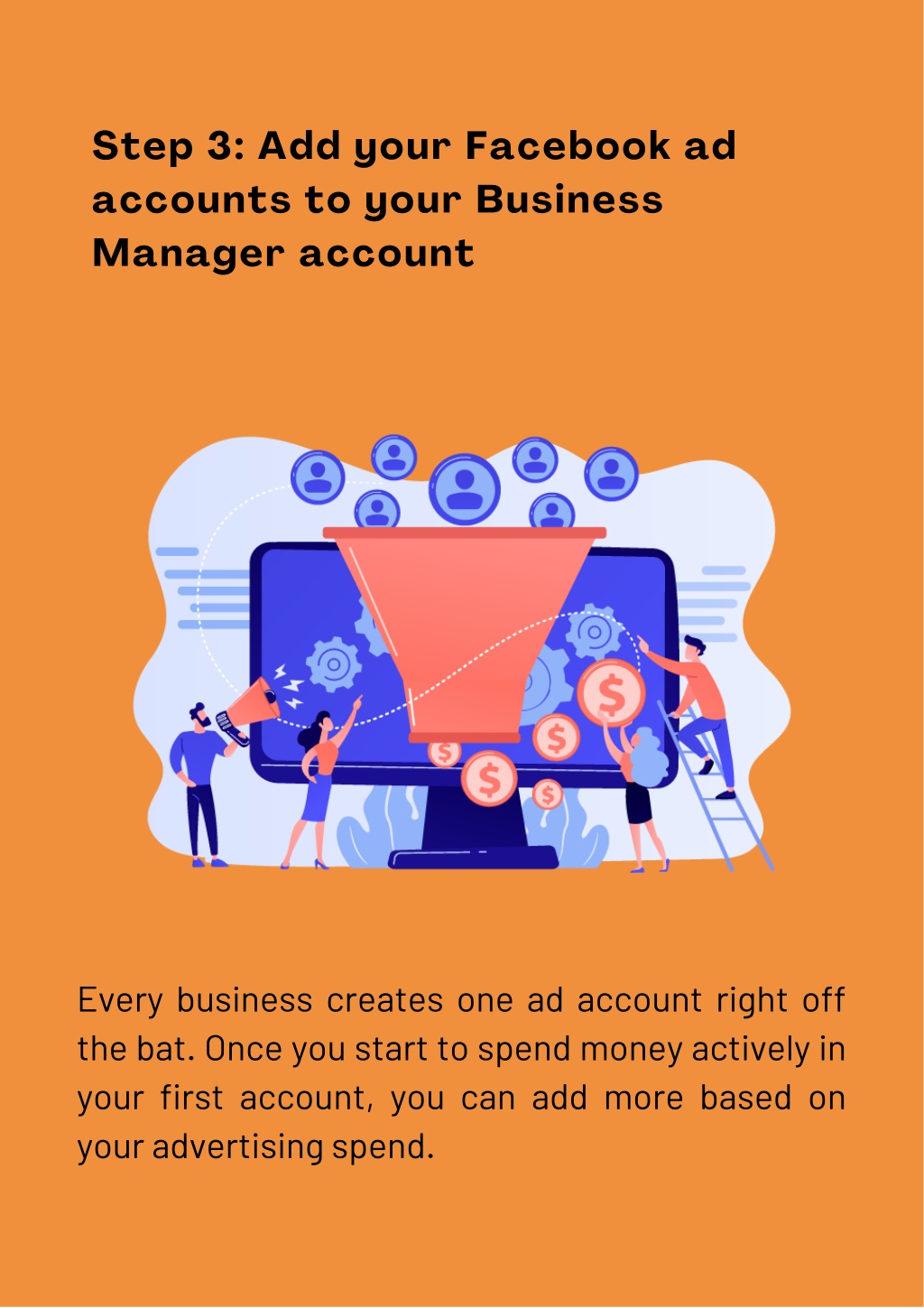
Next, you'll need to create a Facebook ad account. This will allow you to start running ads and reaching your target audience. To create a new ad account, go to ads.facebook.com and follow the prompts to set up your account.
Step 4: Give Access to Employees and Team Members
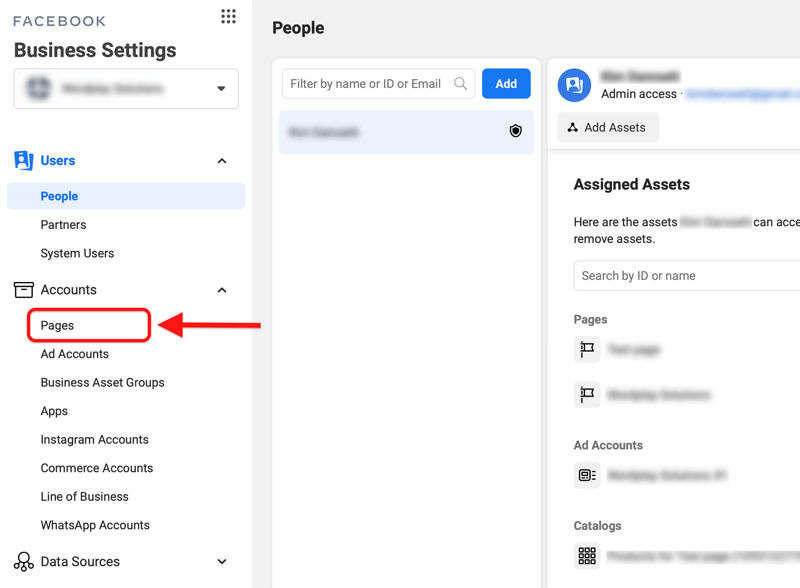
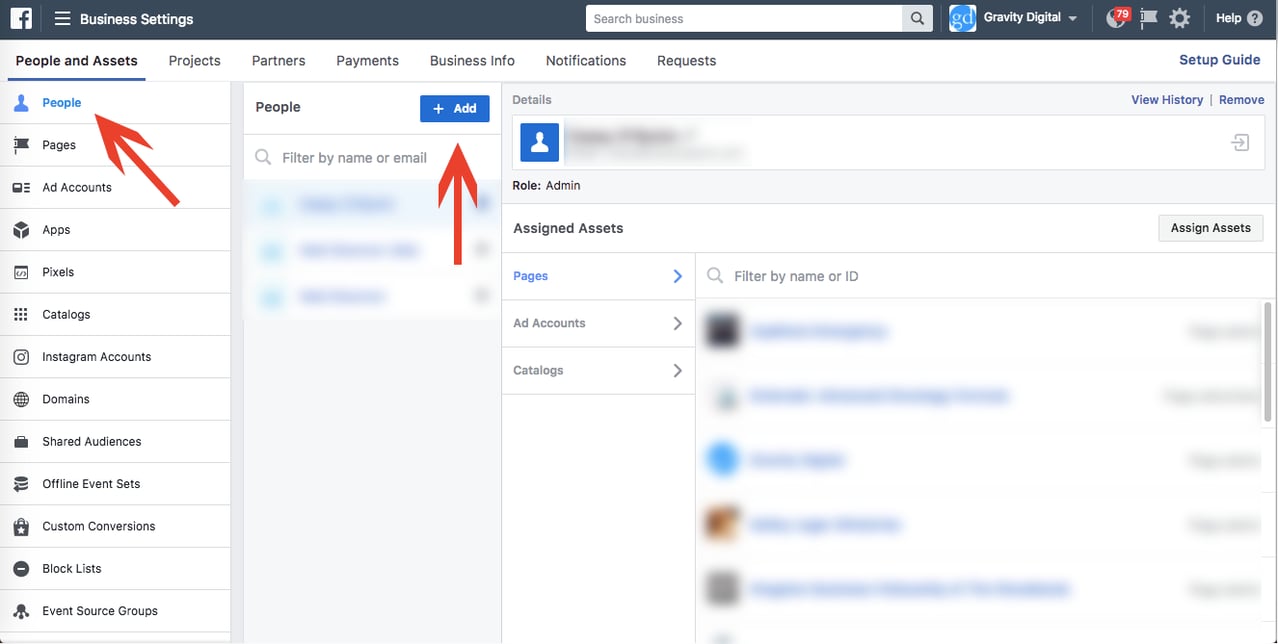
Once you've set up your Business Manager account, pages, and ad account, you'll need to give access to your employees and team members. To do this, go to the "People" tab within Business Manager and invite your team members to join. You can control their access and permissions within the platform.
Step 5: Integrate with Other Meta Tools and Platforms
Finally, you can integrate your Business Manager account with other Meta tools and platforms, such as Meta Ads Manager, Commerce Manager, and more. This will allow you to access additional features and insights to help you grow your business.
Conclusion
Setting up Facebook Business Manager is a straightforward process that can help you streamline your social media management and marketing efforts. By following these steps, you can create a centralized platform for managing all your Facebook and Instagram assets, save time and effort, and gain better insights into your business's performance. Whether you're a small business or a large enterprise, Meta Business Manager is an essential tool for any business looking to succeed on social media.