How to Set Up a Router: A Step-by-Step Guide
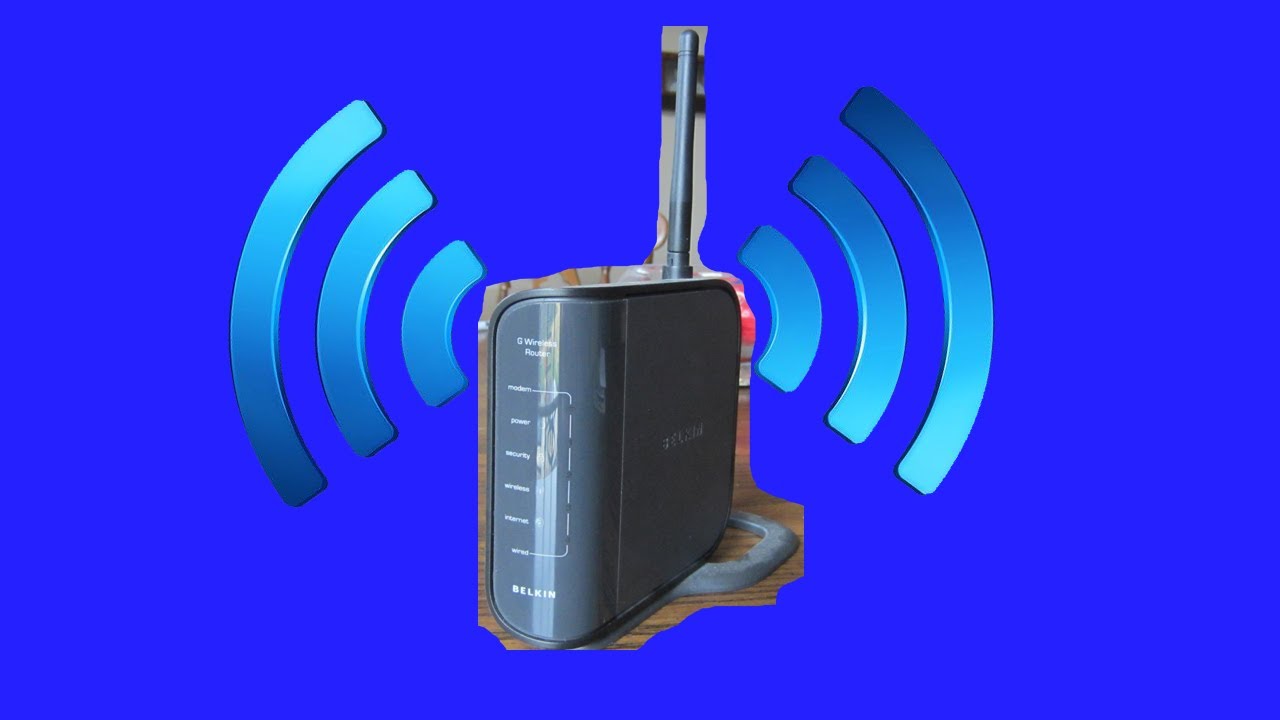
Getting your new wireless router setup doesn't need to be complicated. With a few simple steps, you can have your home network up and running in no time. In this article, we'll walk you through the process of setting up a router, from unboxing to configuring your network security.
Step 1: Unboxing and Physical Setup
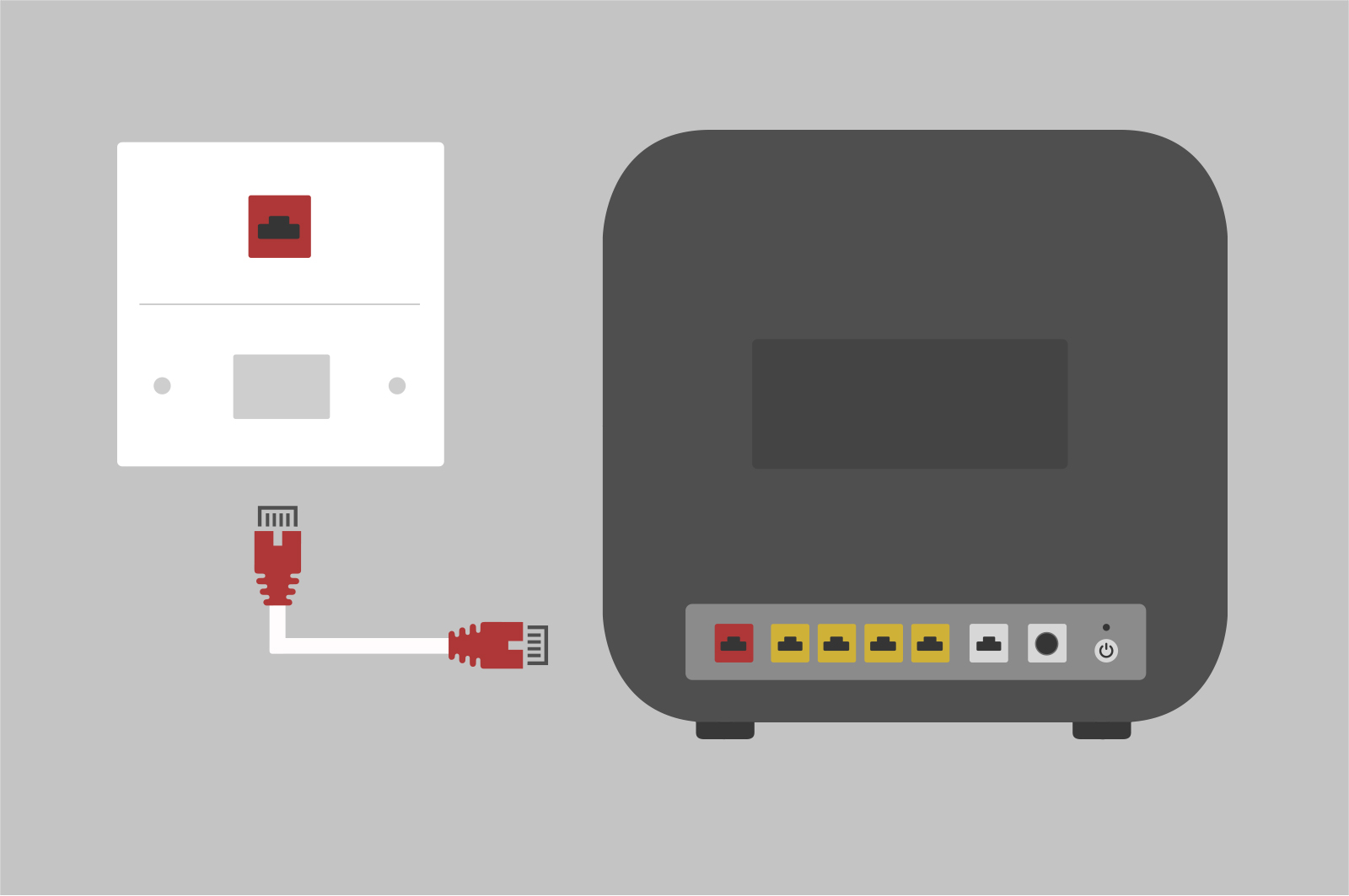
First, take your router out of the box and locate the following components:
- Routers
- Power cord
- Ethernet cable
- Antenna (if applicable)
Next, place your router in a central location in your home, away from walls and other obstructions that could interfere with the signal.
Step 2: Powering On and Initial Configuration
Plug in the power cord and turn on your router. You'll typically find the power button on the back or bottom of the device. The lights on the router will start blinking, indicating that it's booting up.
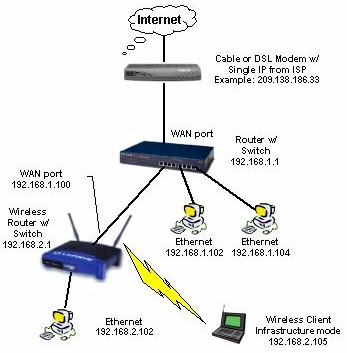
Once the router is on, open a web browser and type the router's IP address (usually 192.168.0.1 or 192.168.1.1) to access the web interface. Log in with the default admin credentials (usually admin and password).
Step 3: Setting Up the Wireless Network
In the web interface, navigate to the wireless settings and set up your network name (SSID) and password. Make sure to choose a strong and unique password to secure your network.
- Set the SSID (network name)
- Set the wireless channel
- Enable or disable WPA2 encryption
- Set up the password (WPA2 key)
Step 4: Configuring Network Security
Now that your wireless network is set up, it's time to configure your network security settings. In the web interface, navigate to the security settings and:
- Set up firewall rules
- Enable or disable WPS (Wi-Fi Protected Setup)
- Set up VPN settings (if applicable)
- Set up guest network settings (if applicable)

Step 5: Testing and Optimization
With your router set up and configured, it's time to test and optimize your network. Use a tool like Wi-Fi Analyzer to test your signal strength and optimize your channel settings.
Step 6: Updating Firmware and Backing Up Settings
Finally, make sure to update your router's firmware to the latest version and back up your settings in case you need to reset your router in the future.
Conclusion
Setting up a router can seem intimidating, but with these step-by-step instructions, you can have your home network up and running in no time. Remember to choose a strong and unique password, configure your network security settings, and update your firmware regularly to ensure optimal performance and security.
Frequently Asked Questions
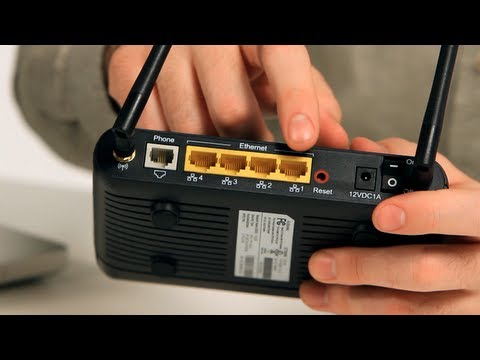
Q: How do I reset my router to its factory settings? A: To reset your router to its factory settings, press and hold the reset button on the back of the device for 10 seconds.
Q: How do I change my router's wireless channel? A: To change your router's wireless channel, navigate to the wireless settings in the web interface and select a new channel from the dropdown menu.
Q: How do I secure my wireless network? A: To secure your wireless network, set up a strong and unique password, enable WPA2 encryption, and configure firewall rules and VPN settings.
Resources
For more information on setting up a router, check out the following resources:
- Manufacturer's documentation and support pages
- Online forums and communities (e.g. Reddit's r/HomeNetworking)
- YouTube tutorials and video guides


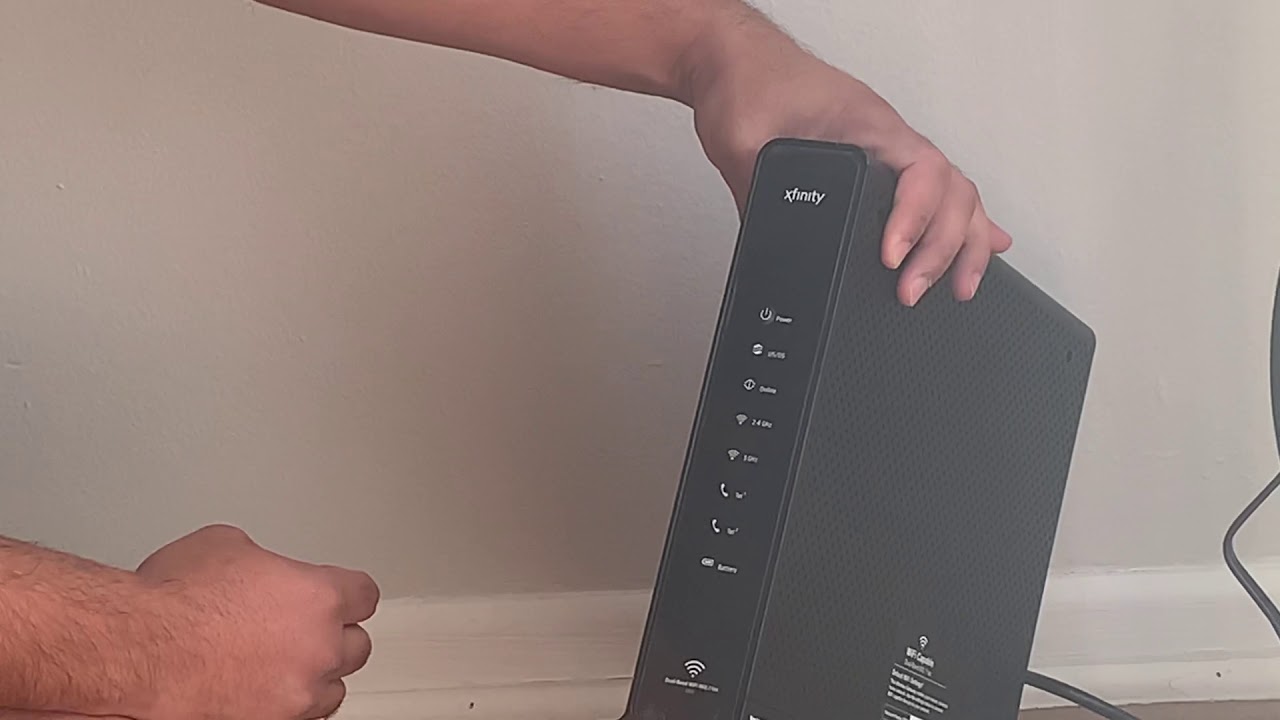

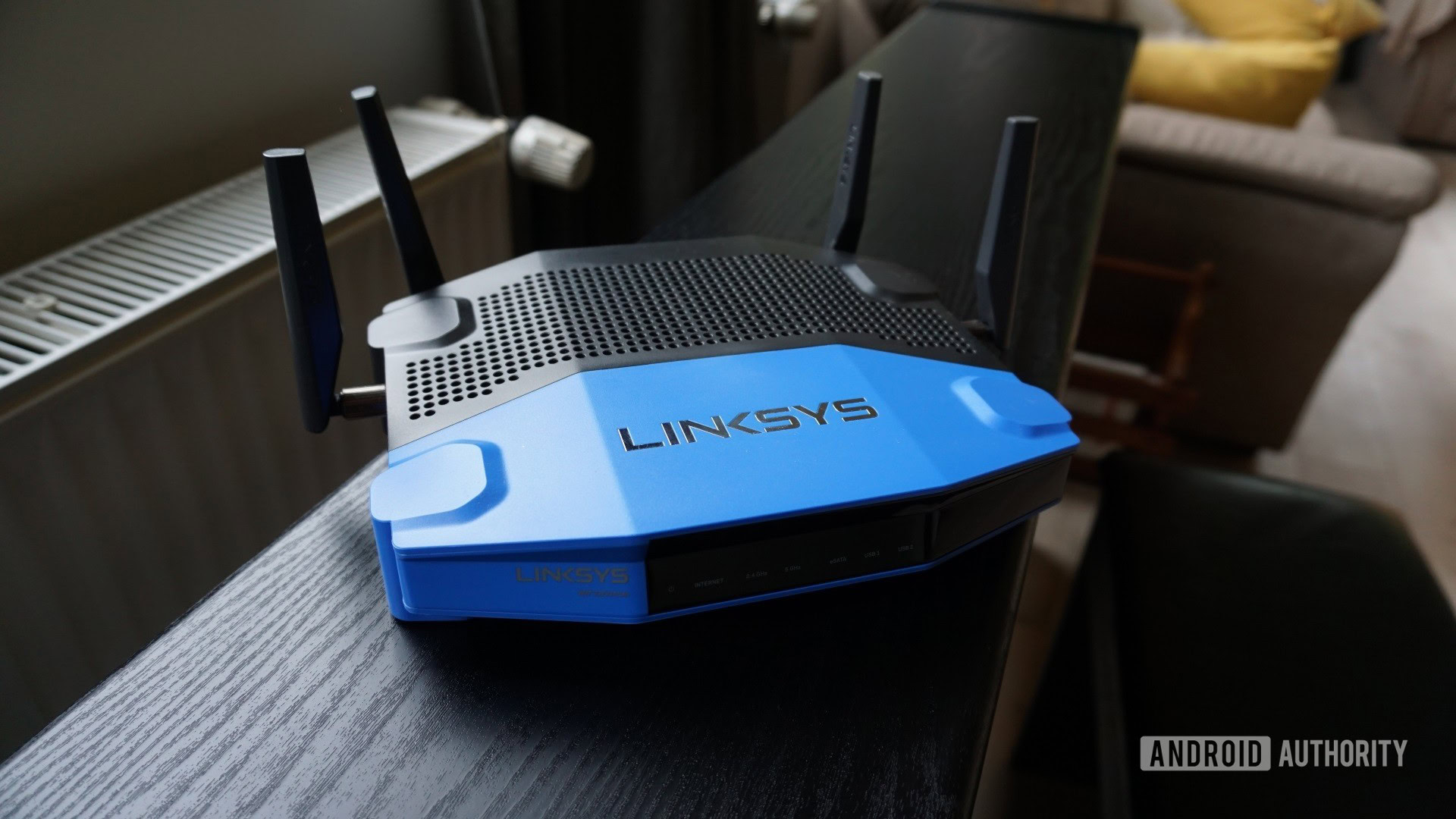



![[Wireless Router] How do I enter my ASUS router's setting page using ...](https://i.ytimg.com/vi/kECJVD08Fi0/maxresdefault.jpg "[Wireless Router] How do I enter my ASUS router's setting page using ...")
![[Wireless Router] How to set up VPN server with port forwarding ... - ASUS](https://blog.invgate.com/hs-fs/hubfs/building-an-IT-department.jpg?upsize=true&upscale=true&width=1560&height=410&name=building-an-IT-department.jpg "[Wireless Router] How to set up VPN server with port forwarding ... - ASUS")