Wi-Fi Access Point Router Setup: A Comprehensive Guide
In today's digital age, having a reliable and fast Wi-Fi network is essential for both personal and professional use. However, setting up a wireless access point (AP) router can be a daunting task, especially for those who are new to networking. In this article, we will provide a step-by-step guide on how to set up a Wi-Fi access point router, including the necessary equipment, configuration, and troubleshooting tips.
Necessary Equipment
- Wi-Fi access point (AP) router
- Wired modem
- Ethernet cables
- Power supply
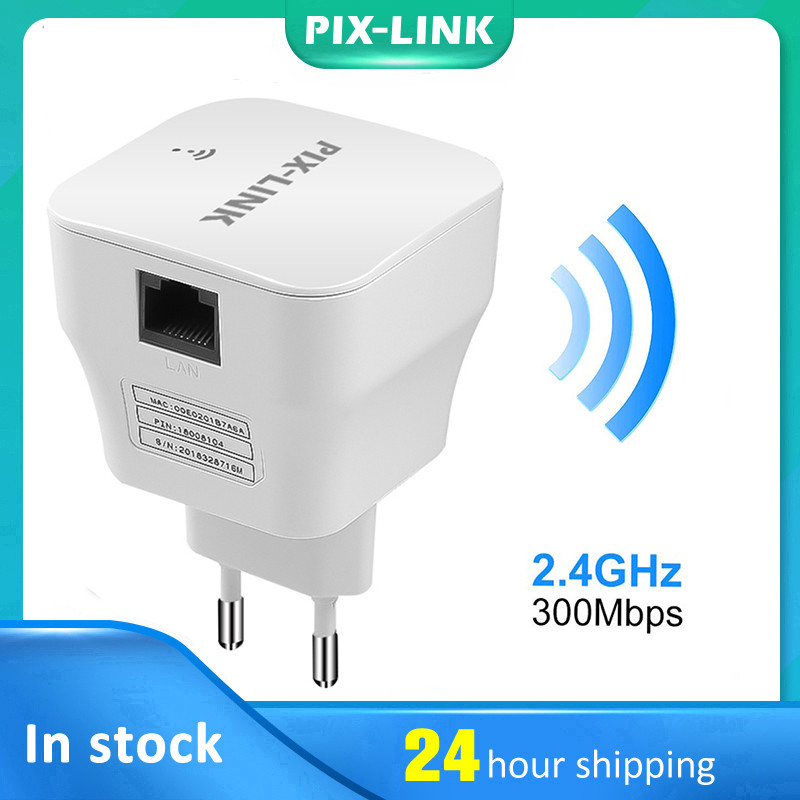
- Optional: Wi-Fi extender or repeater
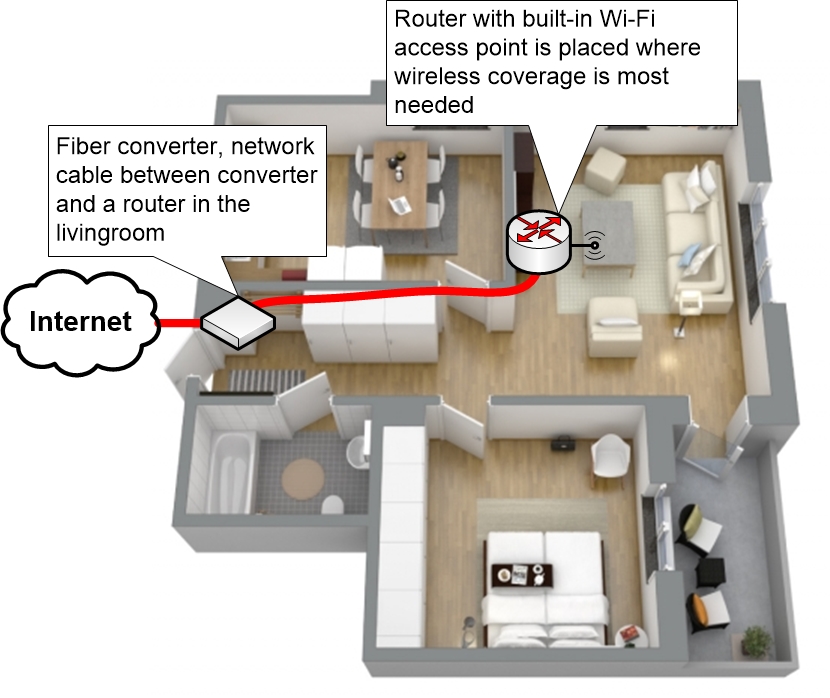
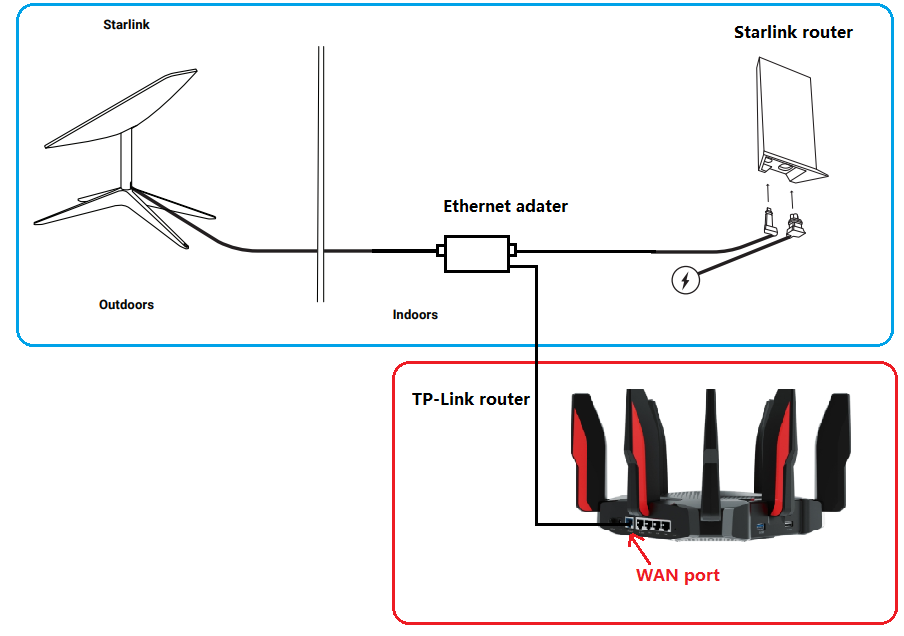
The Wi-Fi access point router is a crucial device that connects to a wired modem and creates a wireless network. The wired modem provides internet access, while the Wi-Fi access point router broadcasts the signal to devices within range.
Step 1: Gather Information and Equipment
Before setting up the Wi-Fi access point router, gather the necessary information and equipment. This includes the IP address of the router, the wireless network name (SSID), and the password. Also, ensure that you have the necessary Ethernet cables and power supply for the router.
Step 2: Configure the Router
Configure the router by accessing its web interface using a web browser. The IP address of the router can usually be found in the device's documentation or on the manufacturer's website. Log in to the router using the default administrator username and password, which can also be found in the documentation or online.
Change the administrator username and password to a strong and unique combination to secure the router. Next, set up the wireless network by configuring the SSID, channel, and encryption type (e.g., WPA2). Ensure that the wireless network is set to the correct channel to avoid interference with other devices.
Step 3: Connect to the Wireless Network
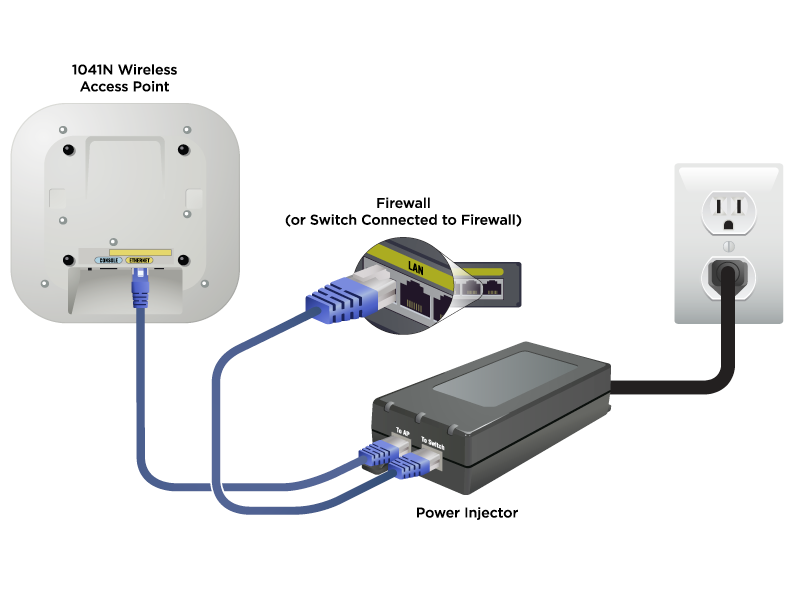
Once the router is configured, connect to the wireless network using a device with Wi-Fi capabilities (e.g., laptop, smartphone, or tablet). The device should automatically detect the wireless network and prompt for the password. Enter the password to connect to the network.
Step 4: Test the Network
Test the network by browsing the internet, checking email, or streaming content. Ensure that the connection is stable and fast. If the connection is slow or drops frequently, troubleshoot the issue by checking the router's configuration, network congestion, or interference from other devices.
Troubleshooting Tips
- Check the router's configuration for any errors or misconfigurations.
- Ensure that the wireless network is set to the correct channel to avoid interference.
- Check for network congestion by monitoring the number of devices connected to the network.
- Check for interference from other devices by using a Wi-Fi analyzer app.
Conclusion
Setting up a Wi-Fi access point router can be a straightforward process if you follow the necessary steps and troubleshooting tips. Remember to configure the router securely, connect to the wireless network, and test the network to ensure stability and speed. By following this guide, you can set up a reliable and fast Wi-Fi network for personal or professional use.
Additional Resources
- Manufacturer's documentation for the Wi-Fi access point router.
- Online tutorials and guides for setting up a Wi-Fi access point router.
- Wi-Fi analyzer apps for monitoring network congestion and interference.


![[Wireless Router] How to set up access point (AP) mode?](https://static.tp-link.com/resources/UploadFiles/Images/FAQ_78_image002.png "[Wireless Router] How to set up access point (AP) mode?")