How to Set Up a Local Server: A Comprehensive Guide
Setting up a local server can be a daunting task, especially for those who are new to web development. However, with the right tools and a clear guide, it's easier than you think to set up a local server that meets your needs. In this article, we'll take you through the process of setting up a local server, from choosing the right software to configuring the server settings.
Understanding Local Servers
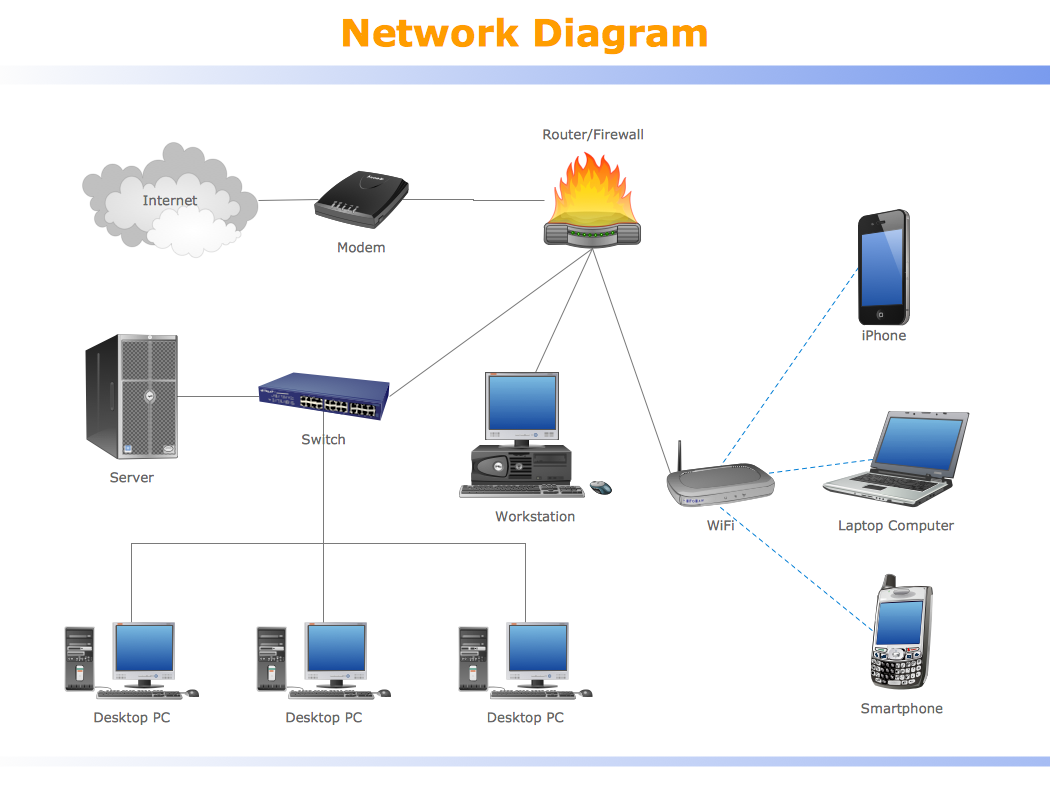
A local server is essentially a server that runs on your own computer or device, as opposed to a remote server that runs on a cloud-hosted infrastructure. This means that you have full control over the server settings and can configure them to meet your specific needs.
Setting up a local server allows you to work on projects in a development environment that is separate from the live website. This is especially useful for web developers who need to test their code, design, and functionality without affecting the live website.
Choosing the Right Software
There are many software options available for setting up a local server, each with its own set of features and requirements. Some popular options include:
- XAMPP: A free, open-source software stack that includes Apache, MySQL, PHP, and Perl.
- MAMP: A free, open-source software stack that includes Apache, MySQL, and PHP.
- WAMP: A free, open-source software stack that includes Apache, MySQL, and PHP.
- Apache: A popular open-source web server software.
- Nginx: A popular open-source web server software.
When choosing the right software, consider the following factors:
- Required features: What features do you need for your project? Do you need a database, for example?
Installation and Configuration
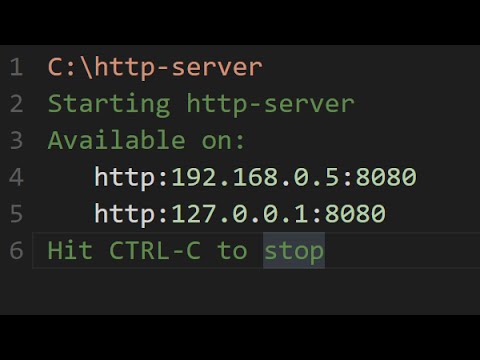
Once you've chosen the right software, the next step is to install and configure it. Here are some general steps to follow:
- Download and install the software: Follow the installation instructions provided by the software manufacturer.
- Configure the server settings: Modify the server settings to meet your specific needs. This may include configuring the database, setting up a virtual host, and setting up permissions.
- Test the server: Use tools like curl, Postman, or a web browser to test the server and ensure that it's working correctly.
Configuring the Server Settings
Configuring the server settings is a critical step in setting up a local server. Here are some common settings to consider:
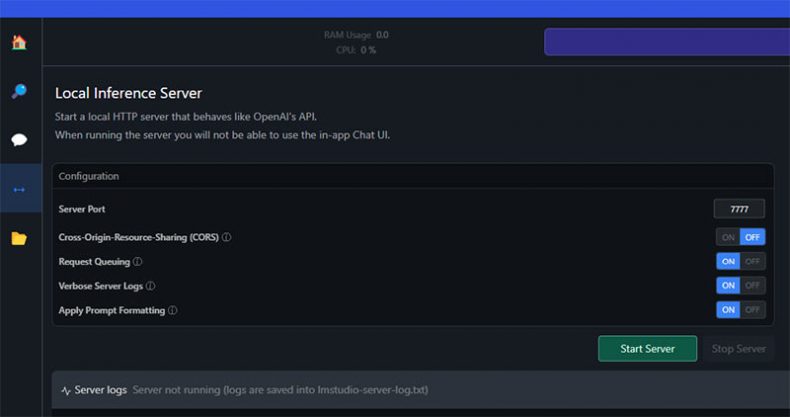
- Server port: The port number that the server listens on. This can be set to 80 (the default HTTP port) or another port number of your choice.
- Document root: The directory where the server serves files from. This can be set to a specific directory or a symbolic link to a different directory.
- Database settings: The database settings include the database username, password, and connection string.
- Virtual host settings: The virtual host settings include the server name, document root, and server alias.
Best Practices for Setting Up a Local Server
Here are some best practices for setting up a local server:
- Use a secure connection: Use a secure connection to prevent unauthorized access to your server.
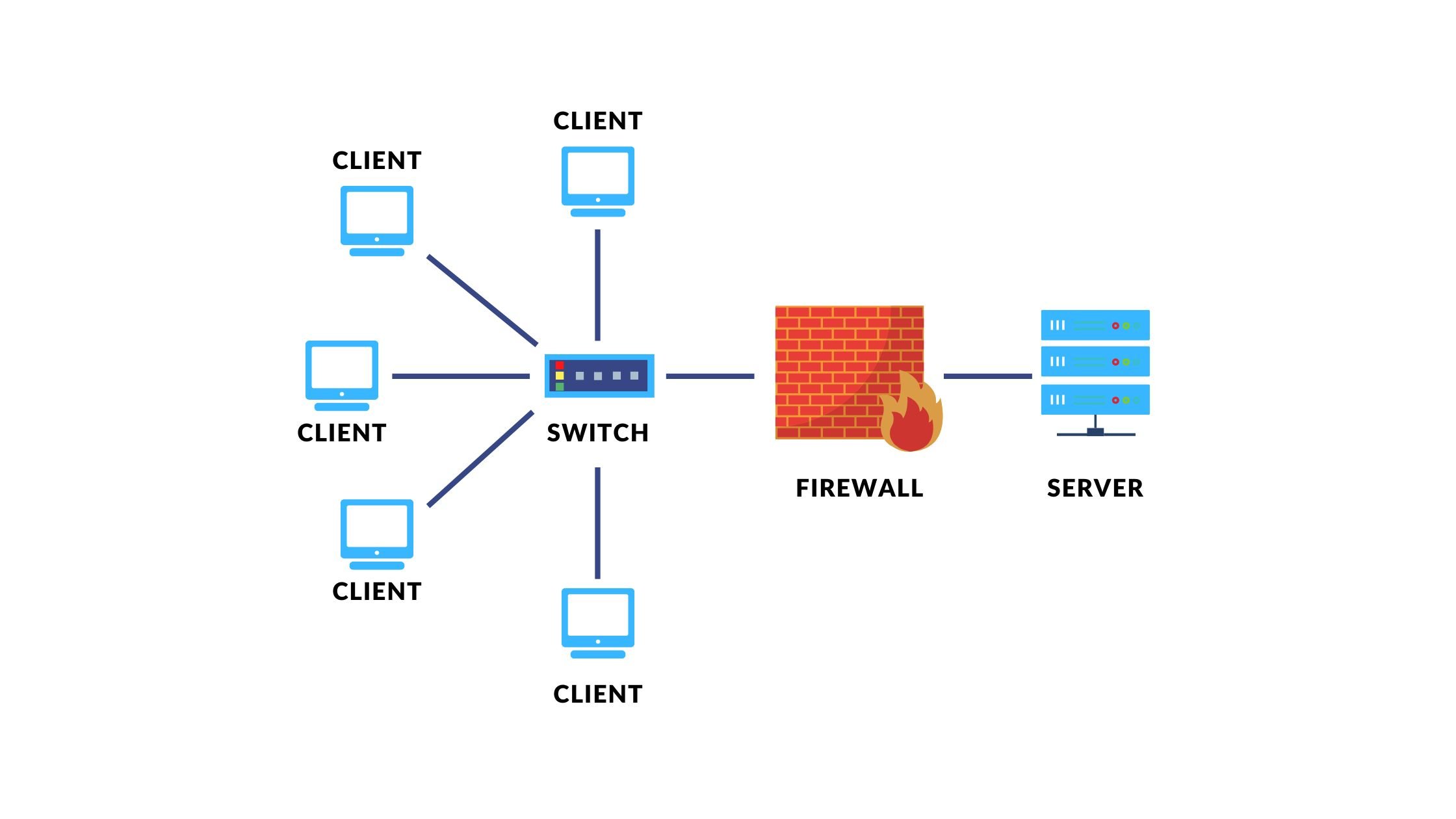
- Use a firewall: Use a firewall to prevent unauthorized access to your server.
- Use a reverse proxy: Use a reverse proxy to improve performance and reduce the load on your server.
- Test your server: Test your server regularly to ensure that it's working correctly.
Conclusion
Setting up a local server can be a complex process, but with the right tools and a clear guide, it's easier than you think. By following the steps outlined in this article, you can set up a local server that meets your needs and allows you to work on projects in a development environment that is separate from the live website.