Configuring Display Settings on Windows 11: A Comprehensive Guide
Windows 11 offers a wide range of display settings that enable you to customize your PC's screen to suit your preferences. From adjusting the resolution and color settings to configuring multiple monitors, understanding how to configure display settings on Windows 11 is crucial for creating a comfortable and productive computing environment. In this article, we will delve into the world of display settings and explore the various options available to users.
Accessing Display Settings on Windows 11
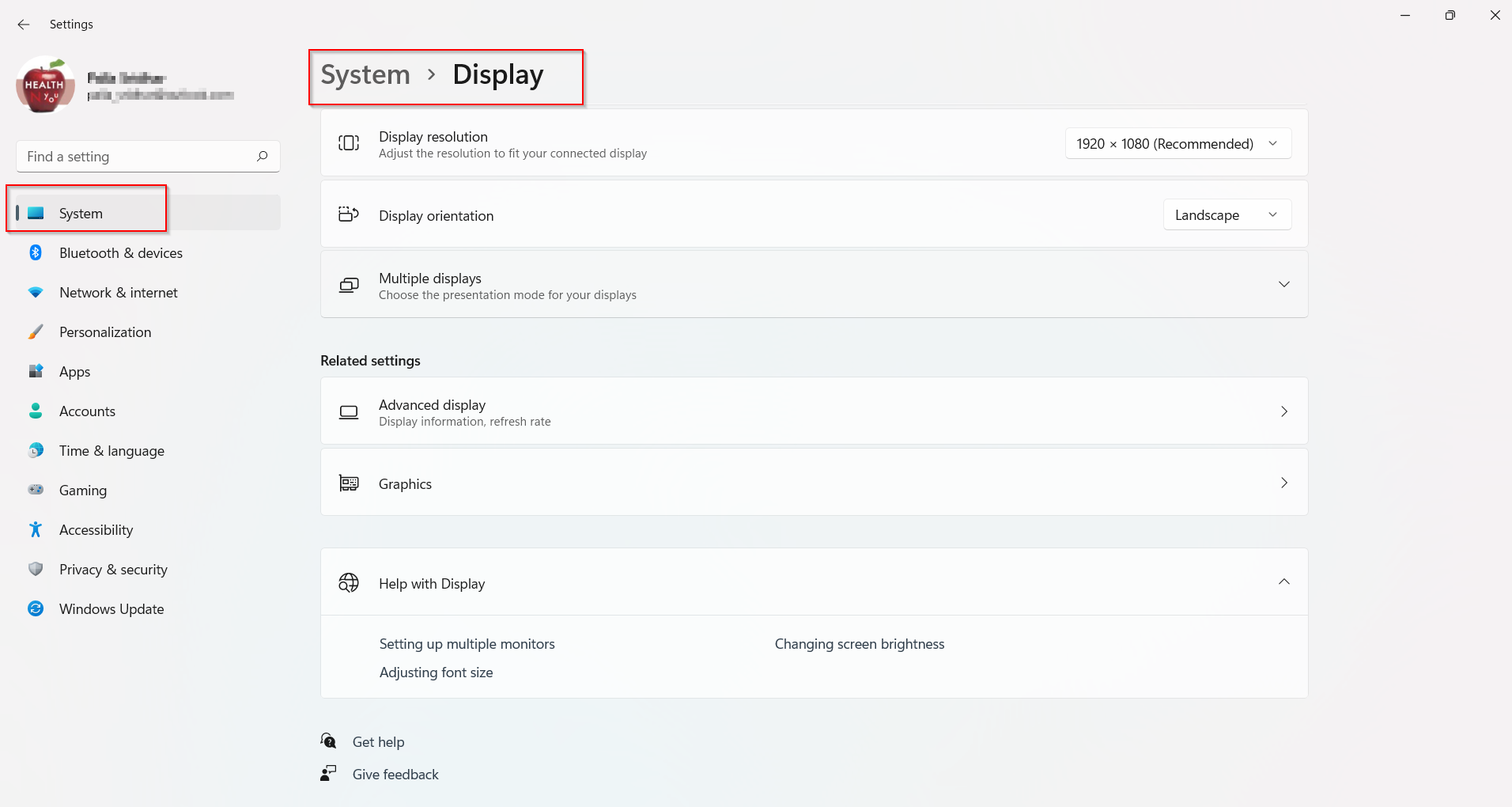
To access display settings on Windows 11, follow these simple steps:
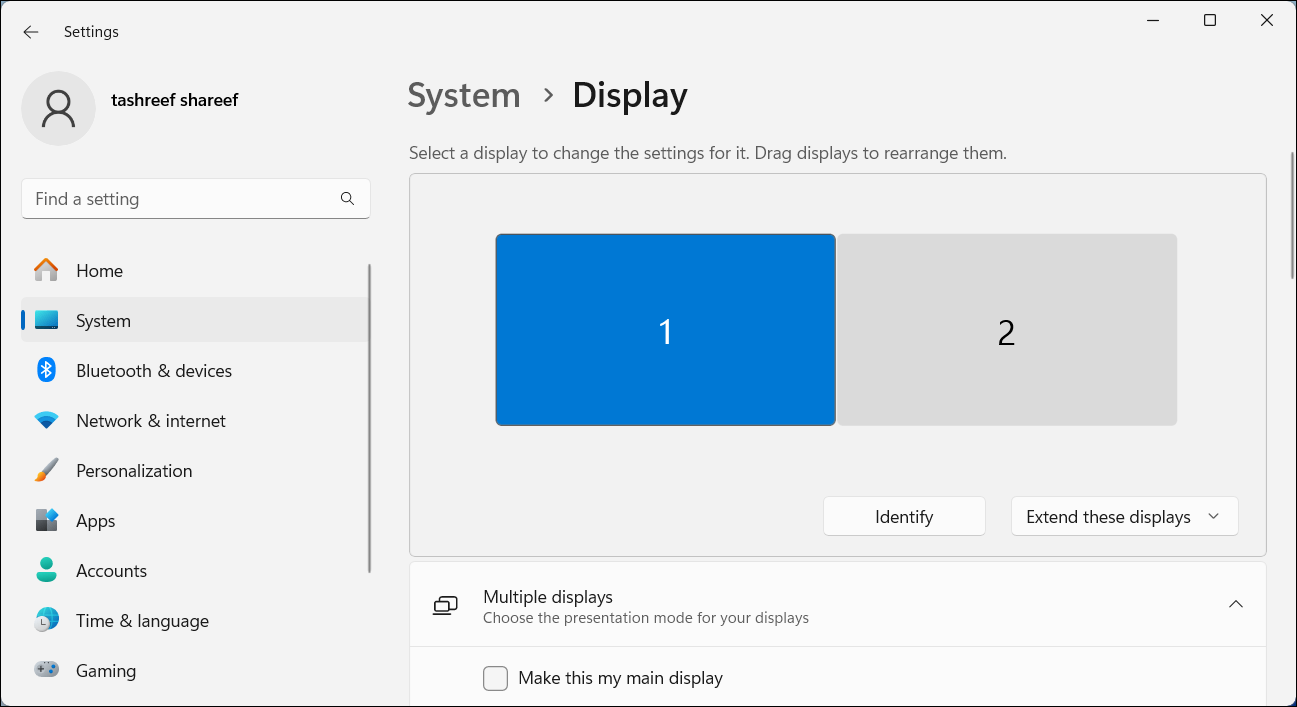
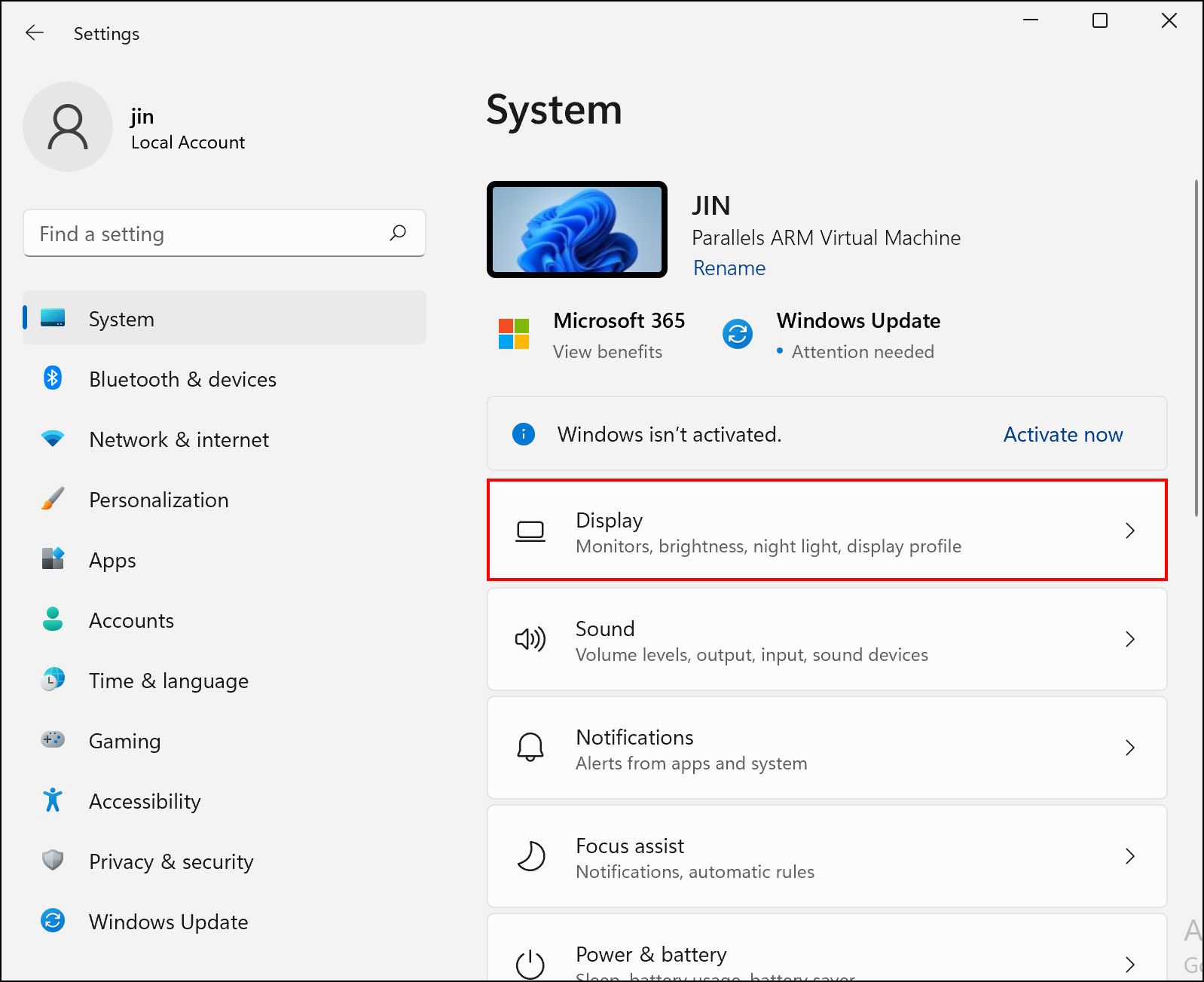
- Select Start > Settings > System > Display
- Look at the section that shows your displays
- Select the display you want to change
By following these steps, you can view the display settings for your current display and take control of how your screen looks and behaves.
Changing Text and App Size on Windows 11
Are you finding it difficult to read text on your screen due to small font sizes? Or perhaps you want to make your apps appear larger on the screen? Windows 11 allows you to change the size of text and apps to suit your preferences. Here are the steps to follow:
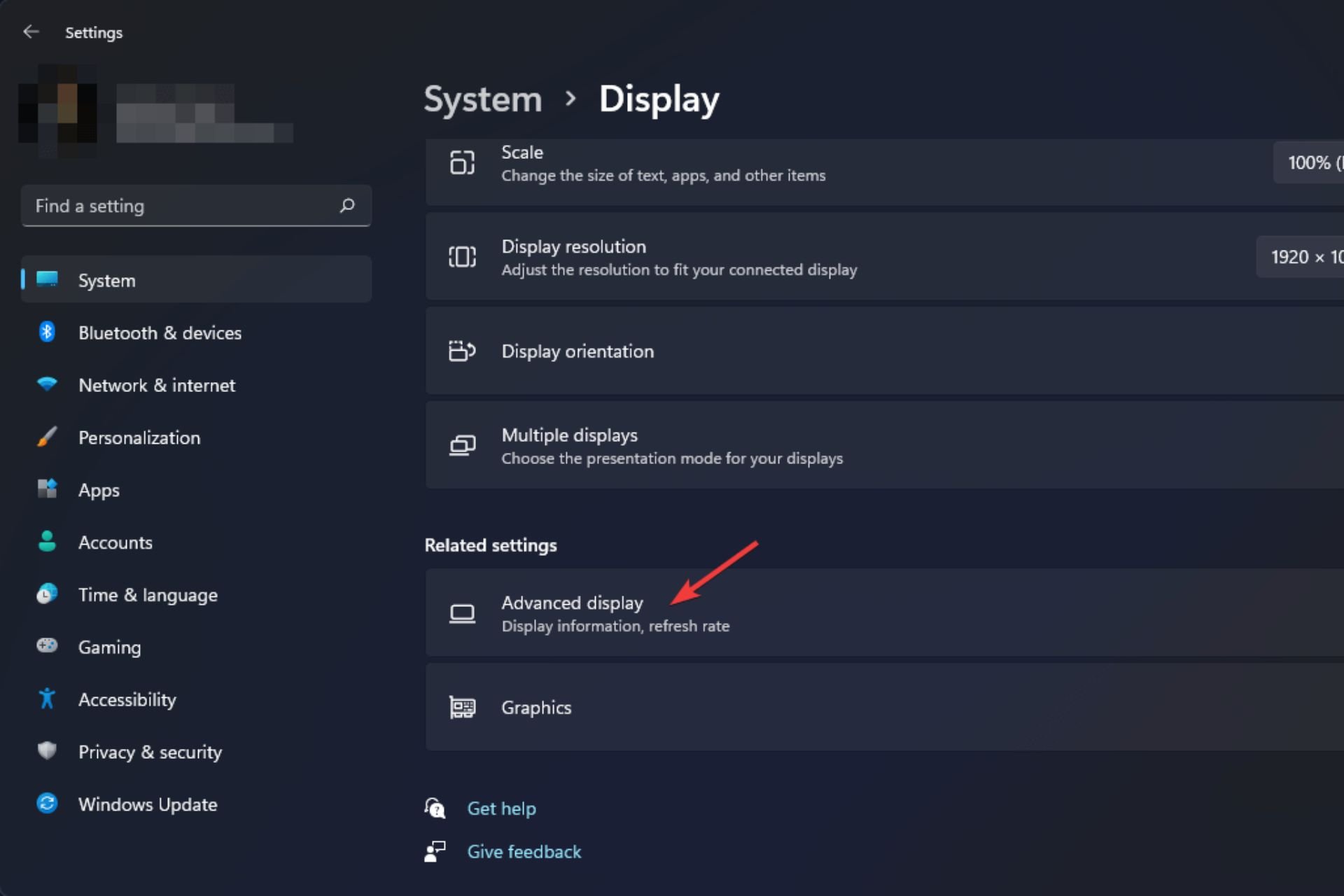
- Go to Settings > System > Display
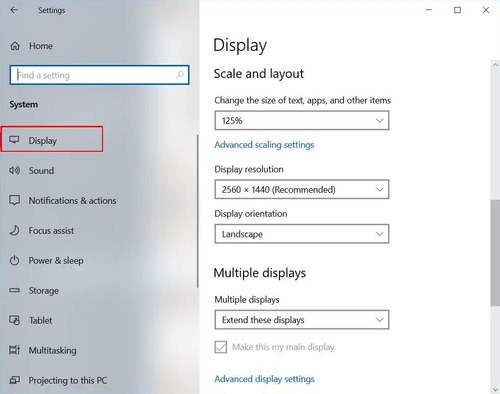
- Scroll to the Scale & layout section
- Select Scale, then select an option from the dropdown menu
Typically, it's best to choose the default 100% scaling option, but you can adjust the scale to suit your needs. Experiment with different scaling options to find the perfect fit for you.
Configuring Multiple Monitors on Windows 11

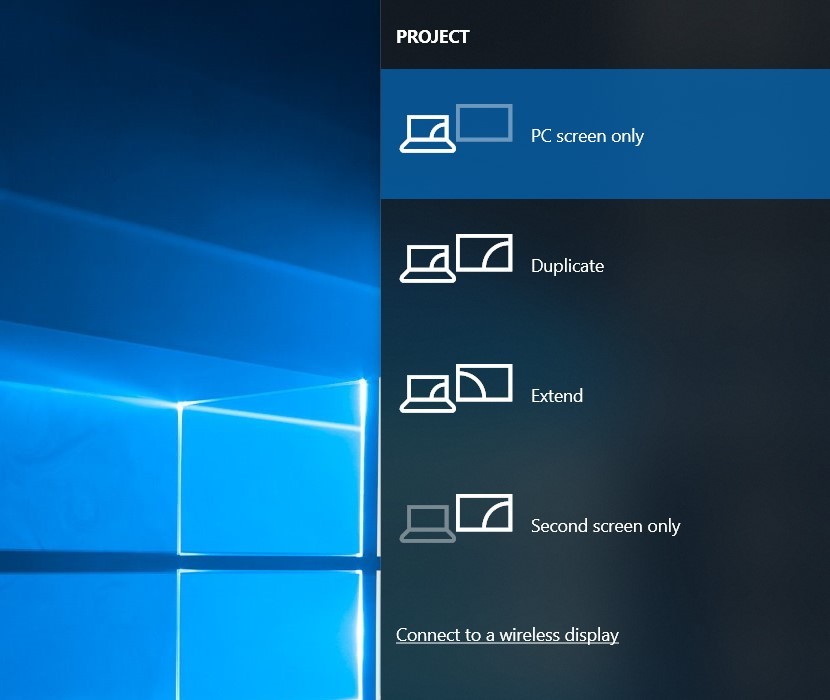
Using multiple monitors can greatly enhance your productivity and multitasking capabilities. Windows 11 allows you to configure multiple monitors to work together seamlessly. Here's how to do it:
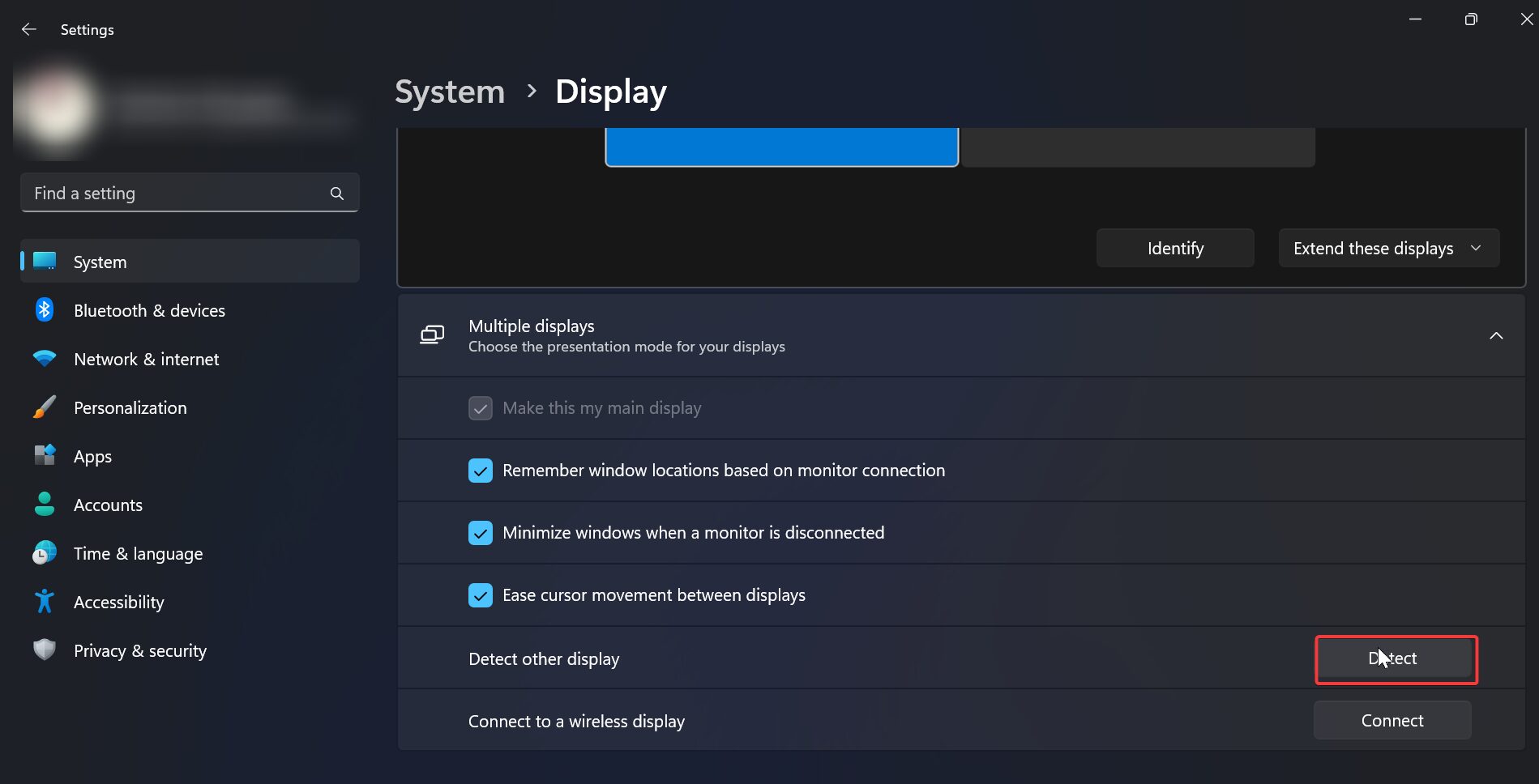
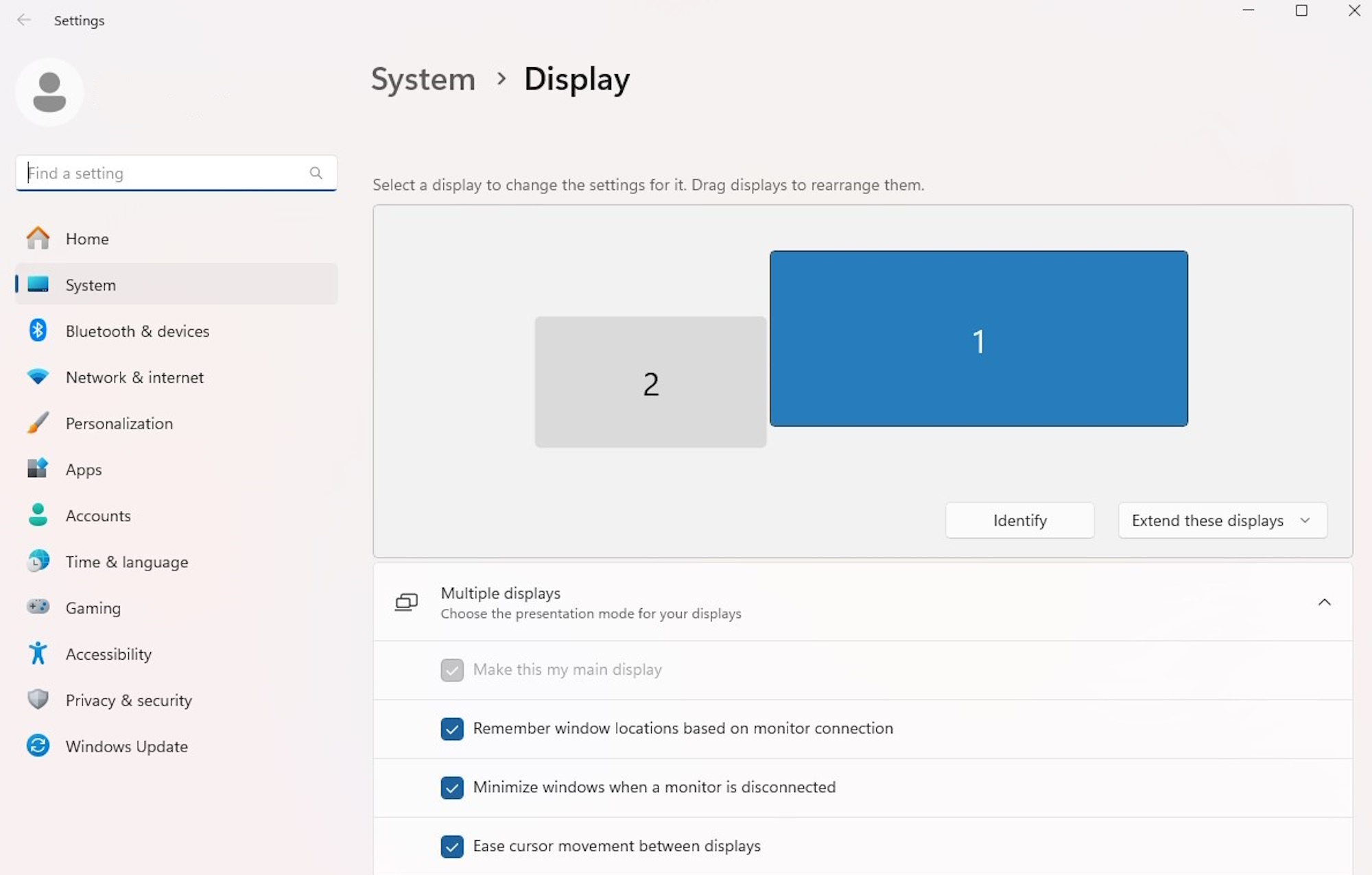
- Go to Settings > System > Display
- Connect your additional monitor and ensure it's detected by Windows 11
- Drag the displays icon to match the physical arrangement of your monitors
- Check the box labeled "Make this my main display" to make the external monitor your primary display
By following these steps, you can create a multi-monitor setup that streamlines your workflow and makes it easier to work on multiple projects simultaneously.
Customizing Display Settings on Windows 11
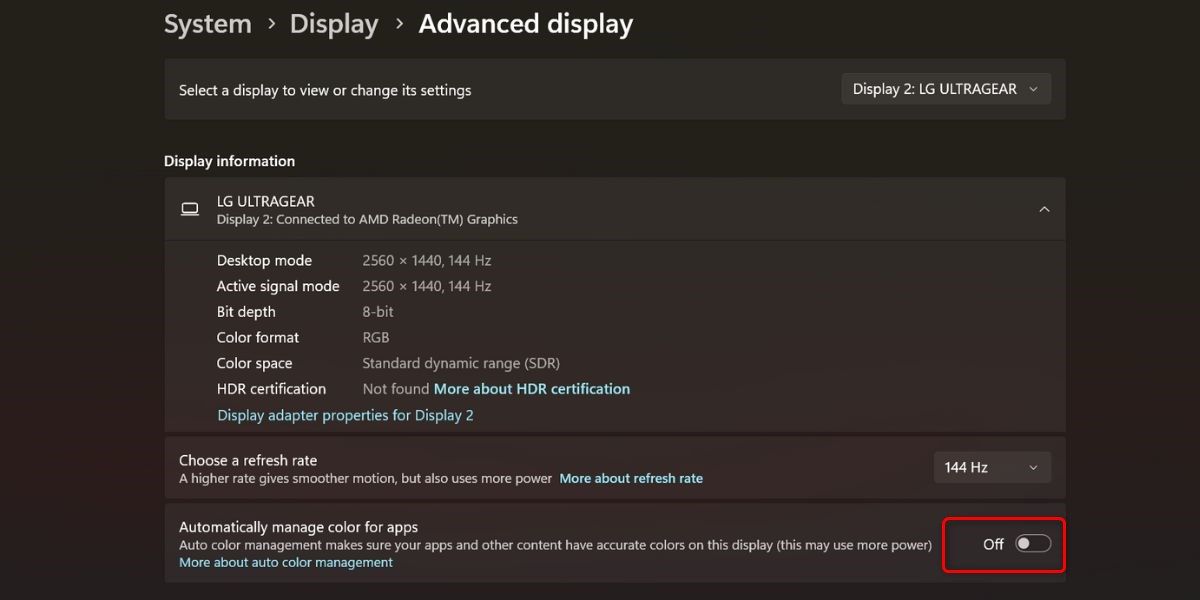
Windows 11 offers a wealth of display settings that can be customized to suit your preferences. From adjusting the brightness and color settings to configuring display scaling, you can personalize your display settings to create a truly unique computing experience. Here are some tips to keep in mind:
- Experiment with different brightness levels to find the perfect balance for your eyes
- Adjust the color settings to enhance the accuracy and vibrancy of your display
- Configure display scaling to suit your needs and preferences
By customizing your display settings, you can create a more comfortable and enjoyable computing environment that meets your unique needs.
Conclusion
Configuring display settings on Windows 11 is a straightforward process that offers a wide range of customization options. By following the steps outlined in this article, you can create a personalized and comfortable computing environment that suits your needs and preferences. Whether you want to adjust the screen resolution, change the display orientation, or configure multiple monitors, Windows 11 offers the flexibility and customization options you need to get the most out of your PC.