Laptop CD ROM Repair: A Step-by-Step Guide
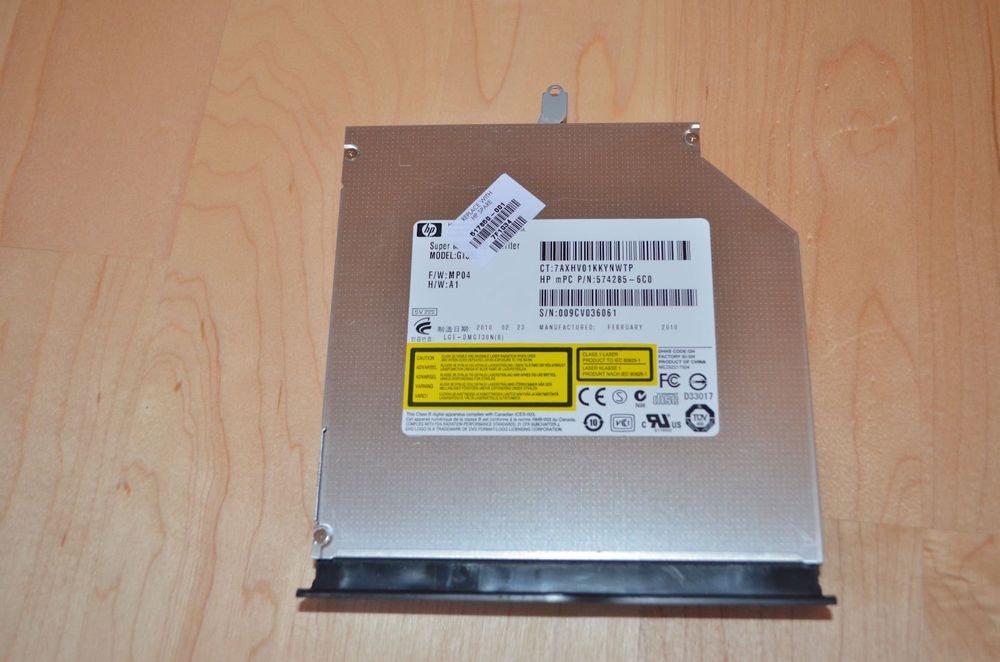
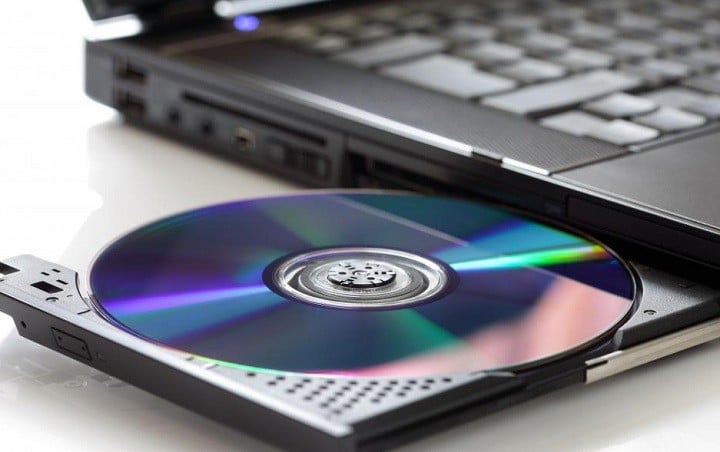
The CD ROM is an essential component of a laptop, allowing users to play music, back up files, and install software. However, when the CD ROM stops working, it can be frustrating and disrupt normal work procedures. In this article, we will provide a comprehensive guide on how to troubleshoot and repair a non-functioning CD ROM on your laptop.
Symptoms of a Non-Working CD ROM
The CD ROM on your laptop may not be working due to various reasons such as damage, scratches, or software issues. Common symptoms include:
- The CD ROM is not recognized by the computer.
- The CD ROM is not reading discs correctly.
- The CD ROM is making strange noises or producing errors.
Troubleshooting Techniques
To troubleshoot a non-working CD ROM, follow these steps:
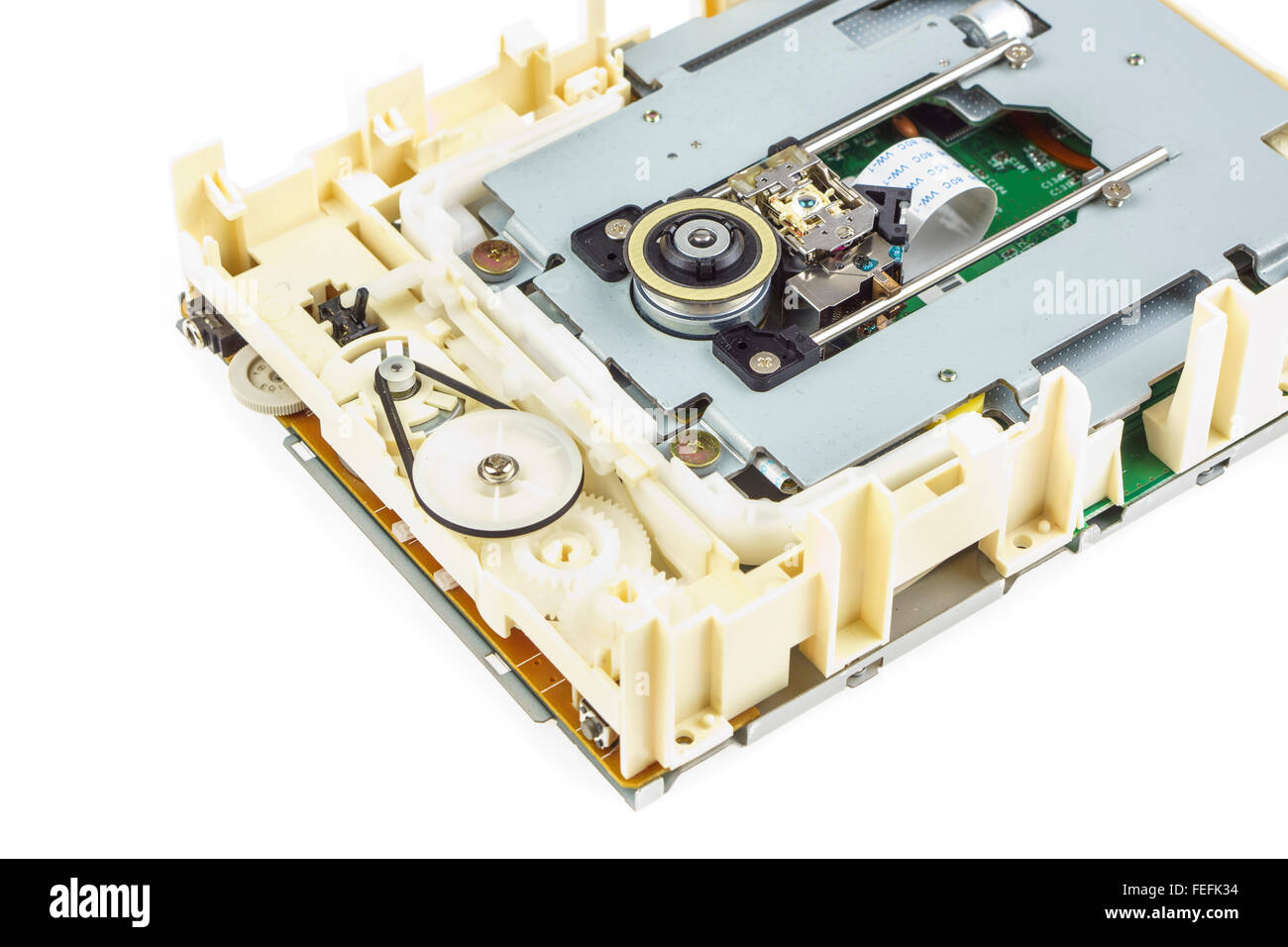
- Cleaning the CD ROM: Dirt and dust can accumulate on the CD ROM lens, causing it to malfunction. Use a soft cloth and gentle cleaning solution to clean the lens and surrounding area.
- Checking connections: Ensure that the CD ROM is properly connected to the laptop's motherboard. Check for loose or damaged connections and tighten or replace them as needed.
- Testing the CD ROM in Safe Mode: If the CD ROM is not working in normal mode, try booting your laptop in Safe Mode. If it works in Safe Mode, the issue may be with a running program or corrupt drivers.
- Updating drivers: Outdated drivers can cause compatibility issues with the CD ROM. Update your drivers to the latest version to ensure compatibility.
- Reinstalling the CD ROM driver: In some cases, reinstalling the CD ROM driver may resolve the issue. Go to the Device Manager, expand DVD/CD-ROM drives, right-click on the CD ROM device, and select Uninstall device. When prompted, confirm that you want to remove the device. After the laptop restarts, the driver will be automatically installed.
Advanced Troubleshooting Techniques
If the above steps do not resolve the issue, try the following advanced troubleshooting techniques:
- Running a disk diagnostic: Run a disk diagnostic test to check for any errors or issues with the CD ROM.
- Reinstalling the operating system: In extreme cases, reinstalling the operating system may be necessary to resolve the issue.
Prevention is the Best Method
To prevent CD ROM issues, follow these tips:
- Handle the CD ROM with care: Avoid touching the CD ROM lens or surrounding area to prevent dust and dirt from accumulating.
- Clean the CD ROM regularly: Regularly clean the CD ROM lens and surrounding area to prevent dust and dirt from building up.
- Update drivers regularly: Regularly update your drivers to ensure compatibility with the CD ROM.
Conclusion
Repairing a non-functioning CD ROM on your laptop requires patience, persistence, and the right troubleshooting techniques. By following the steps outlined in this article, you can troubleshoot and repair a non-working CD ROM and get back to using your laptop without any issues. Remember to handle the CD ROM with care, clean it regularly, and update drivers regularly to prevent issues from arising in the future.
Laptop CD ROM Repair Services
If you are not comfortable troubleshooting and repairing the CD ROM yourself, consider seeking the help of a professional laptop repair service. They have the necessary expertise and tools to diagnose and repair the issue quickly and efficiently.
External CD/DVD Drives
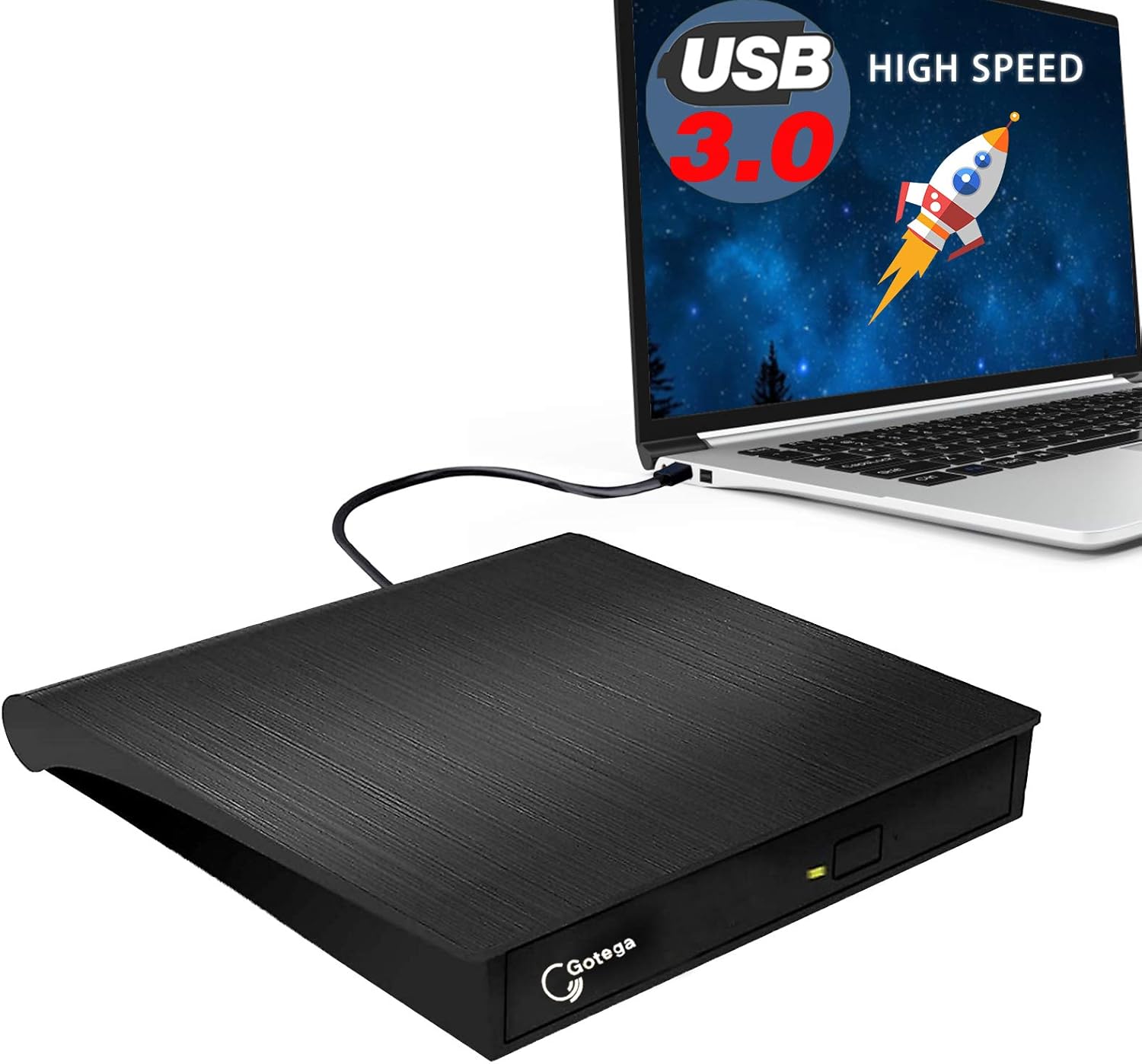
Consider purchasing an external CD/DVD drive if your laptop's CD ROM is not working. This will allow you to access your CDs and DVDs without having to rely on the built-in CD ROM.