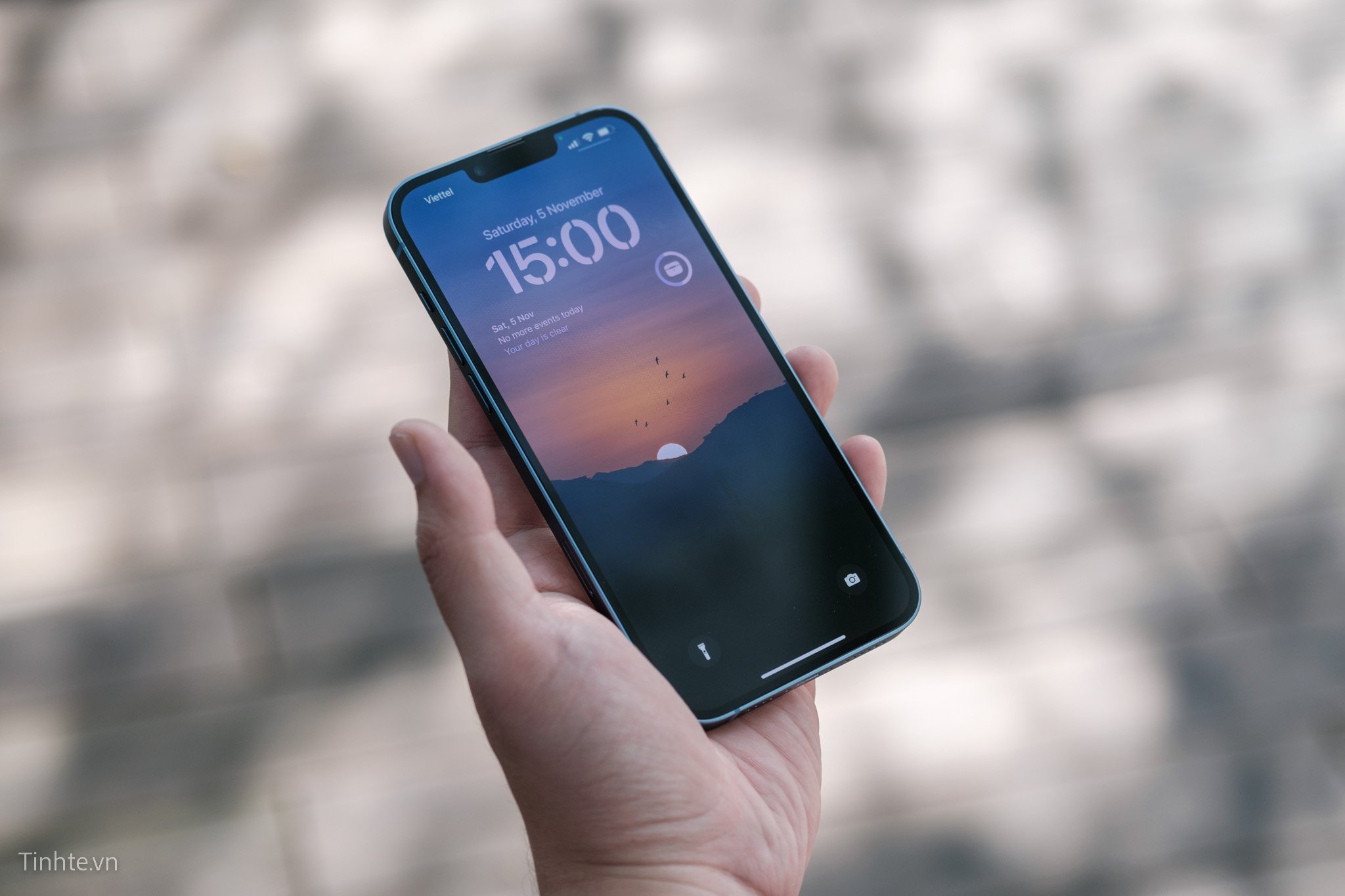
How to Set Up Your New iPhone: A Step-by-Step Guide
Are you excited to get your hands on a brand new iPhone, but not sure where to start? Look no further! In this article, we'll walk you through the process of setting up your new iPhone, from turning it on to transferring your data and activating Apple services.
Step 1: Turn On Your iPhone
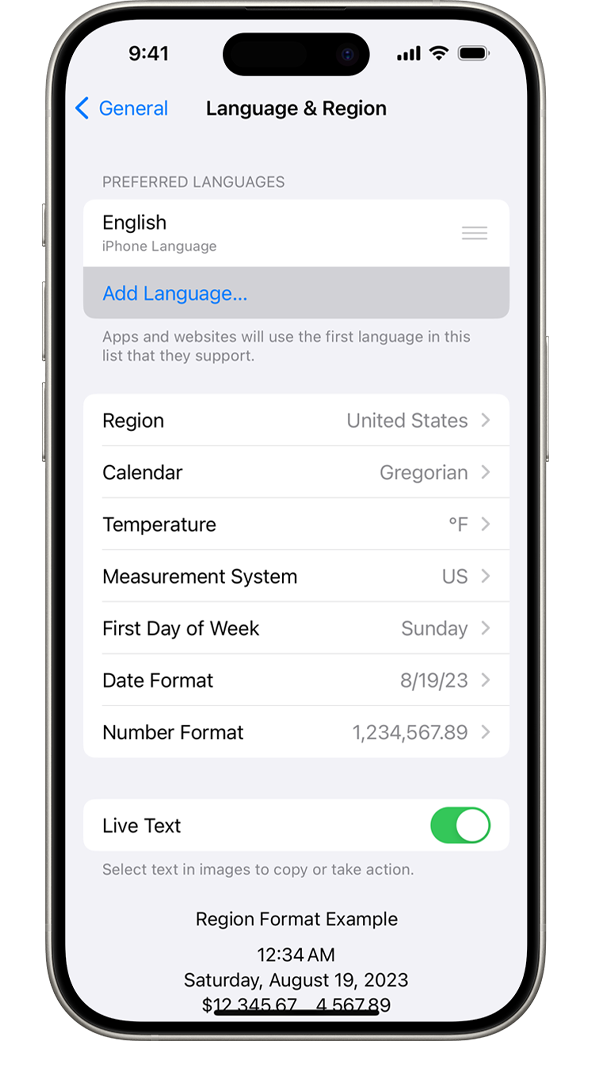
The first thing to do when setting up your new iPhone is to turn it on. This will begin the setup process, and you'll be prompted to select your language and country or region. If you're an existing iPhone user, you can transfer data from your old iPhone or set up using iCloud or computer backup. Apple also lets you transfer data from an Android device, so users don't need to set up from scratch.
Step 2: Transfer Data from Your Old iPhone (if applicable)
If you're upgrading from an older iPhone, you can transfer your data directly to your new device. This includes contacts, photos, music, and more. To do this, follow these steps:
- Turn on your new iPhone and select "Setup" from the Hello screen.
- Choose your language and country or region.
- Select "Transfer Data from iPhone" and follow the on-screen instructions.
- Bring your old iPhone close to your new iPhone, and the devices will automatically detect each other.
- Follow the on-screen instructions to complete the transfer process.
Step 3: Activate Apple Services
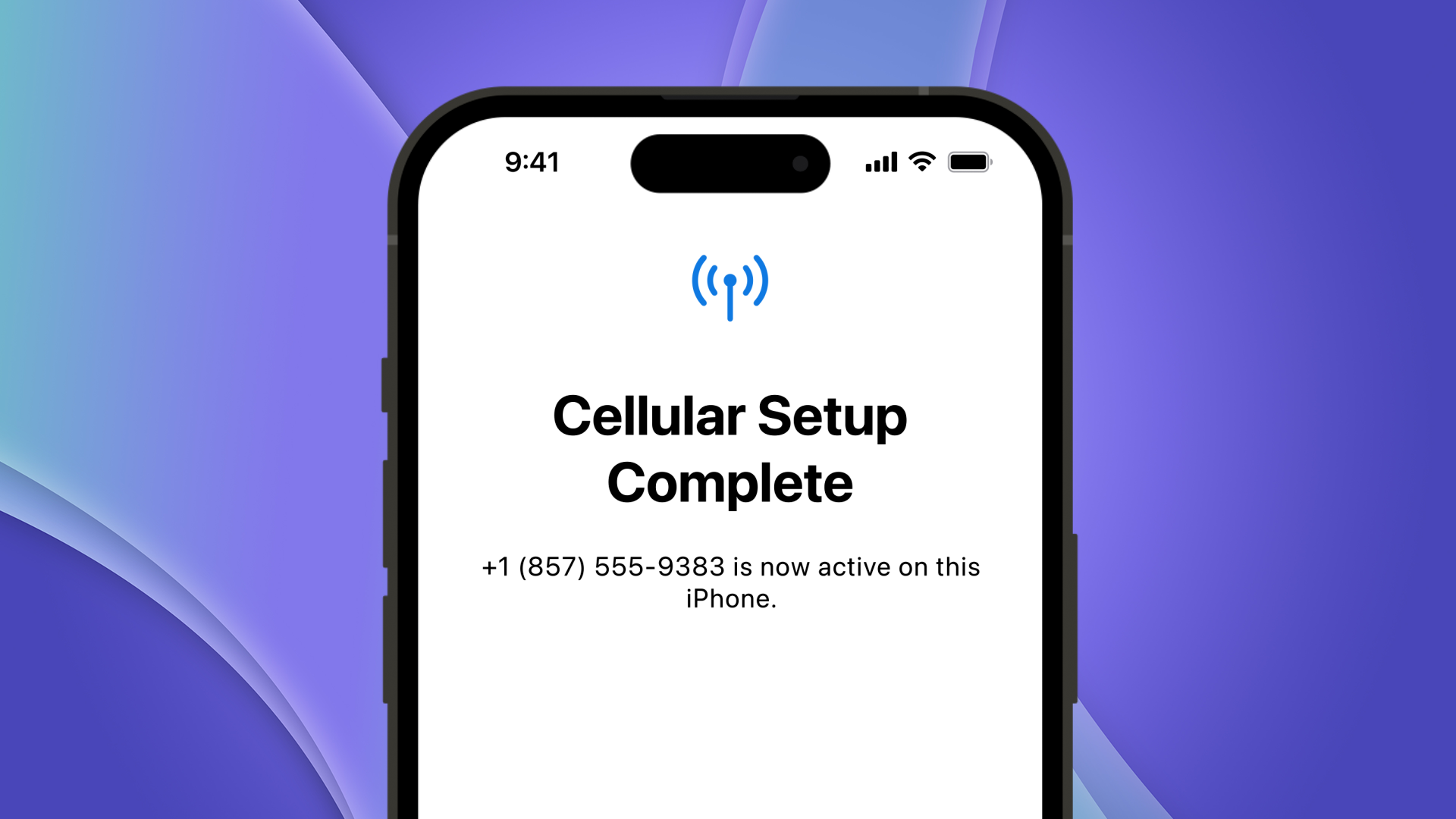
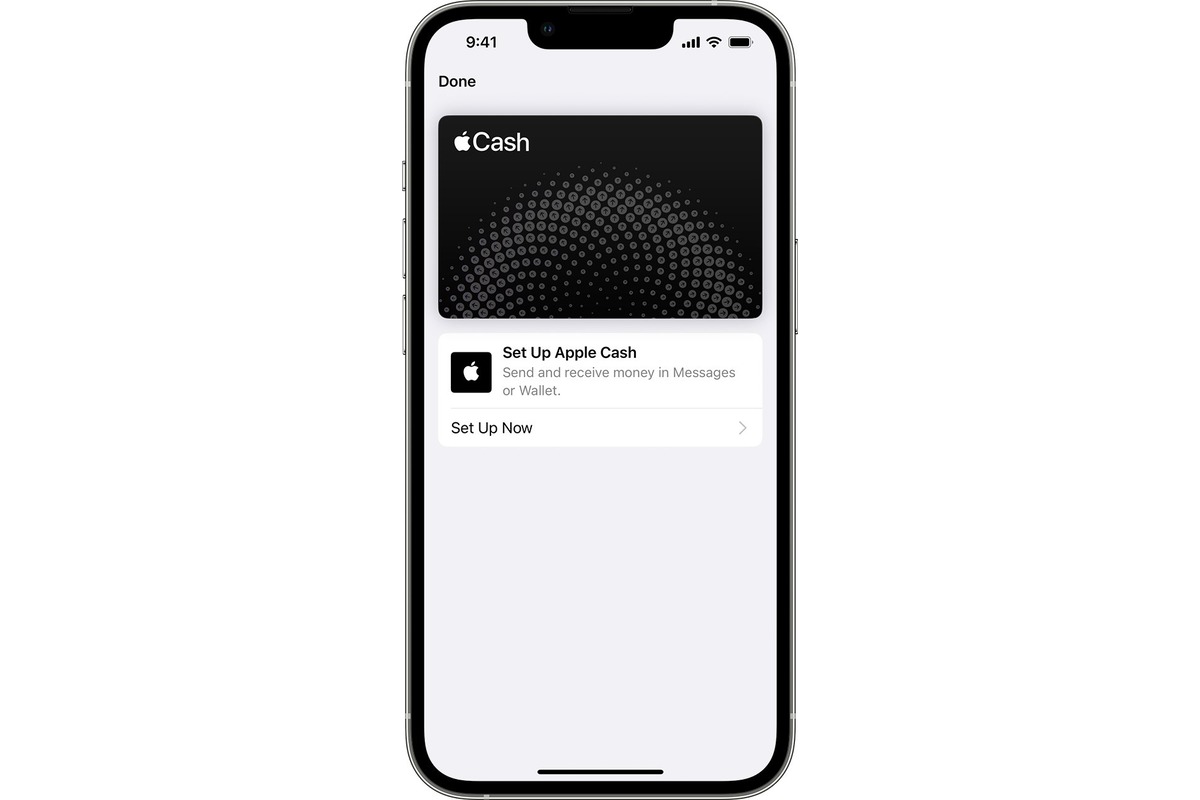
Once you've transferred your data (if applicable), it's time to activate Apple services on your new iPhone. This includes iCloud, Apple Music, and more. To do this, follow these steps:
- Open the Settings app on your iPhone.
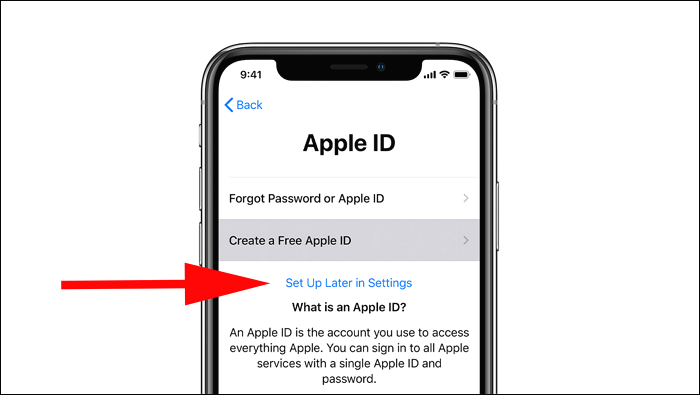
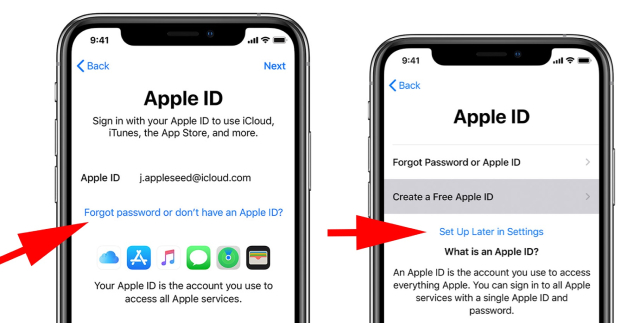
- Tap on "iCloud" and sign in with your Apple ID.
- Tap on "Apple Music" and sign in with your Apple ID.
- Follow the on-screen instructions to complete the activation process.
Step 4: Setup Face ID and Other Security Features

Next, you'll need to set up Face ID and other security features on your new iPhone. This includes Touch ID, password, and more. To do this, follow these steps:
- Open the Settings app on your iPhone.
- Tap on "Face ID & Passcode" (or "Touch ID & Passcode" on older iPhones).
- Follow the on-screen instructions to set up Face ID and other security features.
Step 5: Explore Your New iPhone
Finally, it's time to explore your new iPhone and get familiar with its features. This includes learning how to use the Control Center, Notification Center, and more. To do this, follow these steps:
- Open the Settings app on your iPhone.
- Tap on "Control Center" and explore the different options.
- Tap on "Notification Center" and explore the different options.
Expert Advice from Apple Support
If you're still unsure about how to set up your new iPhone, don't worry! Apple Support advisors are here to help. They offer expert advice on everything from forgotten passwords to lost photos. Follow these simple steps to keep your iPhone, and the important information you keep on it, safe:
- Use a strong password and keep it safe.
- Use Face ID or Touch ID to unlock your iPhone.
- Use two-factor authentication to add an extra layer of security.
- Regularly back up your iPhone to iCloud or iTunes.
Conclusion
Setting up your new iPhone is a straightforward process that can be completed in just a few minutes. By following these steps, you'll be able to transfer your data, activate Apple services, and explore your new iPhone's features. If you're still unsure about how to set up your iPhone, don't hesitate to seek advice from an Apple expert. Happy iPhone setup!