Get Started with Your Xbox Series X: A Comprehensive Guide
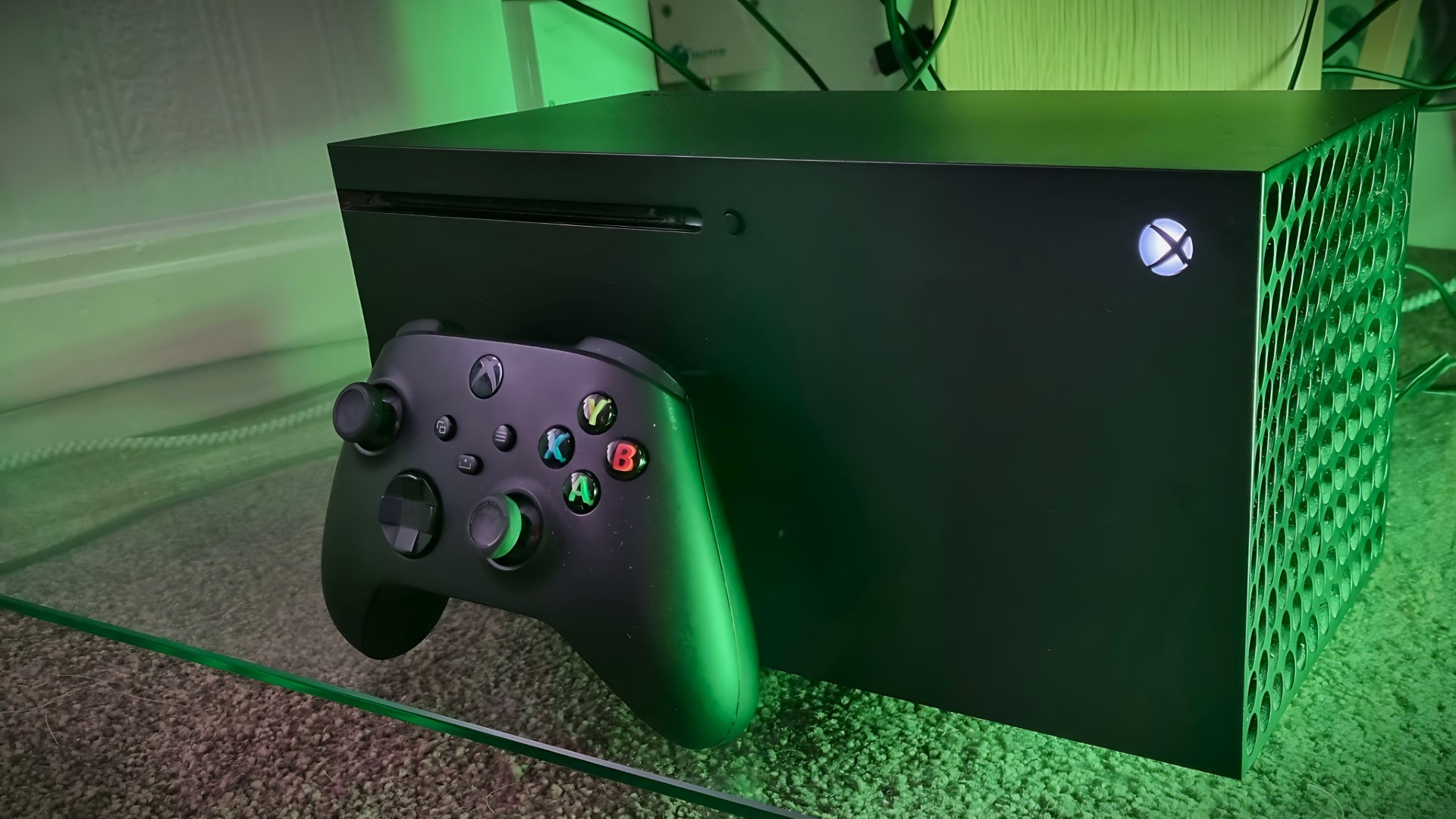
Setting up your new Xbox Series X can be a daunting task, but with this guide, you'll be up and running in no time. Whether you're a first-time console owner or upgrading from an older model, we'll walk you through the step-by-step process of setting up your Xbox Series X like a pro.
Before You Start: Download the Xbox App
Before you even power up your Xbox Series X, it's worth downloading the Xbox app to your smartphone. This app will make the set-up process of your new console a little less fiddly and save you time in the long run. The Xbox app allows you to set up your console remotely, control your console, and even customize your settings.
Step 1: Unpack and Connect Your Xbox Series X
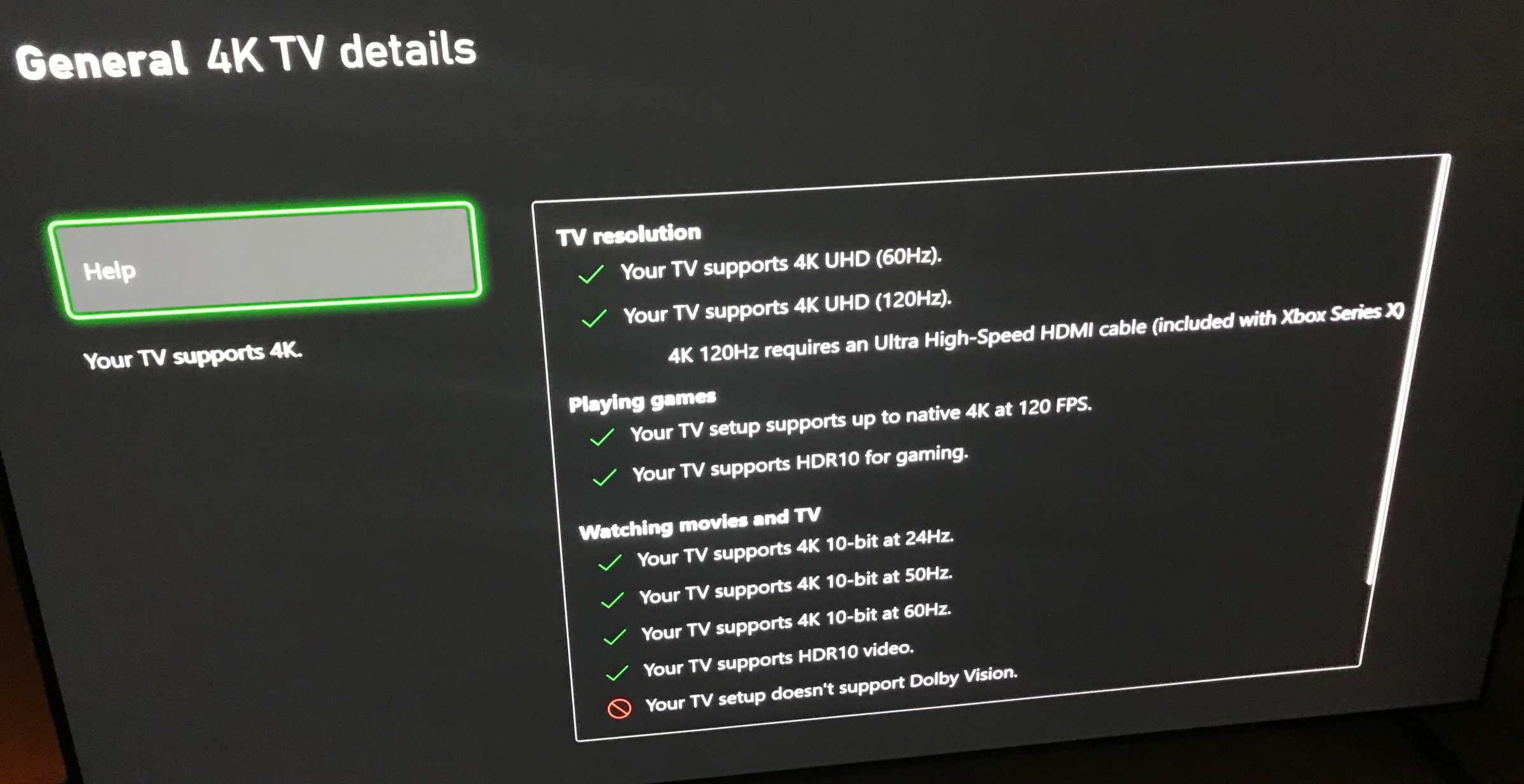
Unpack your Xbox Series X console and connect it to your TV using an HDMI cable. If you have an 8K TV, be sure to use the correct HDMI port to ensure the best possible picture quality. Next, connect your Xbox controller to the console using the provided USB-C cable.
Step 2: Power On and Set Up Your Xbox Series X
Power on your Xbox Series X and follow the on-screen prompts to set up your console. You'll need to create a Microsoft account or log in to an existing one to access your Xbox services.
Step 3: Update Your Xbox Series X
Once you've set up your console, it's essential to update your Xbox Series X to the latest software. Go to Settings > System > System updates to check for any available updates. Updating your console will ensure you have the latest features and security patches.
Step 4: Personalize Your Xbox Series X
Now that your console is up to date, it's time to personalize your Xbox Series X. Go to Settings > General > Console info to customize your console's name, location, and time zone. You can also set up parental controls and create a new profile for each family member.

Step 5: Connect to Your Network and Set Up Multiplayer
Connect your Xbox Series X to your network using a wired or wireless connection. If you're setting up a multiplayer game, you'll need to connect your console to the internet and create a guest account for friends to join your game.
Step 6: Explore Your Xbox Series X Features
Now that your Xbox Series X is set up, it's time to explore its features. Check out the Xbox Store to browse through a variety of games, apps, and content. You can also explore the Xbox Guide, which provides quick access to your console's settings and features.
Conclusion
Setting up your Xbox Series X is a straightforward process, but there are a few tips to keep in mind. By following these steps, you'll be able to set up your console quickly and efficiently. Don't forget to use the Xbox app to set up your console remotely and customize your settings. With these tips and tricks, you'll be ready to start playing your favorite games in no time!
Set Up Your Xbox Series X Like a Pro
Use the Xbox app to set up your console remotely
Update your console to the latest software
Personalize your console's settings and features
Connect to your network and set up multiplayer
Explore your Xbox Series X features
Stay Up to Date with the Latest Xbox Series X News
Stay informed about the latest Xbox Series X news, updates, and features. Follow our blog for the latest tips and tricks to get the most out of your Xbox experience.