Setting Up Firestick on a Phone: A Comprehensive Guide
Are you looking to control your Amazon Firestick from your phone? Whether you've lost your remote or just want a more convenient way to stream your favorite shows and movies, setting up your phone as a remote control is a great solution. In this article, we'll guide you through the process of setting up Firestick on a phone and explore the benefits of using your mobile device as a remote.Why Use Your Phone as a Remote Control?
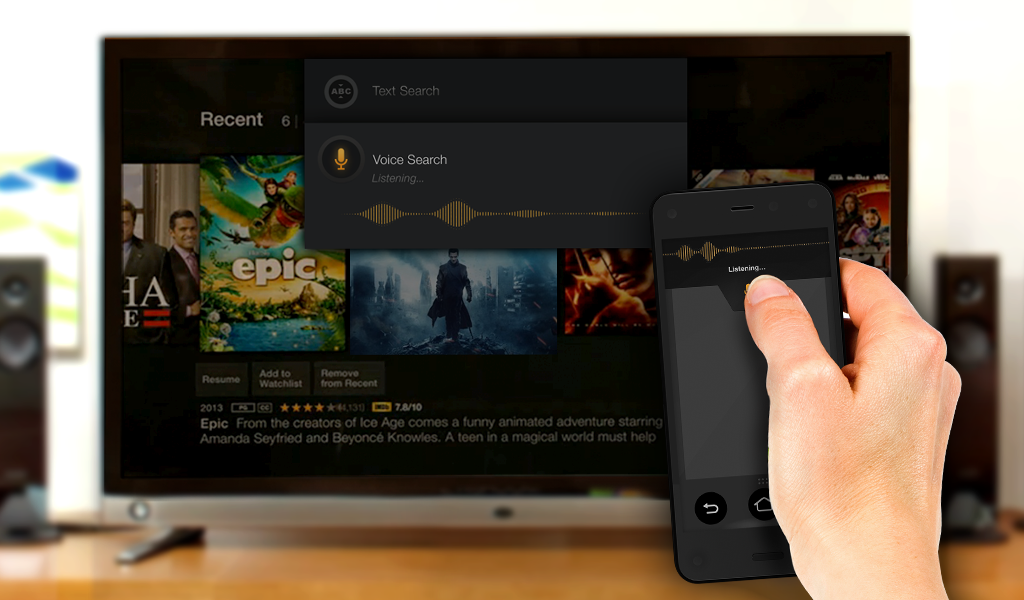
Using your phone as a remote control for your Firestick offers numerous advantages. For one, it allows you to control your device without having to physically hold a separate remote. This is especially useful if you've misplaced your remote or prefer the convenience of using your phone. Additionally, you can use your phone's screen to search for content, navigate through menus, and control playback.Requirements for Setting Up Firestick on a Phone
To set up Firestick on your phone, you'll need the following:- A phone with Android 5.0 or higher or an iOS device with iOS 9.0 or higher
- The Fire TV app installed on your phone
- Your Fire TV Stick or Fire TV device connected to the internet
- The same Wi-Fi network on both your phone and Fire TV device
Step-by-Step Instructions for Setting Up Firestick on a Phone
To set up Firestick on your phone, follow these steps:- Download and install the Fire TV app on your phone. You can find it in the Apple App Store for iOS devices or the Google Play Store for Android devices.
- Launch the Fire TV app and sign in with your Amazon account credentials.
- Select your Fire TV device from the list of available devices.
- Follow the on-screen instructions to pair your phone with your Fire TV device.
- Once paired, you can control your Fire TV device using your phone's screen.
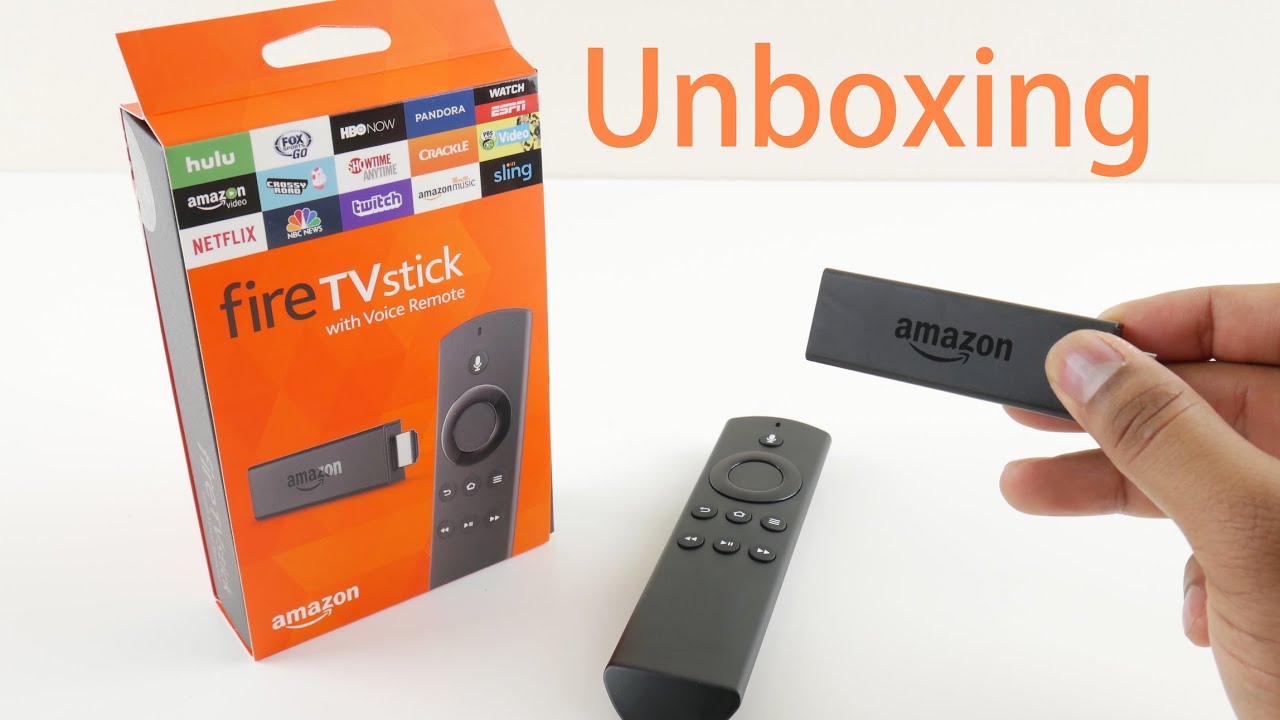
Benefits of Using Your Phone as a Remote Control
Using your phone as a remote control for your Firestick offers several benefits, including:- Convenience: You can control your device without having to physically hold a separate remote.
- Portability: Your phone is more portable than a remote, making it easy to take with you on the go.
- Multi-functionality: Your phone offers more features than a traditional remote, including the ability to search for content and navigate menus.
Troubleshooting Common Issues
If you encounter any issues while setting up or using your phone as a remote control, follow these troubleshooting tips:- Ensure that your phone and Fire TV device are connected to the same Wi-Fi network.
- Restart your phone and Fire TV device if you encounter any connectivity issues.
- Check that your phone's Bluetooth is enabled and that your Fire TV device is in pairing mode.


![How to Control Firestick with Phone? [Step-by-Step Guide]](https://i.ytimg.com/vi/jsxrWf-70IA/maxresdefault.jpg "How to Control Firestick with Phone? [Step-by-Step Guide]")