Secure Browsing with Incognito Mode: A Guide to Online Privacy
In today's digital age, online privacy is a growing concern for internet users. With the increasing amount of data being collected by websites, advertisers, and other third-party trackers, it's essential to take steps to protect your online activities and personal information. One way to do this is by using Incognito mode, also known as private browsing mode, in your web browser. In this article, we'll explore the benefits and limitations of secure browsing with Incognito mode and provide you with practical tips on how to use it effectively.
What is Incognito Mode?
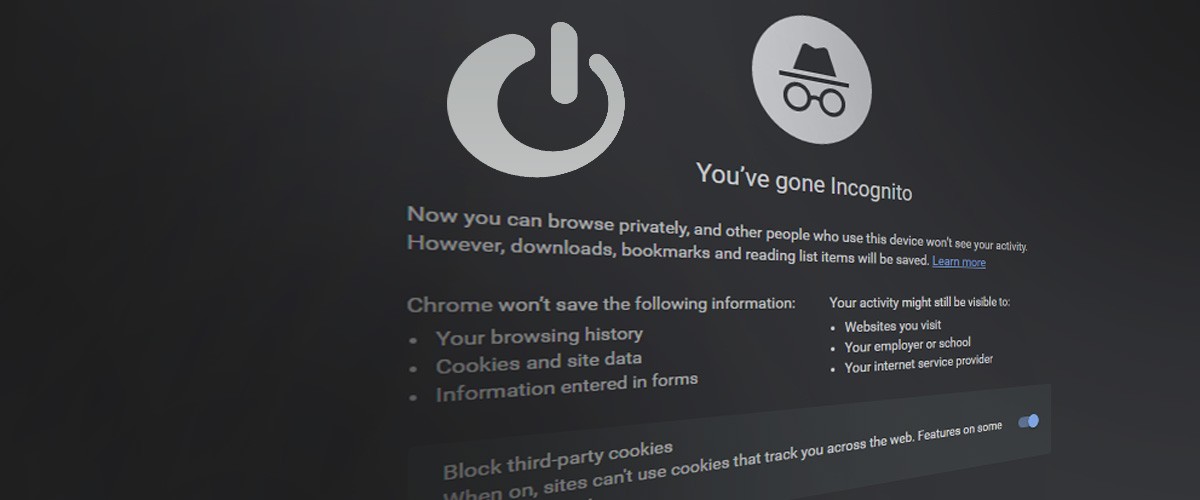
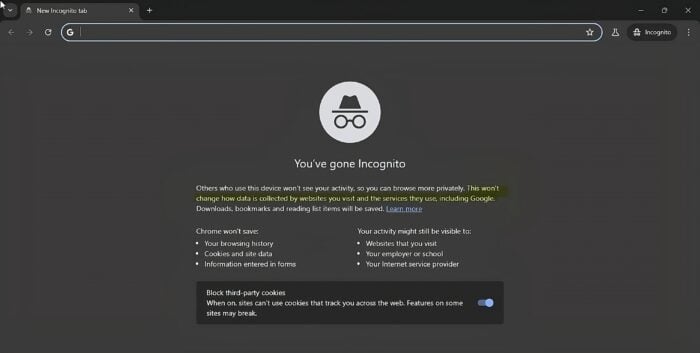
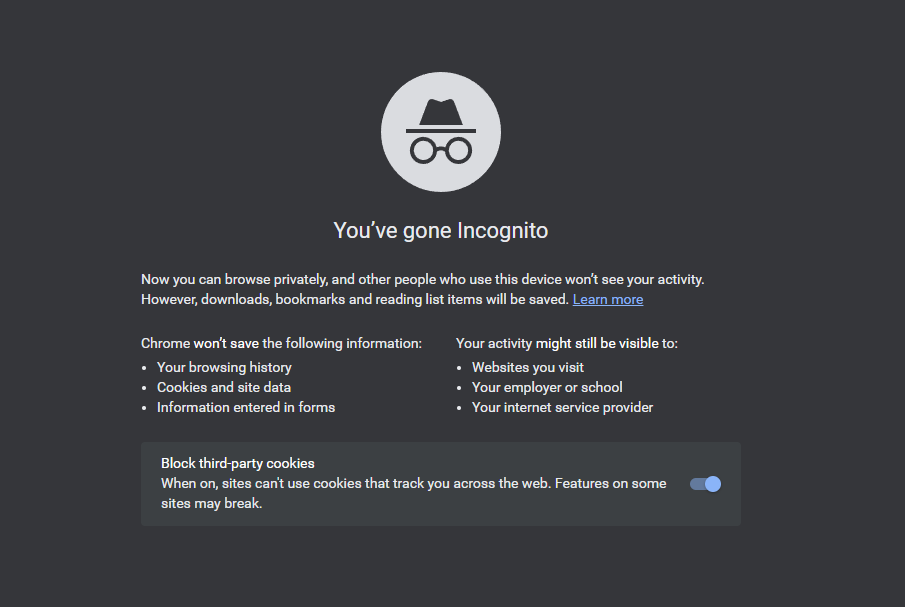
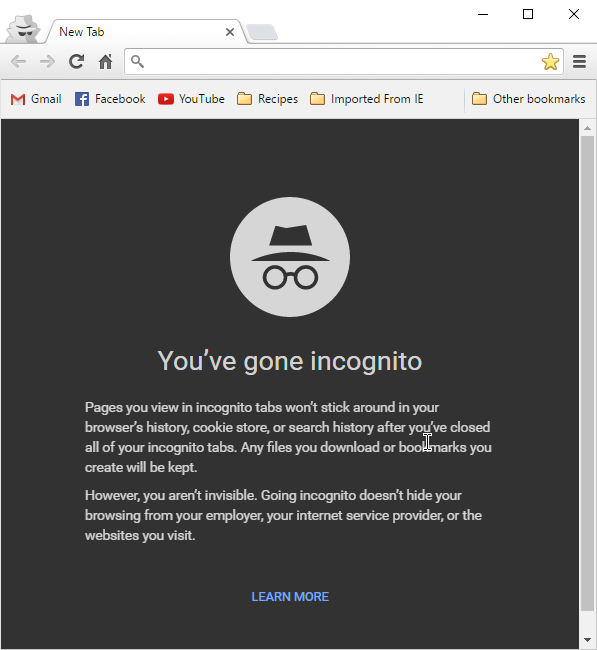
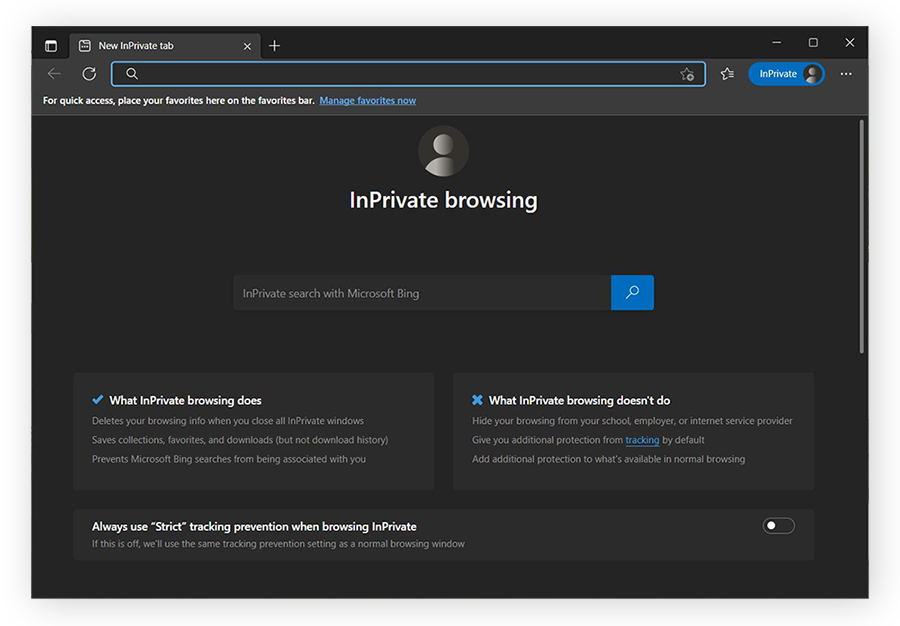
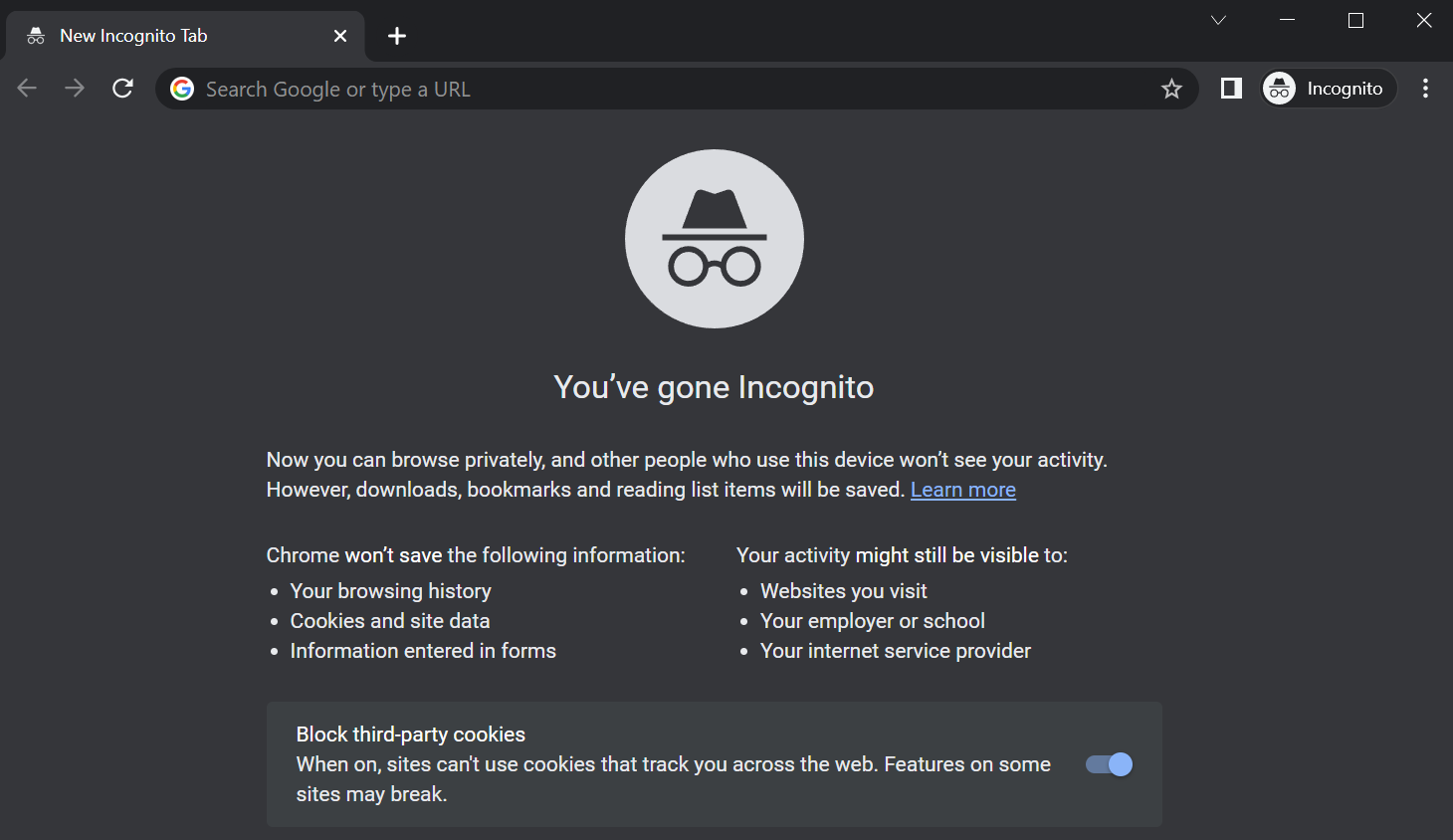
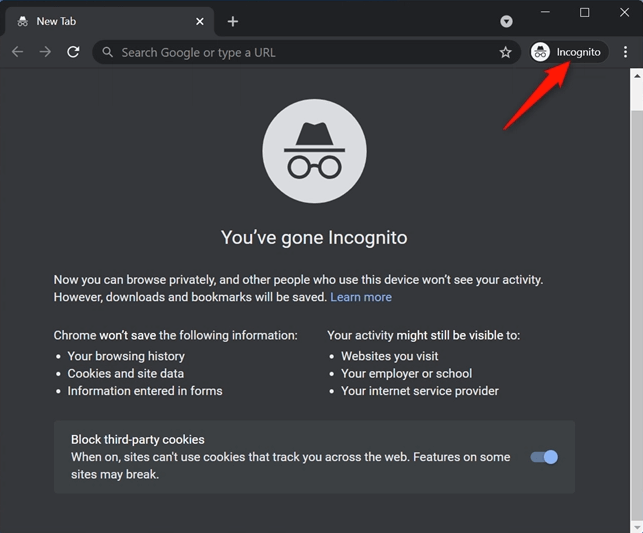
Incognito mode is a feature available in most popular web browsers, including Google Chrome, Safari, Firefox, and Microsoft Edge. When you enable Incognito mode, your browser opens a new window that prevents it from saving your browsing history, cookies, and form data to your device. This means that your online activities are not stored on your computer or device, making it more difficult for others to track your online activities.
Benefits of Secure Browsing with Incognito Mode
- Prevents browsing history from being saved on your device
- Blocks cookies and form data from being stored
- Helps to troubleshoot sign-in issues or account conflicts
- Can be useful for shared devices or public Wi-Fi networks
Limitations of Incognito Mode
- Does not prevent websites and search engines from tracking your activity
- Does not hide your IP address from your Internet Service Provider (ISP) or employer/school network
- Can be bypassed by websites that use advanced tracking methods, such as canvas fingerprinting
- May not be compatible with all websites or online services
How to Use Incognito Mode Effectively

Enabling Incognito Mode
Enabling Incognito mode is a straightforward process. Here's how to do it in popular web browsers:
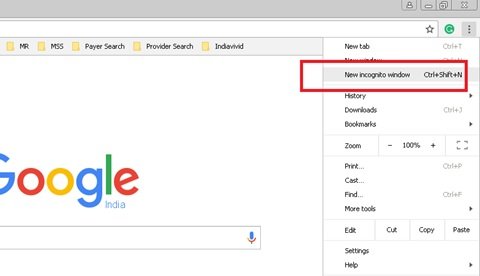
- Google Chrome: Press Ctrl + Shift + N (Windows) or Command + Shift + N (Mac) to open a new Incognito window
- Safari: Click on "File" > "New Private Window" or press Command + Shift + N
- Firefox: Click on "File" > "New Private Window" or press Ctrl + Shift + P (Windows) or Command + Shift + P (Mac)
- Microsoft Edge: Click on the three dots in the top right corner and select "New InPrivate window"
Managing Incognito Mode
When using Incognito mode, it's essential to manage your online activities carefully to ensure your online privacy is maintained. Here are some tips:
- Clear your browsing data regularly to prevent data buildup
- Disable browser extensions that may collect personal data or track your activity
- Use a VPN to protect your IP address and encrypt your internet traffic
- Avoid using public Wi-Fi networks or public computers to access sensitive information
Conclusion
Incognito mode is a useful tool for maintaining online privacy, but it's essential to understand its limitations. By using Incognito mode effectively and combining it with other online security measures, you can reduce the risk of your online activities being tracked and monitored. Remember, online privacy is an ongoing process, and staying informed and vigilant is key to protecting your personal information and online activities.



:max_bytes(150000):strip_icc()/002-browsing-incognito-445990-fe0e6532219e47709415f43362130523.jpg "ExpressVPN promises a security feature Google Chrome can't offer")