Setting Up a Reliable Network for Streaming on Twitch
A reliable network setup is crucial for streaming high-quality content on Twitch. A poor network can lead to buffering, lag, and even disconnections, which can be frustrating for both you and your audience. In this article, we'll guide you through the process of setting up a reliable network for streaming on Twitch.
Understanding the Basics of a Reliable Network Setup
For a smooth streaming experience, you'll need a fast and stable Internet connection. A good rule of thumb is to have a upload speed of at least 5 Mbps for 1080p streaming and 10 Mbps for 4K streaming. You'll also need to ensure that your router is positioned in a central location with a clear line of sight to minimize interference.
Evaluating Your Network Infrastructure
To ensure a stable network setup, you'll need to evaluate your network infrastructure. This includes your router, modem, and Internet service provider (ISP). Ensure that your router is a high-quality one that can handle multiple devices and provide a stable connection.
- Verify your ISP's upload speed to ensure it meets the requirements for high-quality streaming.
- Check if your router is compatible with your ISP's network.
- Consider upgrading your router or modem if necessary.
Optimizing Your Router's Settings
To optimize your router's settings for streaming, you'll need to adjust the Quality of Service (QoS) settings. QoS settings help prioritize your streaming traffic over other network traffic.
- Open your router's administration page and access the QoS settings.
- Set the priority of your streaming traffic to high.
- Configure the QoS rules to prioritize your streaming traffic.
DHCP and Network Address Translation (NAT)
Another crucial aspect of a reliable network setup is DHCP and NAT. DHCP assigns IP addresses to devices on your network, while NAT allows devices to access the Internet and connect with other devices on the network.
- Enable DHCP on your router to assign IP addresses to devices.
- Configure NAT to allow devices to access the Internet and connect with other devices on the network.
Firewall and Port Forwarding
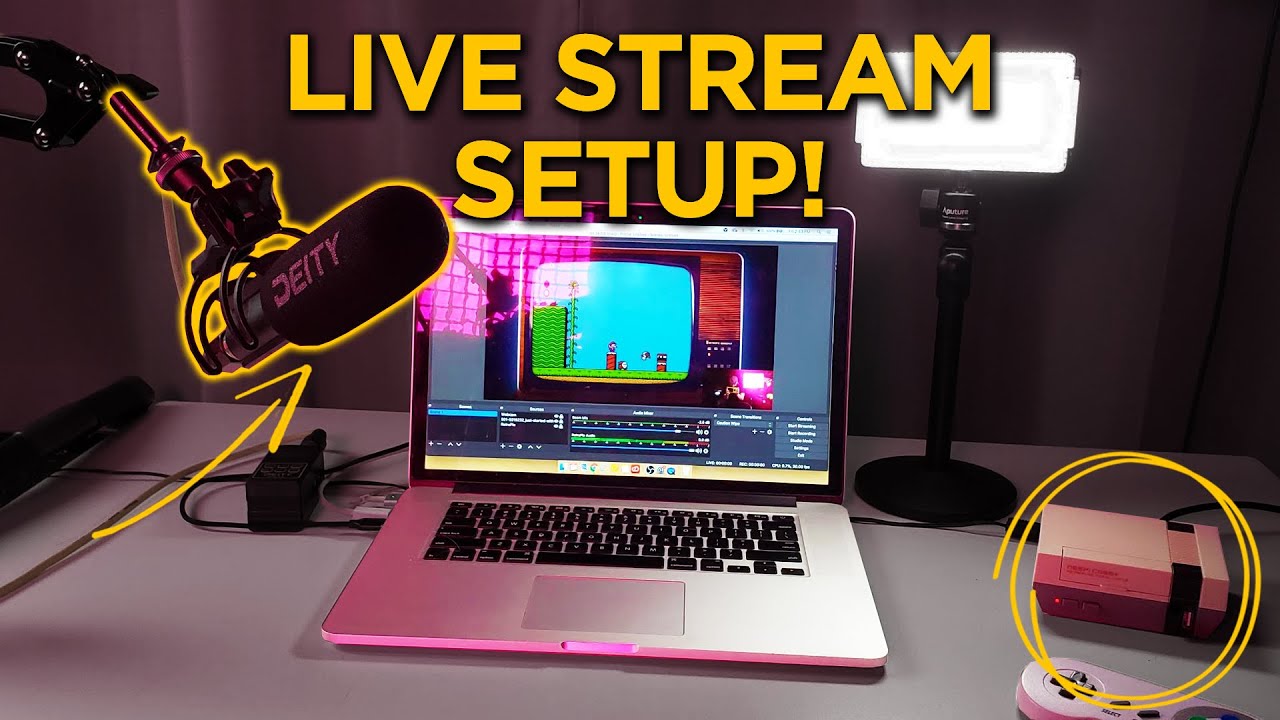
A firewall helps protect your network from unauthorized access and helps ensure that only authorized devices can access your streaming content. Port forwarding is necessary to allow incoming traffic to your streaming device.
- Enable the firewall on your router to protect your network.
- Configure port forwarding to allow incoming traffic to your streaming device.
Testing Your Network Setup
After configuring your network setup, it's essential to test it to ensure everything is working as expected.
- Run a speed test to ensure your upload speed meets the requirements for high-quality streaming.
- Test your stream to ensure it's stable and smooth.
Conclusion
A reliable network setup is crucial for streaming high-quality content on Twitch. By evaluating your network infrastructure, optimizing your router's settings, configuring DHCP and NAT, enabling the firewall, and configuring port forwarding, you can create a stable network setup for streaming on Twitch. Don't forget to test your network setup to ensure everything is working as expected.
Tips for Improving Your Network Setup
Here are some additional tips to help you improve your network setup for streaming on Twitch:
- Regularly update your router's firmware to ensure you have the latest security patches and features.
- Use a wired connection instead of Wi-Fi to improve stability and reduce latency.
- Invest in a high-quality router and modem to ensure a stable and fast connection.
- Consider using a network switch to connect multiple devices to your router.
Common Issues and Solutions
Here are some common issues you may encounter with your network setup and solutions to resolve them:
- Issue: Buffering and lag during streaming
- Solution: Check your upload speed, QoS settings, and firewall configuration.
- Issue: Unstable connection during streaming
- Solution: Check your router's firmware, DHCP settings, and NAT configuration.
- Issue: Difficulty setting up port forwarding
- Solution: Consult your router's user manual or contact your ISP for assistance.


![[Everything Explained] Streaming Setup for Twitch in 2026 - OBSBOT](https://pbblogassets.s3.amazonaws.com/uploads/2020/09/04124531/Pro-Gamer-1.jpg "[Everything Explained] Streaming Setup for Twitch in 2026 - OBSBOT")