How to Get Set Up on Twitch: A Step-by-Step Guide for Beginners
Introduction
For many, Twitch is the ultimate platform to share their passions, connect with like-minded individuals, and build a vibrant community. But before you can dive into broadcasting your first gameplay session, art piece, or casual chat, you need to lay the groundwork: setting up your Twitch channel. In this tutorial, we'll walk you through everything you need to know to get started on Twitch, from creating your profile and account to getting the right equipment and software.Step 1: Create Your Profile and Account
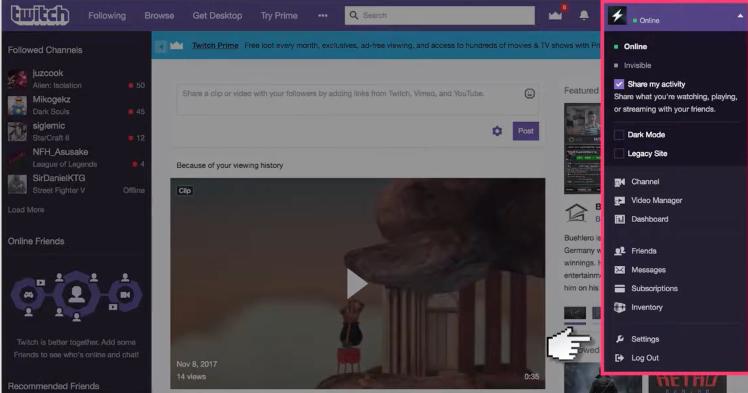
To start streaming on Twitch, you'll need to create a user account. Go to the Twitch website and click on the "Get Started" button. Fill out the registration form with your username, email address, and password. Make sure to choose a unique and memorable username, as this will be the name by which your stream is known.Step 2: Set Up Your Channel
Once you've created your account, it's time to set up your channel. Click on the "Create a Channel" button and fill out the necessary information, including your channel name, description, and profile picture. Make sure to include a link to your social media profiles and any other relevant information.Channel Categories
When setting up your channel, you'll be asked to choose a category. Choose a category that best describes your content, such as "Gaming," "Art," or "Music."Step 3: Choose Your Equipment
To start streaming, you'll need a few pieces of equipment, including:- A computer or gaming console with a stable internet connection
- A webcam or camera for capturing video
- Microphone for capturing audio
- Headphones for monitoring audio
- A stable and reliable internet connection with a minimum upload speed of 5 Mbps
Step 4: Download and Install Streaming Software

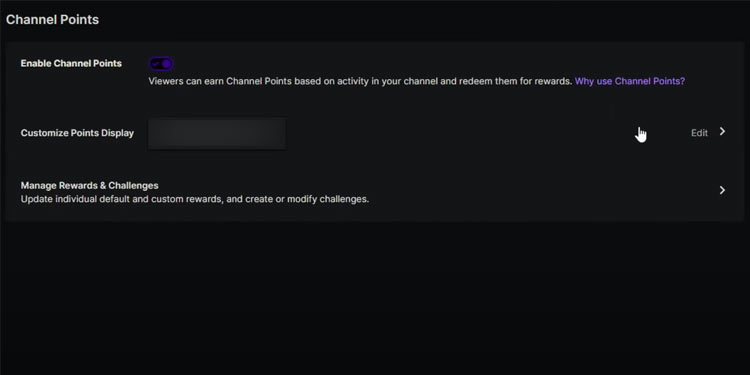
Step 5: Configure Your Streaming Settings
Once you've set up your streaming software, you'll need to configure your streaming settings, including:- Setting your stream quality and bitrate
- Choosing your stream title and description
- Setting your stream schedule and tags
- Enabling or disabling features, such as chat and notifications
Step 6: Test Your Stream
Before you go live, make sure to test your stream to ensure everything is working smoothly. Run a test stream to check for any audio or video issues, and make any necessary adjustments.Step 7: Go Live!
Once you've set up your channel, equipment, and streaming software, it's time to go live! Click on the "Go Live" button to start broadcasting your stream, and engage with your audience in real-time.Conclusion
Getting set up on Twitch can seem overwhelming, but with these step-by-step instructions, you'll be live streaming in no time. Remember to choose your equipment and software carefully, and take the time to set up your channel and streaming settings correctly. Happy streaming!Additional Resources
For further guidance on setting up your Twitch channel and streaming, check out these additional resources:- The Twitch Creator Dashboard, which provides step-by-step guides and tutorials for creating a successful Twitch channel
- The Twitch Developer Documentation, which provides detailed information on Developing on the Twitch Platform
- The Twitch Community, which is a great resource for connecting with other streamers and getting feedback on your channel and stream

:max_bytes(150000):strip_icc()/A5-StreamonTwitch-annotated-af6a6beb257d44b78d5bb155b13c9e5d.jpg "How to Start Streaming on Twitch: 10 Easy Steps for Beginners")