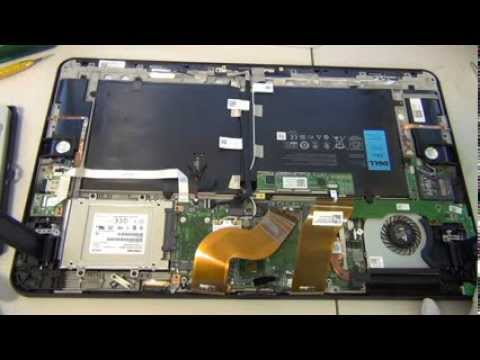
Boost Your PC's Performance with an SSD Upgrade
Are you tired of your computer's slow loading times and sluggish performance? Consider upgrading to a solid-state drive (SSD). An SSD upgrade can significantly improve your PC's speed and efficiency, making it a worthwhile investment for anyone looking to upgrade their computer.What is an SSD Upgrade?
An SSD upgrade involves replacing your traditional hard drive with a solid-state drive. SSDs store data on interconnected flash memory chips, allowing for faster access and retrieval of data compared to traditional hard drives.Benefits of an SSD Upgrade
The benefits of an SSD upgrade are numerous:- Improved performance: SSDs load files and programs faster than traditional hard drives.
- Increased storage capacity: Many SSDs offer higher storage capacities than traditional hard drives.
- Lower power consumption: SSDs consume less power than traditional hard drives, making them a more energy-efficient option.
- Improved durability: SSDs are less prone to mechanical failure than traditional hard drives.
Choosing the Right SSD
When selecting an SSD, consider the following factors:- Capacity: Choose an SSD with a capacity that meets your needs.
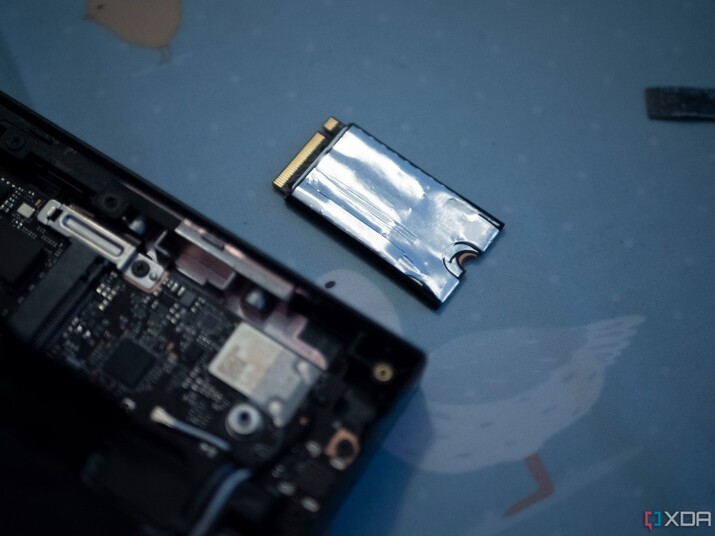
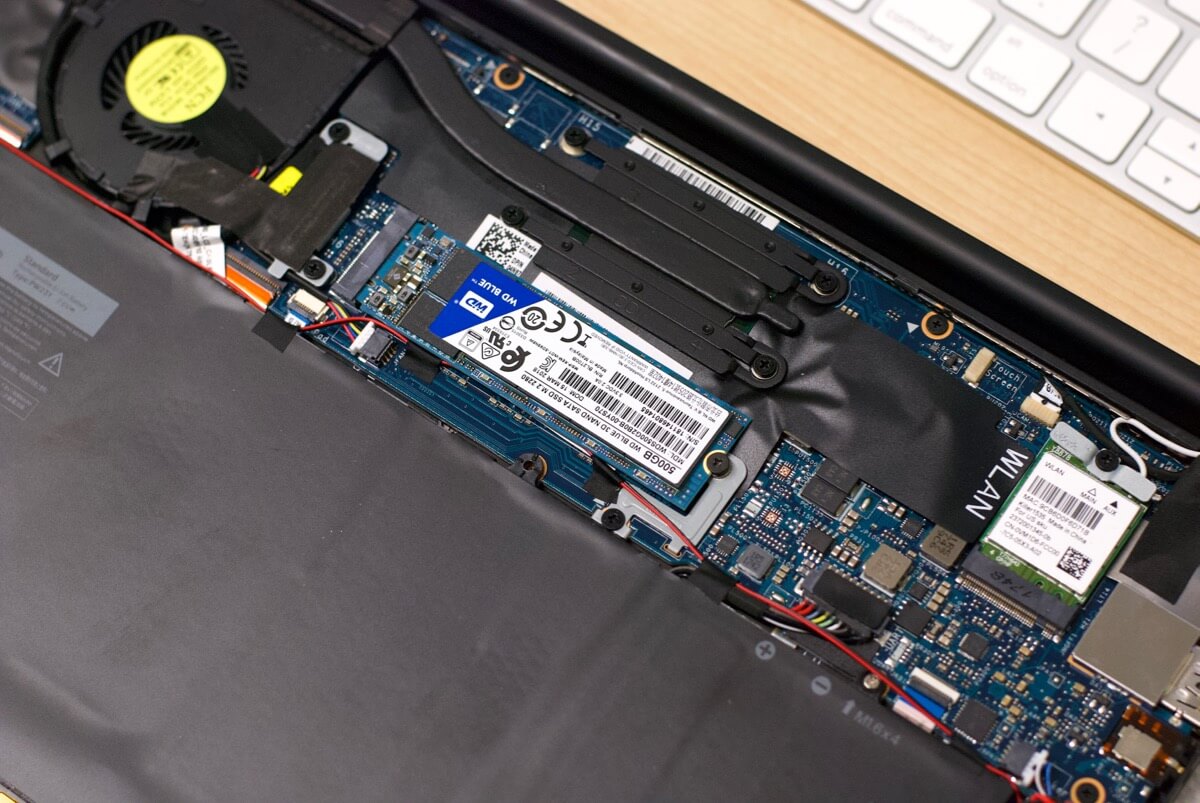
- Interface: SATA, PCIe, and M.2 are common interfaces for SSDs. Choose one that is compatible with your computer's hardware.
- Speed: Look for SSDs with high read and write speeds, such as those with NVMe technology.
- Brand: Research reputable brands, such as Samsung, Western Digital, and Crucial.
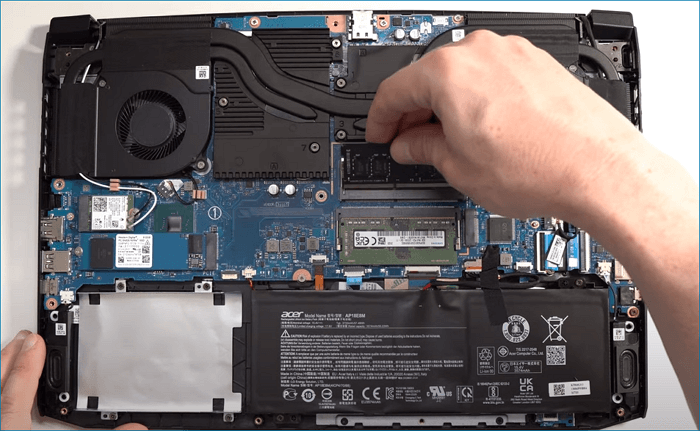
Steps to Upgrade Your SSD
Upgrading your SSD is a relatively straightforward process. Here's a step-by-step guide:- Back up your data: Before starting the upgrade process, back up your important files and data.
- Shut down your computer: Turn off your computer and unplug the power cord.
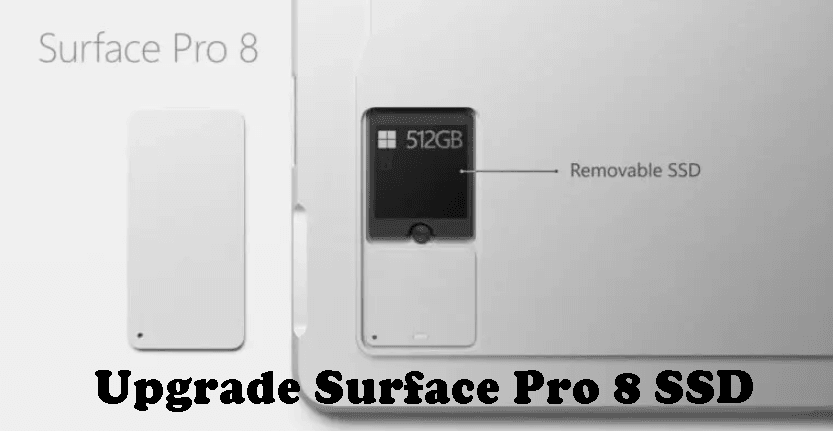
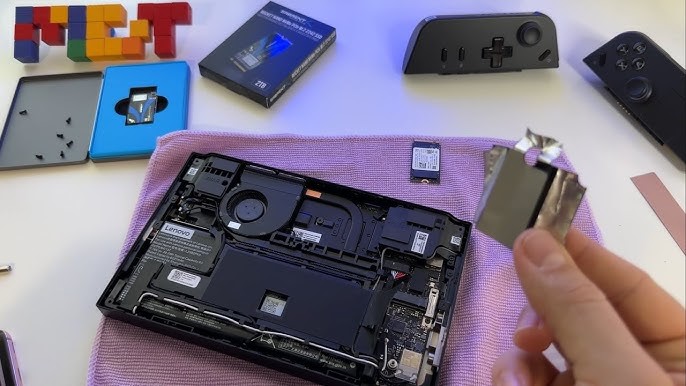
- Remove the old hard drive: Gently pull the old hard drive out of its bay.
- Install the new SSD: Place the new SSD into the bay and secure it with screws.
- Connect the SSD to your motherboard: Connect the SSD to your motherboard using a SATA or PCIe cable.
- Boot up your computer: Turn on your computer and enter the BIOS settings to set the SSD as the primary boot device.
- Clone your old hard drive: Use software to clone your old hard drive to the new SSD, ensuring that your files and data are transferred successfully.
Tools Needed for the SSD Upgrade Process
To upgrade your SSD, you'll need the following tools:- Screwdriver: A Torx or Phillips screwdriver, depending on the type of screws used in your computer's bay.
- SSD installation kit: A kit that includes screws, clips, and other necessary components for installing the SSD.
- Cloning software: Software that allows you to clone your old hard drive to the new SSD, such as Acronis True Image or EaseUS Todo Backup.

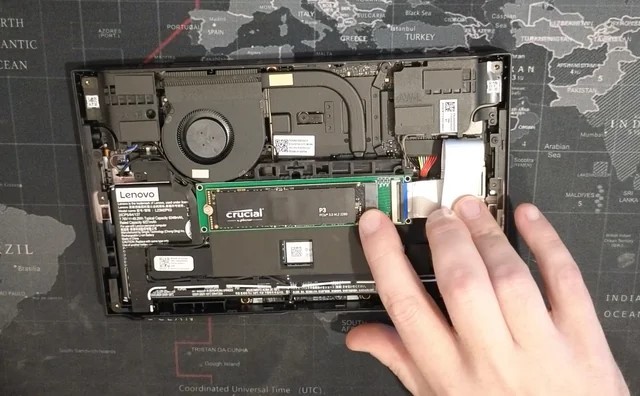
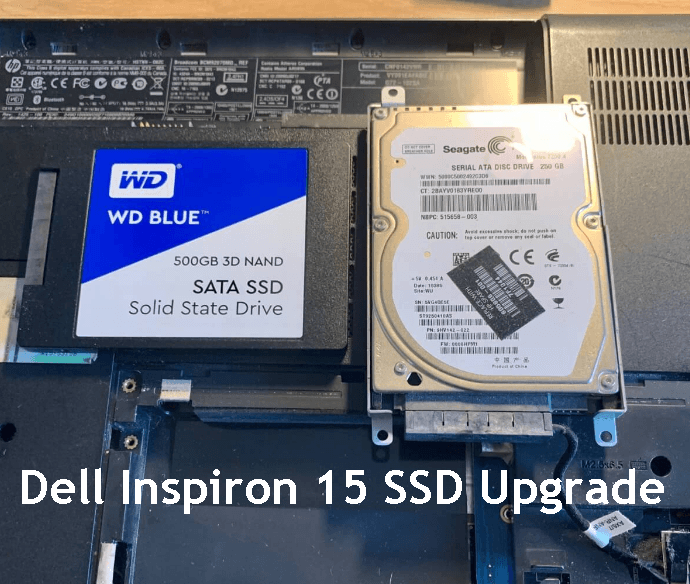




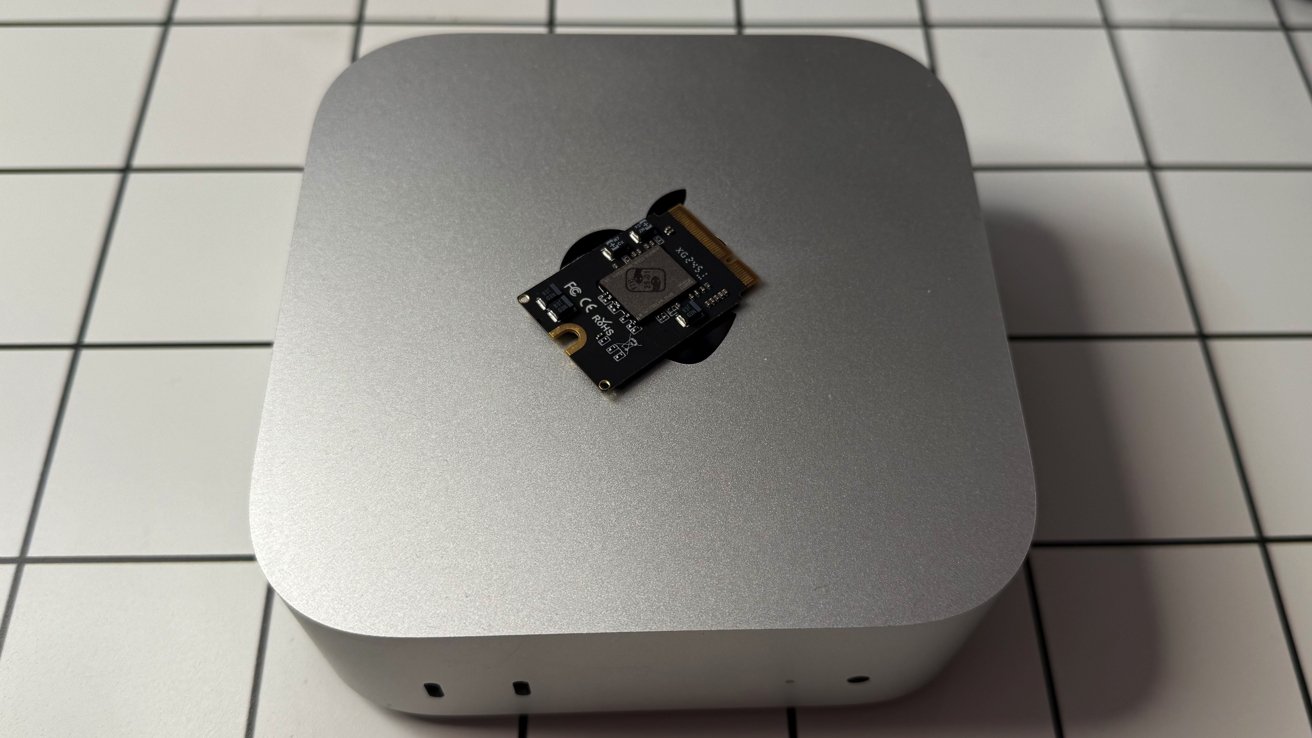


![How to upgrade HDD to SSD [Saving Genuine Windows] - YouTube](https://www.mrmemory.co.uk/images/groups-high/corsair-mp600-mini-m2-ssd-4.jpg "How to upgrade HDD to SSD [Saving Genuine Windows] - YouTube")