How to Set Up Out of Office in Outlook: A Step-by-Step Guide
Are you tired of manually responding to emails when you're away from the office? An out-of-office (OOO) reply is a convenient way to let others know when you're unavailable. In this article, we'll show you how to set up an out-of-office reply in Microsoft Outlook on Windows and Mac, as well as provide tips and troubleshooting for different email account types.
Why Set Up an Out-of-Office Reply?
An out-of-office reply is a helpful way to communicate with others when you're away from the office. It lets them know that you're unavailable to respond to emails, and it can also include information about when you'll be back in the office and who they can contact in your absence. This can help reduce the number of follow-up emails you receive and improve communication with your colleagues and clients.
How to Set Up Out of Office in Outlook
Step 1: Determine Your Outlook Account Type
Before you start setting up your out-of-office reply, you need to know your Outlook account type. If you have a Microsoft Exchange Outlook email account (if you have email through an organization, such as your workplace), you'll need to follow different steps than if you have an IMAP or POP3 account (if you have an individual email account, such as Yahoo or Gmail). Check your account settings to see which type of account you have.
Step 2: Open Automatic Replies in Outlook
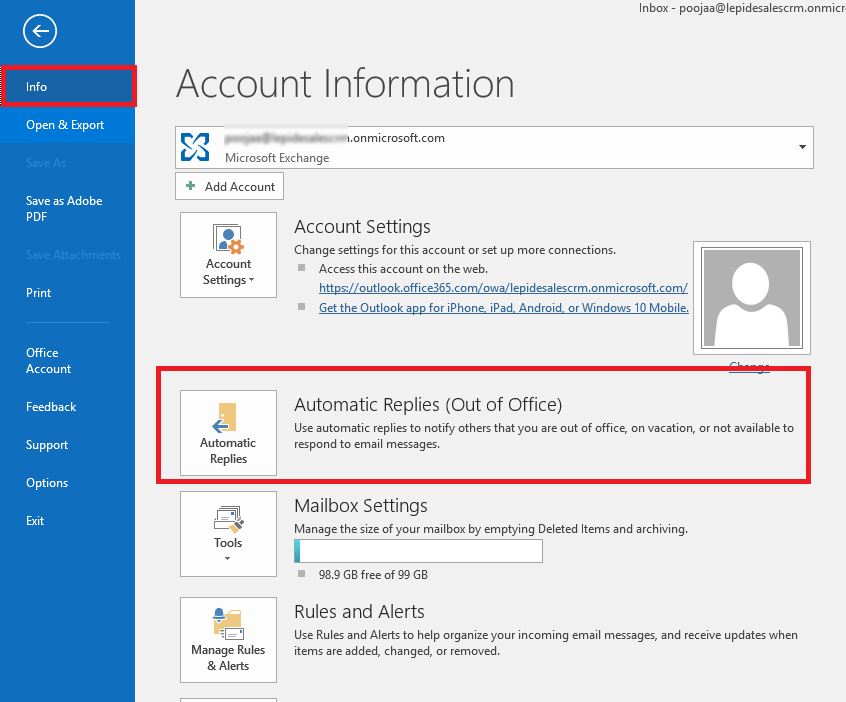
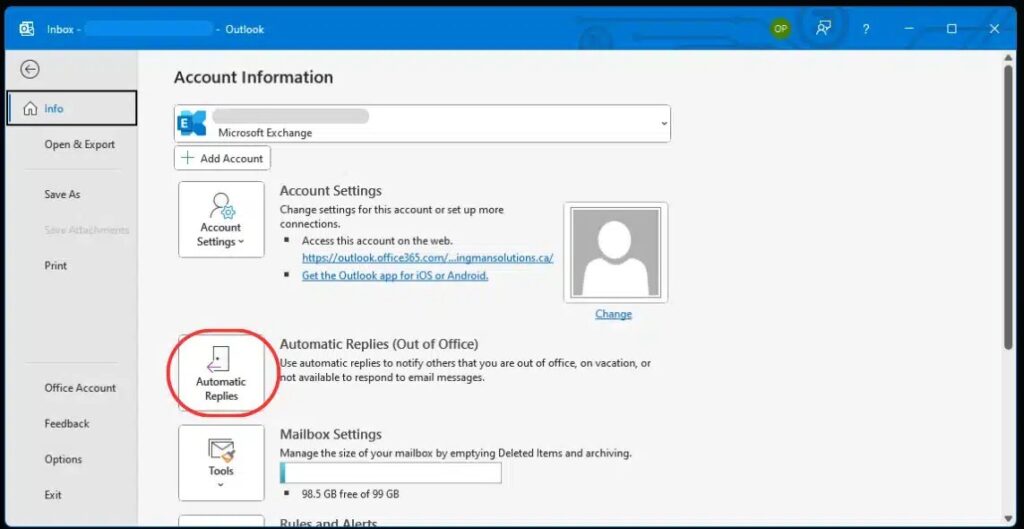
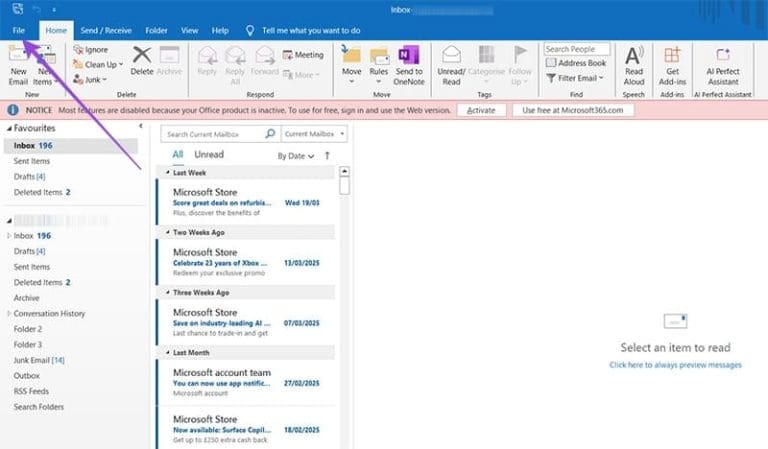
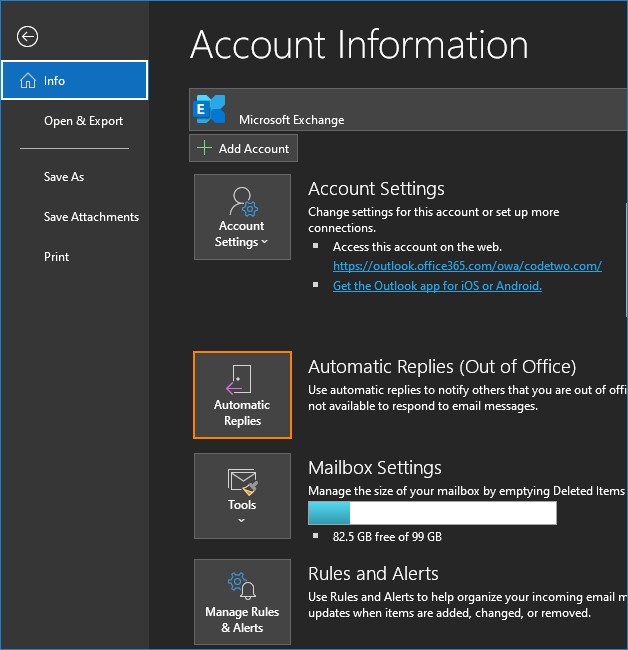
Open Outlook on your computer and click the File tab in the top-left corner. Then, click Automatic Replies (Out of Office). This will open the Automatic Replies window, where you can set up your out-of-office reply.
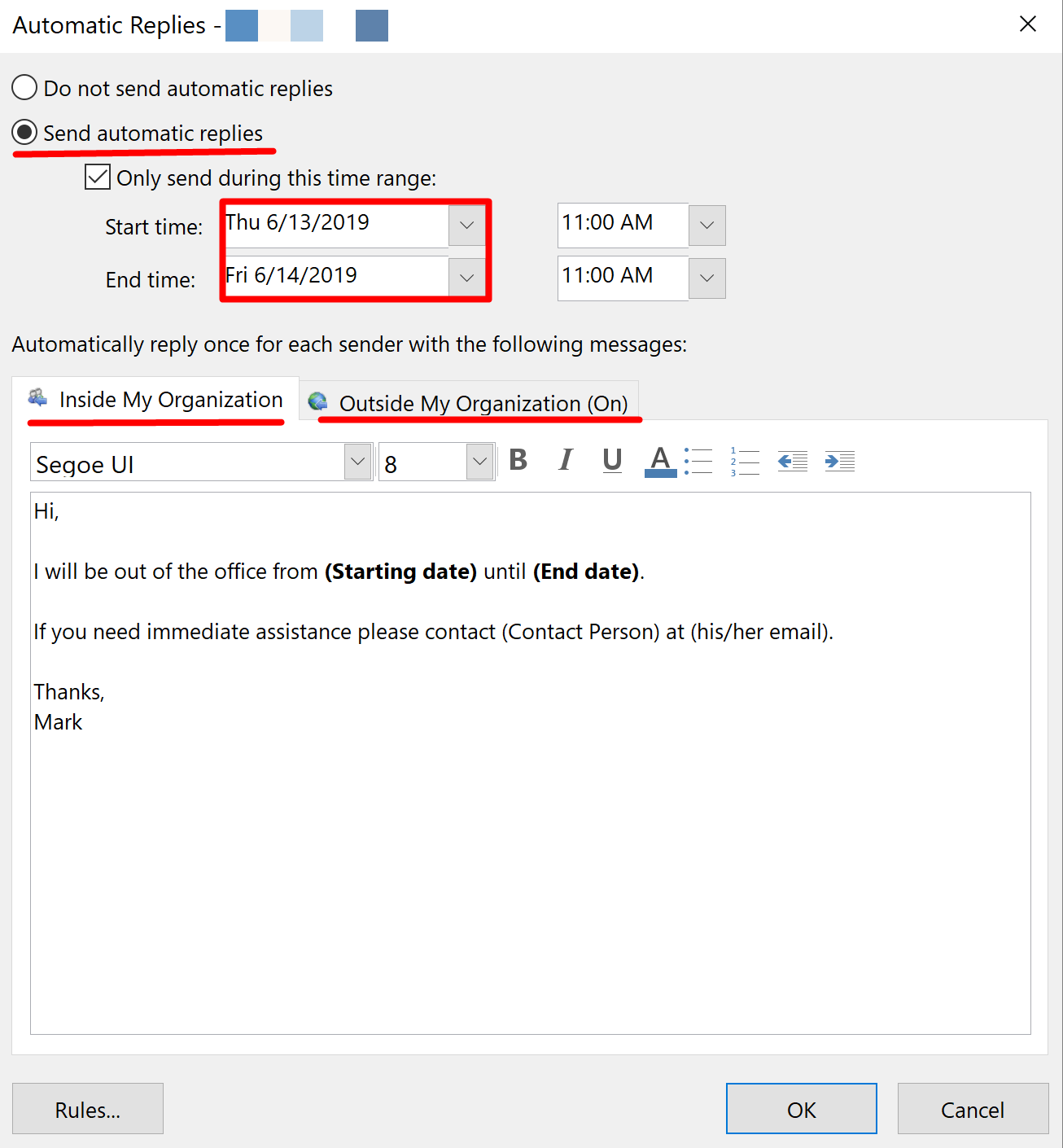
Step 3: Create an Out-of-Office Reply
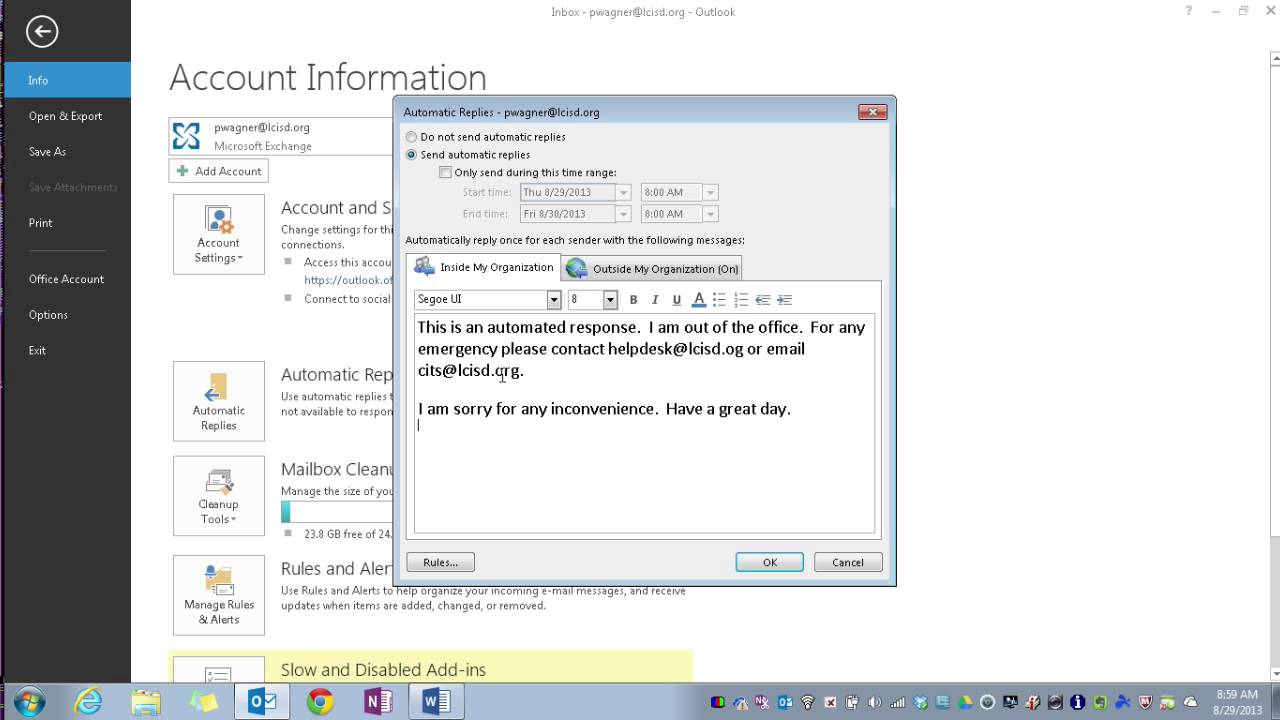
Use the Automatic Replies window to create an out-of-office reply. You can include a message that lets people know you're away and when you'll be back in the office. You can also include information about who they can contact in your absence. Click Send Automatic Replies to send your out-of-office reply to anyone who emails you during the specified time period.
Step 4: Customize Your Out-of-Office Reply
Customize your out-of-office reply to fit your needs. You can choose to send automatic replies during a specific time period, or you can set up a recurring out-of-office reply that sends automatically every time you're away from the office.
Tips and Troubleshooting
- Make sure you have the correct Outlook account type before setting up your out-of-office reply.
- Use a clear and concise message in your out-of-office reply to let others know when you'll be back in the office.
- Be sure to include information about who others can contact in your absence.
- Test your out-of-office reply by sending an email to yourself and checking that it sends correctly.
- Update your out-of-office reply regularly to reflect changes in your work schedule or availability.
Setting Up Out of Office in Different Outlook Versions
New Outlook
To set up an out-of-office reply in New Outlook, follow these steps:
- Open Outlook and click the File tab.
- Click Automatic Replies (Out of Office).
- Enter your out-of-office message and select the time period you want to send automatic replies.
- Click Send Automatic Replies to send your out-of-office reply.
Classic Outlook
To set up an out-of-office reply in Classic Outlook, follow these steps:
- Open Outlook and click the File tab.
- Click Automatic Replies (Out of Office).
- Enter your out-of-office message and select the time period you want to send automatic replies.
- Click Send Automatic Replies to send your out-of-office reply.
Outlook on the Web
To set up an out-of-office reply in Outlook on the web, follow these steps:
- Login to Outlook on the web.
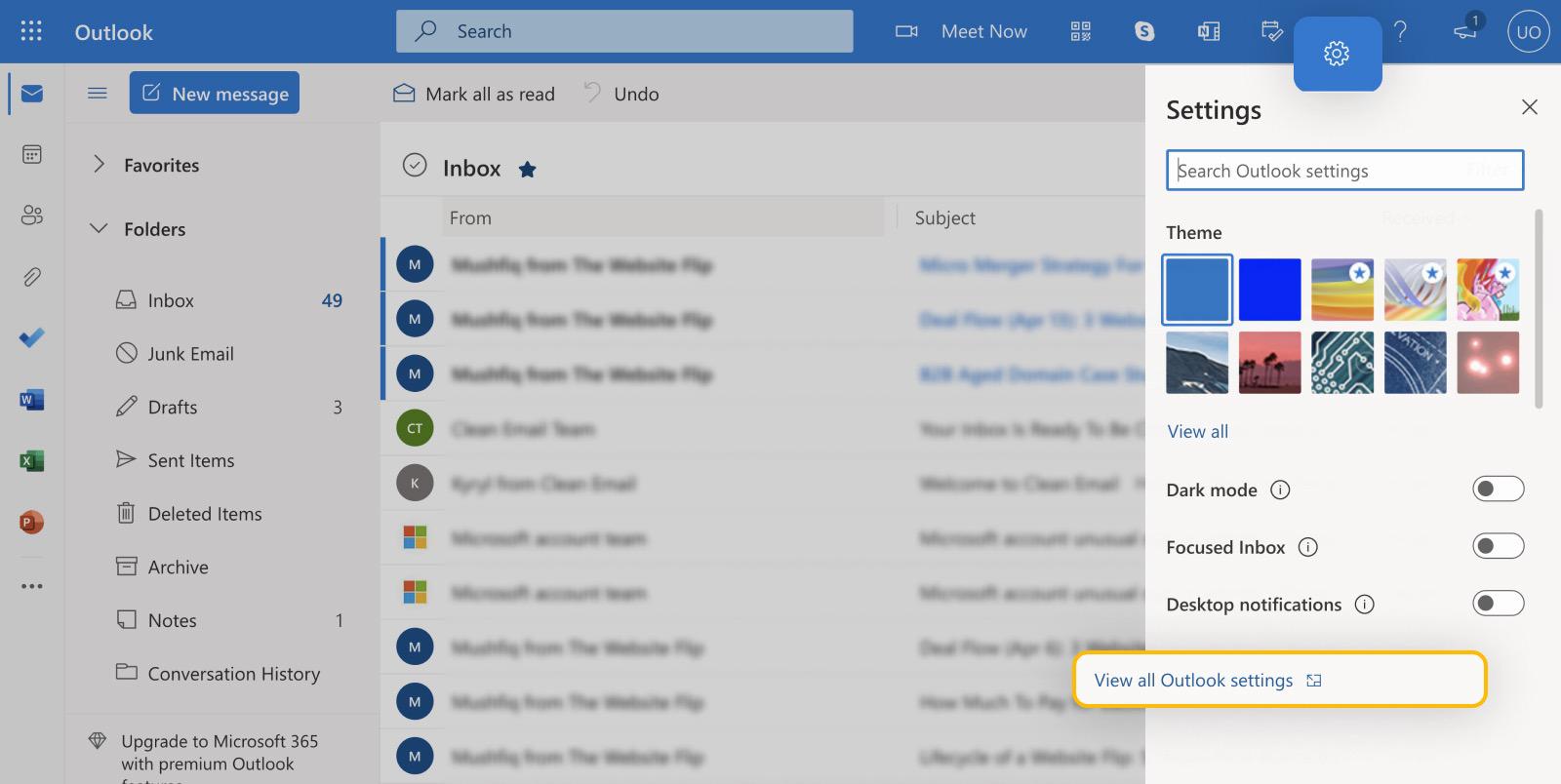
- Click the Settings icon in the top-right corner.
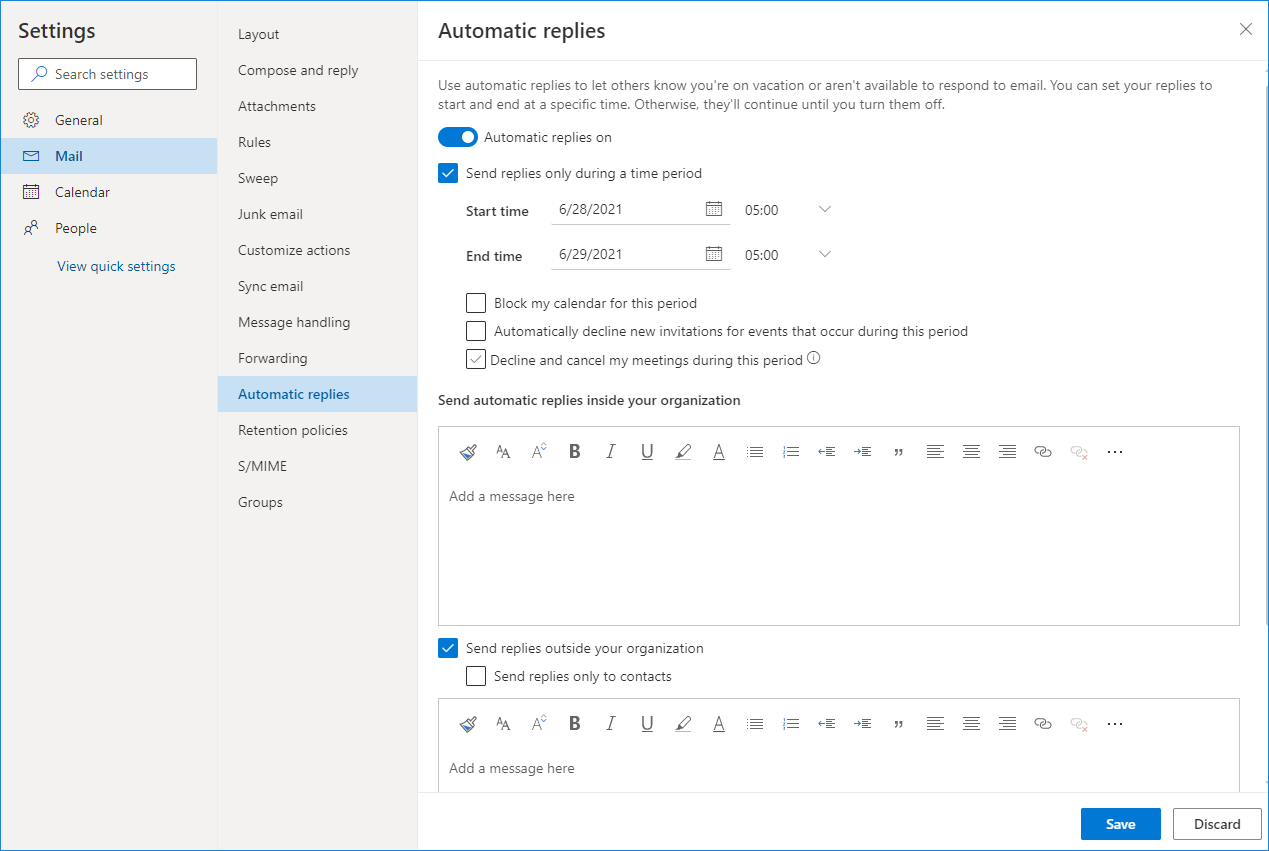
- Click Automatic replies (Out of Office).
- Enter your out-of-office message and select the time period you want to send automatic replies.
- Click Save to send your out-of-office reply.




/connectedtoexchange-8bb92cdf9e274f55b65b30885a69cb77.jpg "Turn on automatic forwarding in Outlook - Microsoft Support")