How to Install Printer on Windows 8: A Step-by-Step Guide
Installing a printer on Windows 8 can be a straightforward process if you follow the right steps. In this article, we will guide you through the process of installing a printer on Windows 8, including how to connect a local or network printer and how to troubleshoot common issues.
Instruction 1: How to Install a Printer
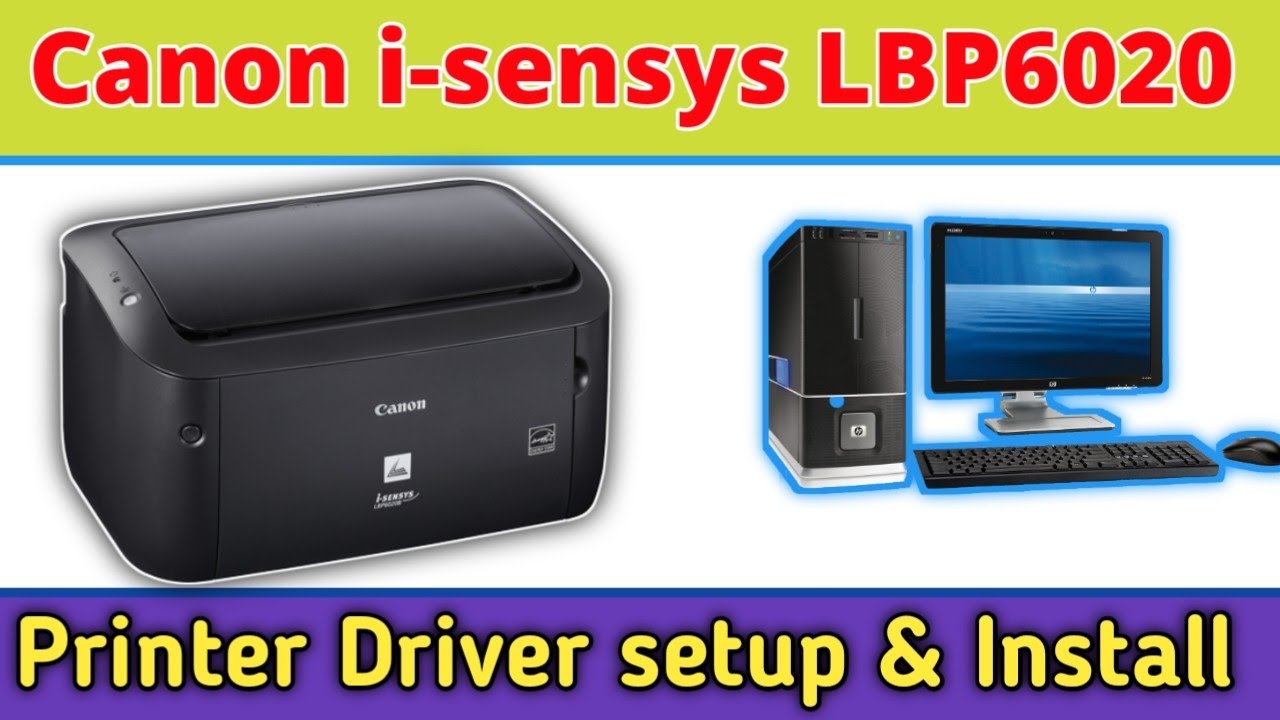
Want to install a new printer under Windows 8? It is usually enough to connect it and wait for the automatic driver installation. Windows 8 supports most printers out of the box, so in most cases, special printer drivers or software don't need to be installed. However, additional or updated drivers might be available via Windows Update.
Step-by-Step Guide to Installing a Printer on Windows 8
- Connect your printer to your Windows 8 device via a USB cable or through a network connection.
- Windows 8 should automatically detect your printer and proceed to install the drivers for you.
- Wait for the installation process to complete, which usually takes only a few seconds.
- Once the installation is complete, your printer should be ready to use.
What to Do if Your Printer Doesn't Install Automatically
If your printer doesn't install automatically, don't worry! There are other ways to install a printer on Windows 8. Here are a few options:
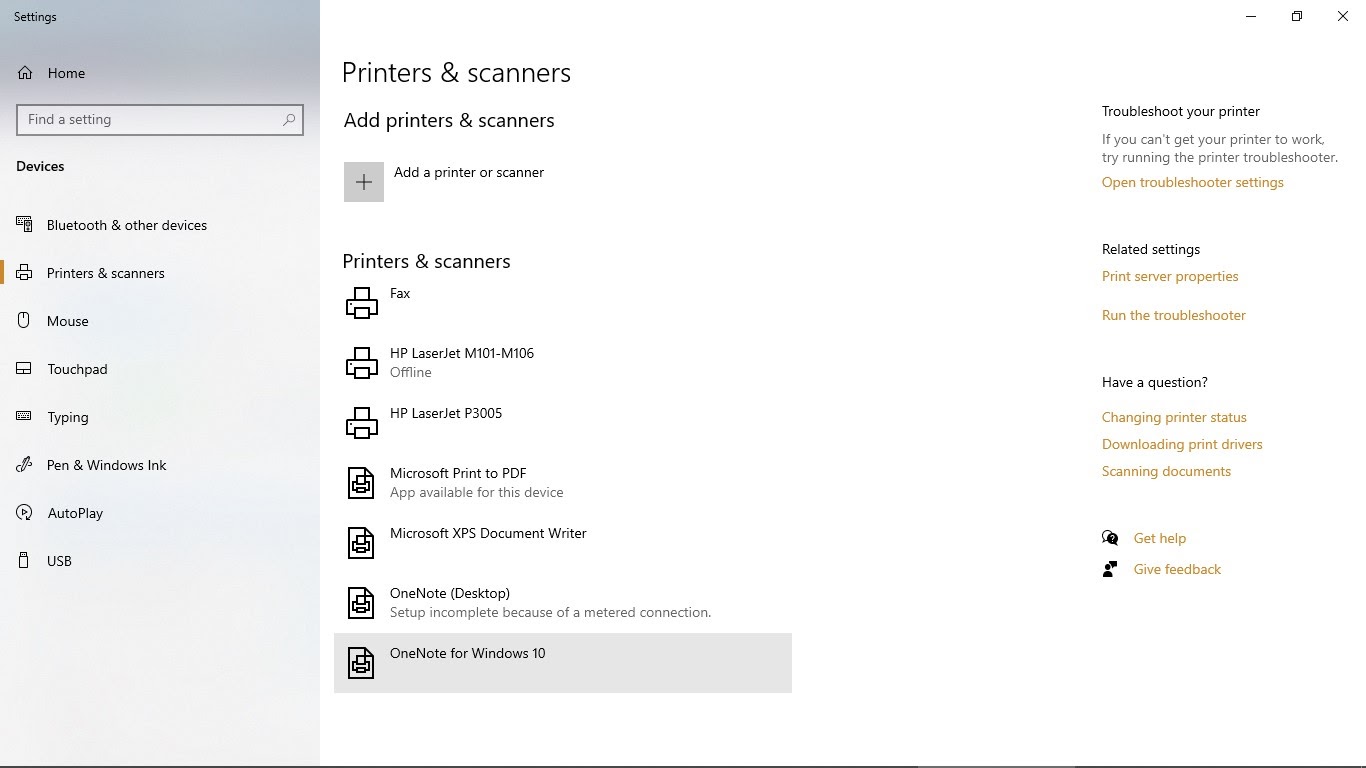
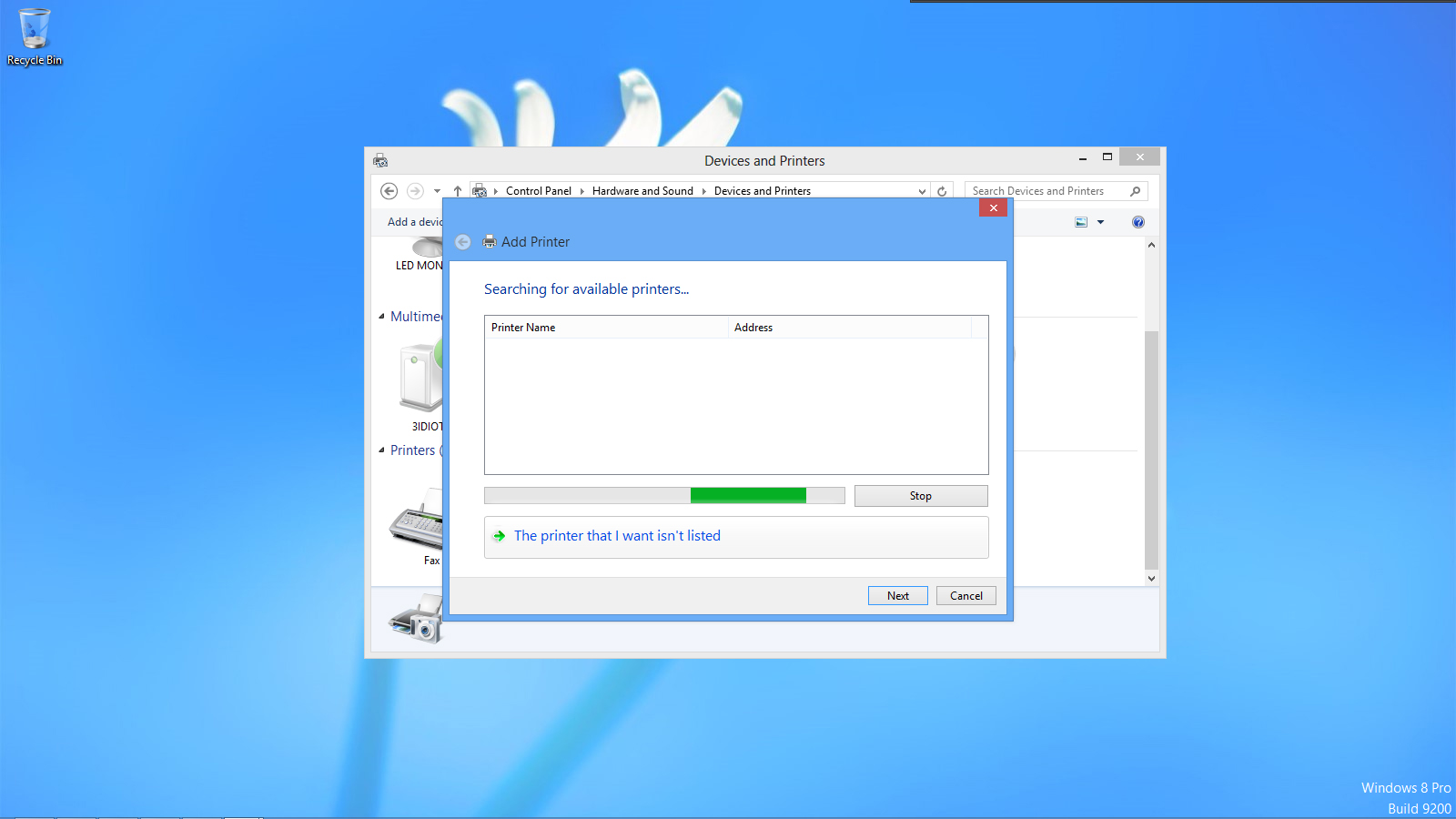
- Click on "Add a local printer or network printer with manual settings" and follow the prompts to install your printer.
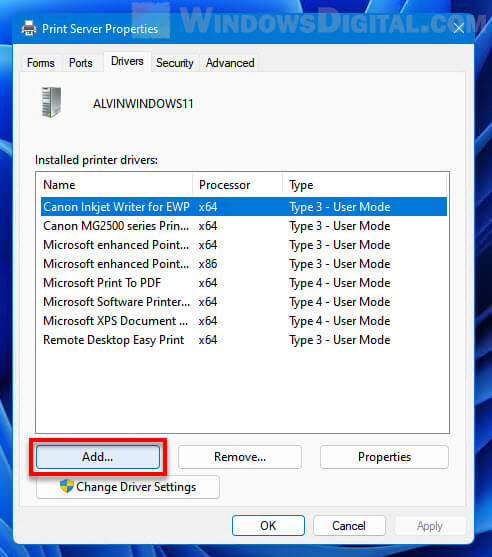
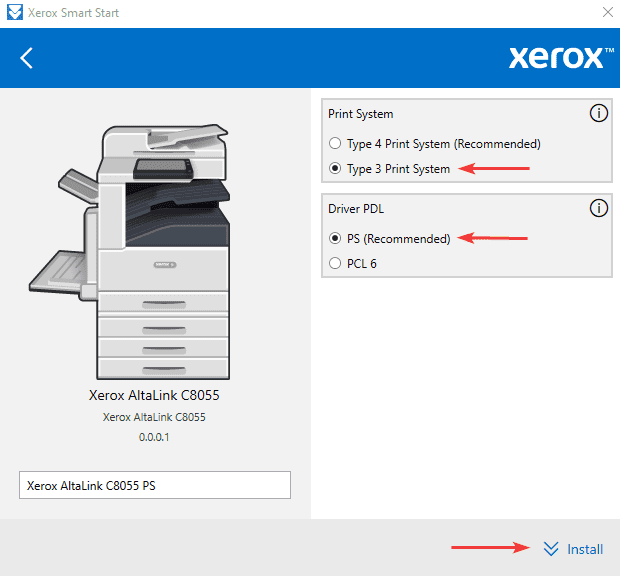
- Download and install a printer driver from a reputable source, such as the manufacturer's website.
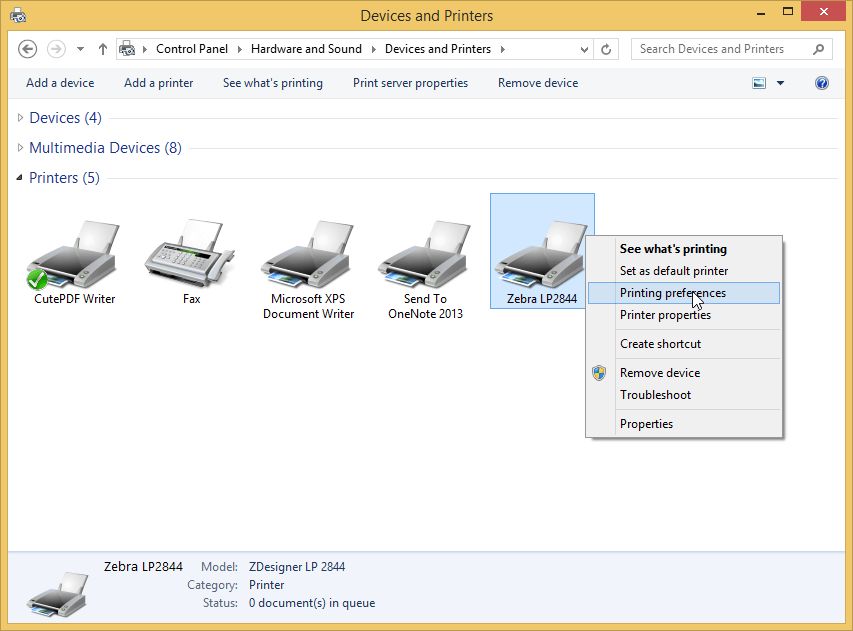
- Use the "Add Printer" option in the Control Panel to install your printer.
Tips for Installing a Printer in Windows 8 Quickly and Easily
Setting up a printer in Windows 8 can be a fairly straightforward process if you follow a few key tips. Here are a few tips to help you install your printer quickly and easily:

- Make sure your printer is compatible with Windows 8 before you start the installation process.
- Use a USB cable to connect your printer to your device, as this will often result in a faster installation process.
- If you're having trouble installing your printer, try restarting your device and then trying the installation process again.
- Use the "Add Printer" option in the Control Panel to install your printer, as this will give you more control over the installation process.
Conclusion
Installing a printer on Windows 8 can be a straightforward process if you follow the right steps. By following the guide outlined in this article, you should be able to install your printer quickly and easily. If you're having trouble installing your printer, don't hesitate to contact the manufacturer for support or reach out to a Microsoft support agent for assistance.
Additional Resources
For more information on how to install a printer on Windows 8, check out the following resources:
- Microsoft Support: Installing a Printer
- Windows 8 Help: Installing a Printer
- Printer Manufacturer's Website: Installation Guides and Support
Common Issues and Troubleshooting Tips
Here are some common issues and troubleshooting tips to help you resolve issues with your printer installation:
- Printer not detected: Check that your printer is properly connected to your device and that the drivers are installed correctly.
- Printer not recognized: Check that the printer is properly installed and that the drivers are up to date.
- Printing issues: Check that the printer is properly connected to your device and that the ink levels are sufficient.

:max_bytes(150000):strip_icc()/HowtoInstallaPrinterDriver-3-bb2687af744a4eecae2577831234af48.jpg "Installing printer drivers for windows 8.1 operating system")