Setting Up a Gaming PC for Twitch Streaming: A Step-by-Step Guide
Are you ready to take your gaming career to the next level by streaming on Twitch? Setting up a gaming PC for Twitch streaming can seem daunting, but with the right guidance, you'll be live in no time. In this comprehensive guide, we'll walk you through the essential steps to create a high-quality streaming setup that will attract and engage your audience.Hardware Requirements
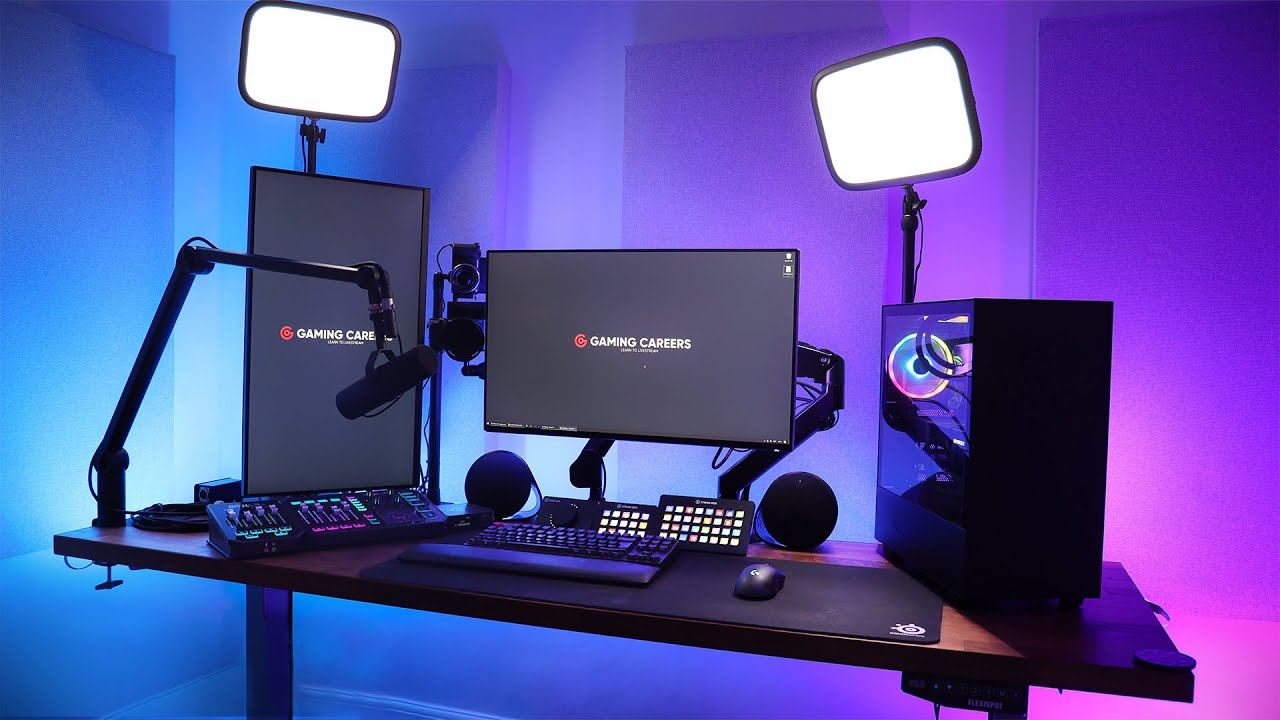
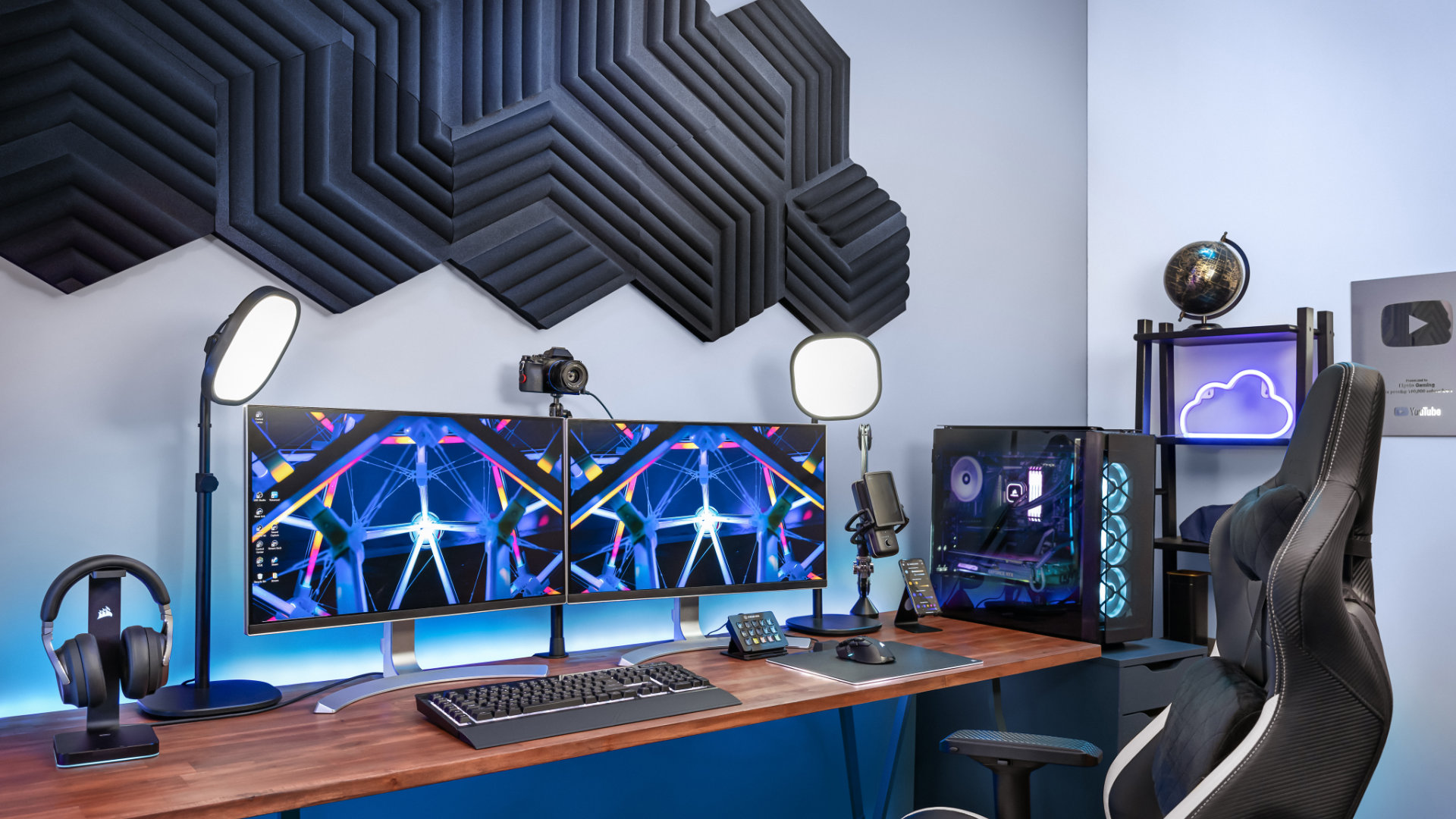
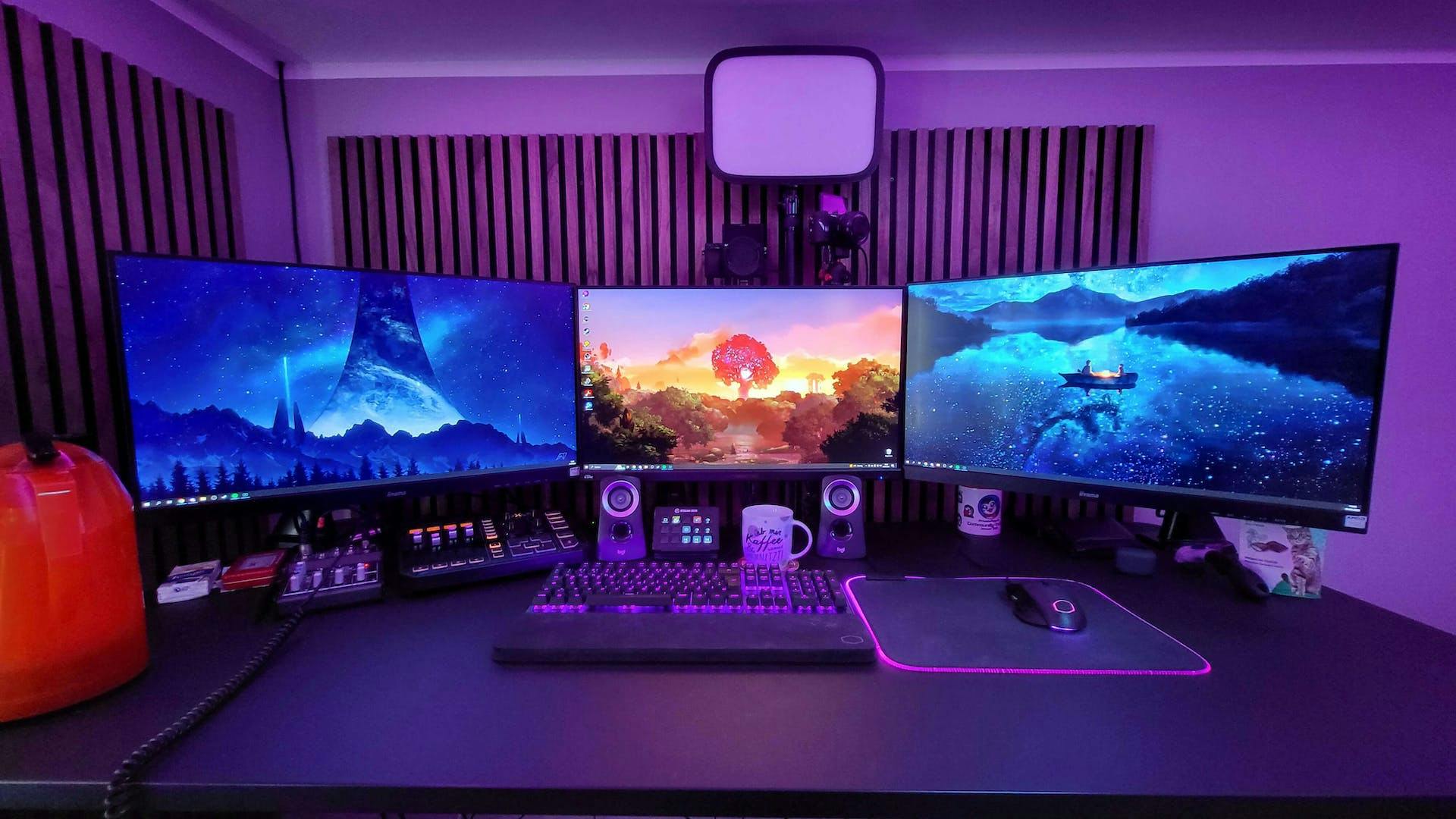
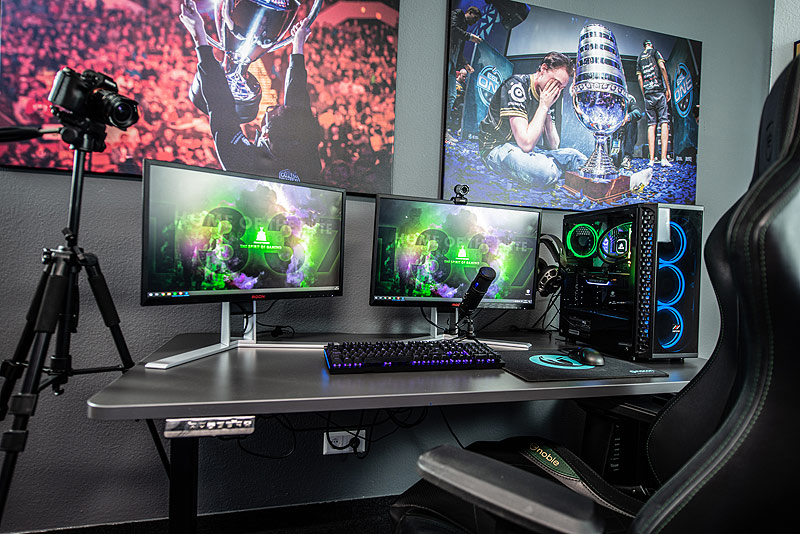
Before we dive into the setup process, it's essential to understand the hardware requirements for a successful Twitch streaming setup. Here are the key components you'll need: * A decent gaming computer or a dedicated streaming machine (PC or console) * Reliable audio/video equipment (webcam, microphone, capture card) * A stable internet connection (plan for at least 5 Mbps upload speed) * A gaming console or PC with a compatible graphics card * A reliable capture card (if using a console)Software Requirements
To stream on Twitch, you'll need the right software to capture and process your gameplay, video, and audio. The most popular choice is OBS Studio (Open Broadcasting Software), which is free and compatible with both PC and Mac.Setup Your Hardware
Before you start streaming, ensure that your hardware is set up correctly:- Connect your webcam to your PC and adjust the settings to ensure the best video quality.
- Install a high-quality microphone to capture clear audio.
- Connect your console or gaming PC to a monitor and controllers.
- If using a console, install a capture card to capture the video feed and send it to your PC.
Install and Configure OBS Studio
Now it's time to set up OBS Studio:- Download and install OBS Studio from the official website.
- Launch OBS and set up a new scene by clicking on the "+" icon.
- Configure your audio and video settings, including bitrate, resolution, and frame rate.
- Set up your stream sources, including gameplay, webcam, and microphone feeds.
Connect to Twitch
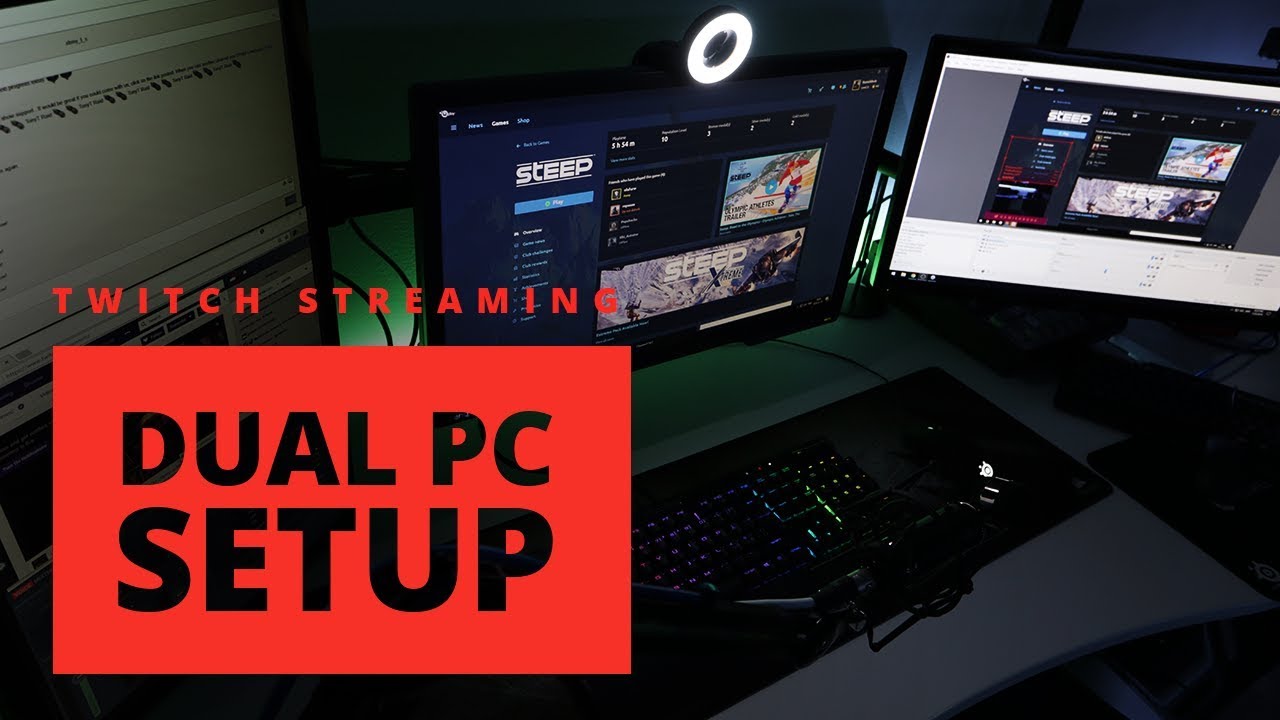
- Log in to your Twitch account and go to the "Settings" section.
- Click on "Stream" and enter your stream key and other streaming settings.
- Back in OBS, click on the "Stream" button and select Twitch as your streaming platform.
Optimize Your Stream
To ensure smooth streaming, optimize your stream settings:- Choose the right bitrate and resolution for your stream quality.
- Use a stable internet connection with a minimum upload speed of 5 Mbps.
- Use a high-quality webcam and microphone for the best audio and video quality. li>Test your stream with a test broadcast to ensure everything is working correctly.