Installing Windows 11 on a New SSD: A Step-by-Step Guide
Installing Windows 11 on a new SSD (Solid-State Drive) is a fantastic way to boost your PC's performance and give it a fresh start. However, many users find this process daunting due to the complexity of the steps involved. In this comprehensive guide, we will walk you through each step of installing Windows 11 on a new SSD, ensuring a smooth and successful installation.
Hardware Requirements
- A new SSD (such as SATA, NVMe, or M.2)
- A compatible PC with a 64-bit processor and 4 GB of RAM
- A Windows 11 installation media (USB drive or DVD)
Preparation
Before starting the installation process, make sure you have the following:
- Your new SSD installed in your PC
- Your Windows 11 installation media ready (USB drive or DVD)
- Your important data backed up to an external drive or cloud storage
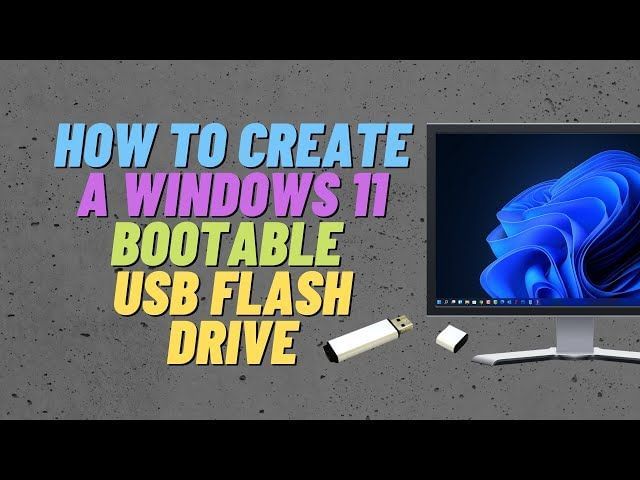
Step 1: Create Windows 11 Installation Media
To create the installation media, follow these steps:
- Download the Windows 11 Media Creation Tool from the Microsoft website
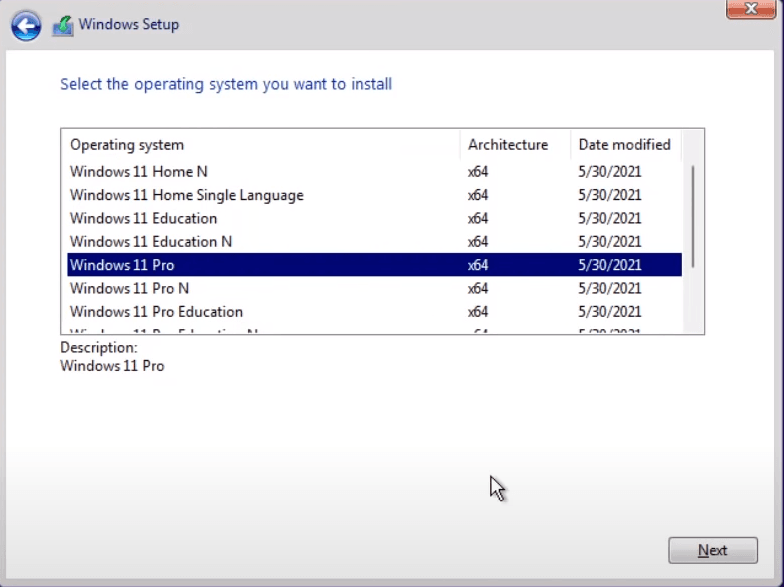
- Run the tool and select the language, edition, and architecture of Windows 11
- Choose the USB drive or DVD as the installation media
- Follow the prompts to complete the creation process
Step 2: Prepare Your SSD for Installation
To prepare your SSD for installation, follow these steps:
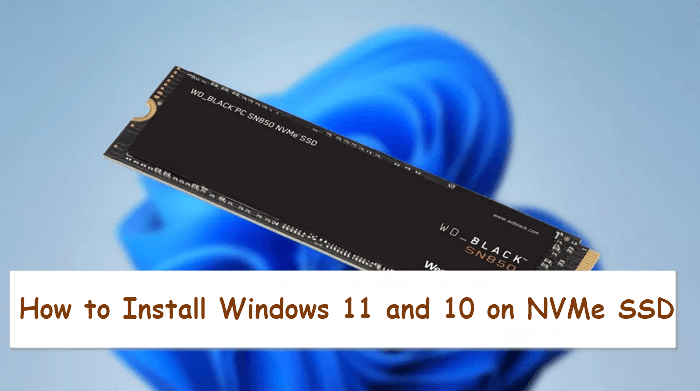
- Insert the SSD into your PC's drive bay or connect it via a USB adapter
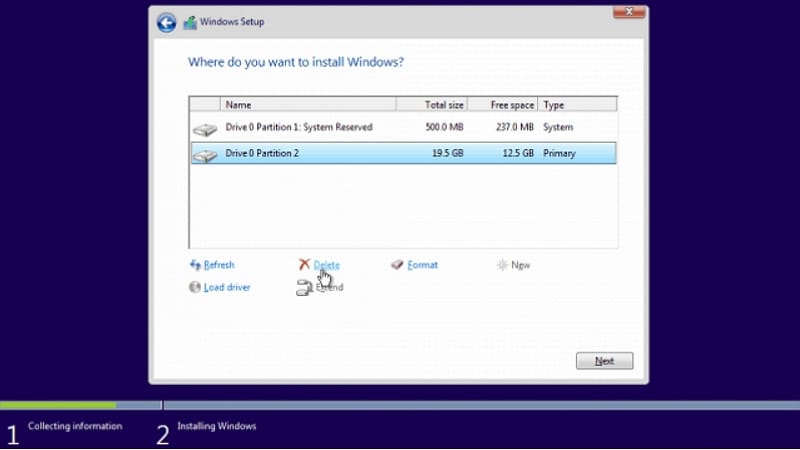
- Format the SSD using the Disk Management tool (Press Win + R, type diskmgmt.msc, and press Enter)
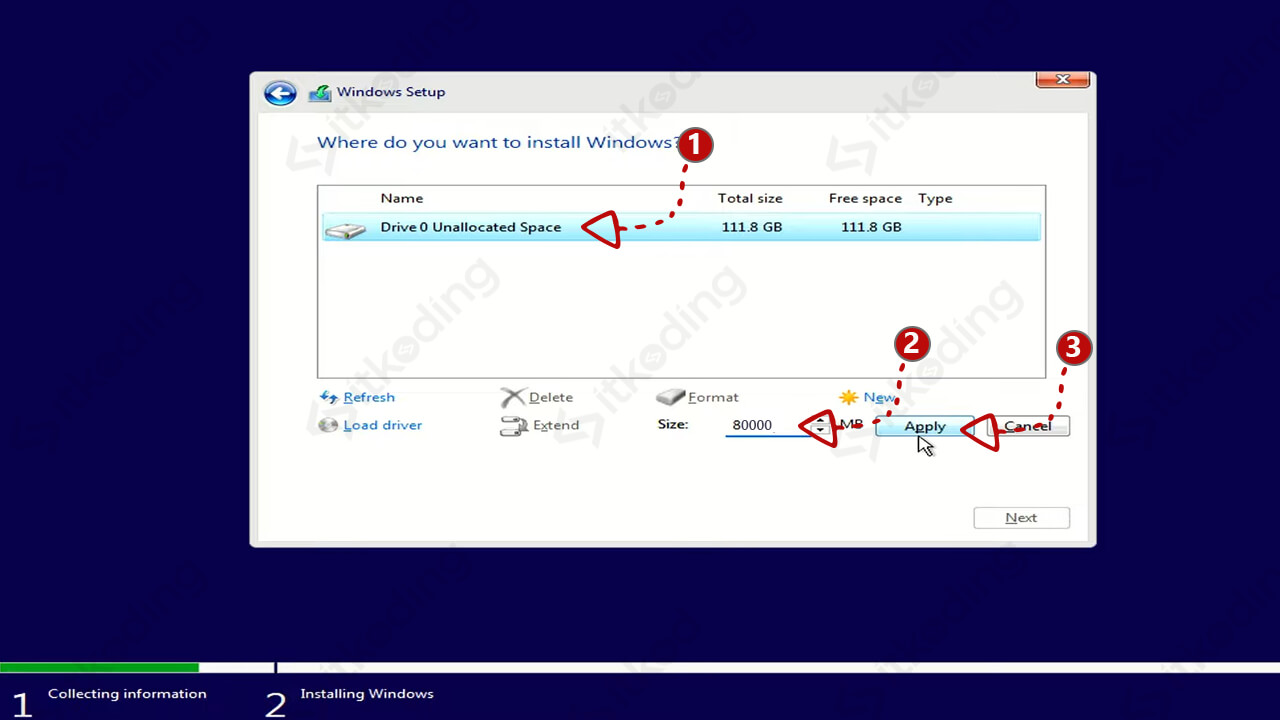
- Create a new partition on the SSD using the Disk Management tool
Step 3: Install Windows 11 on the SSD
To install Windows 11 on the SSD, follow these steps:
- Insert the Windows 11 installation media into your PC
- Restart your PC and enter the BIOS settings (Press F2, F12, or Del to access the BIOS settings)
- Set the SSD as the primary boot device in the BIOS settings
- Save the changes and exit the BIOS settings
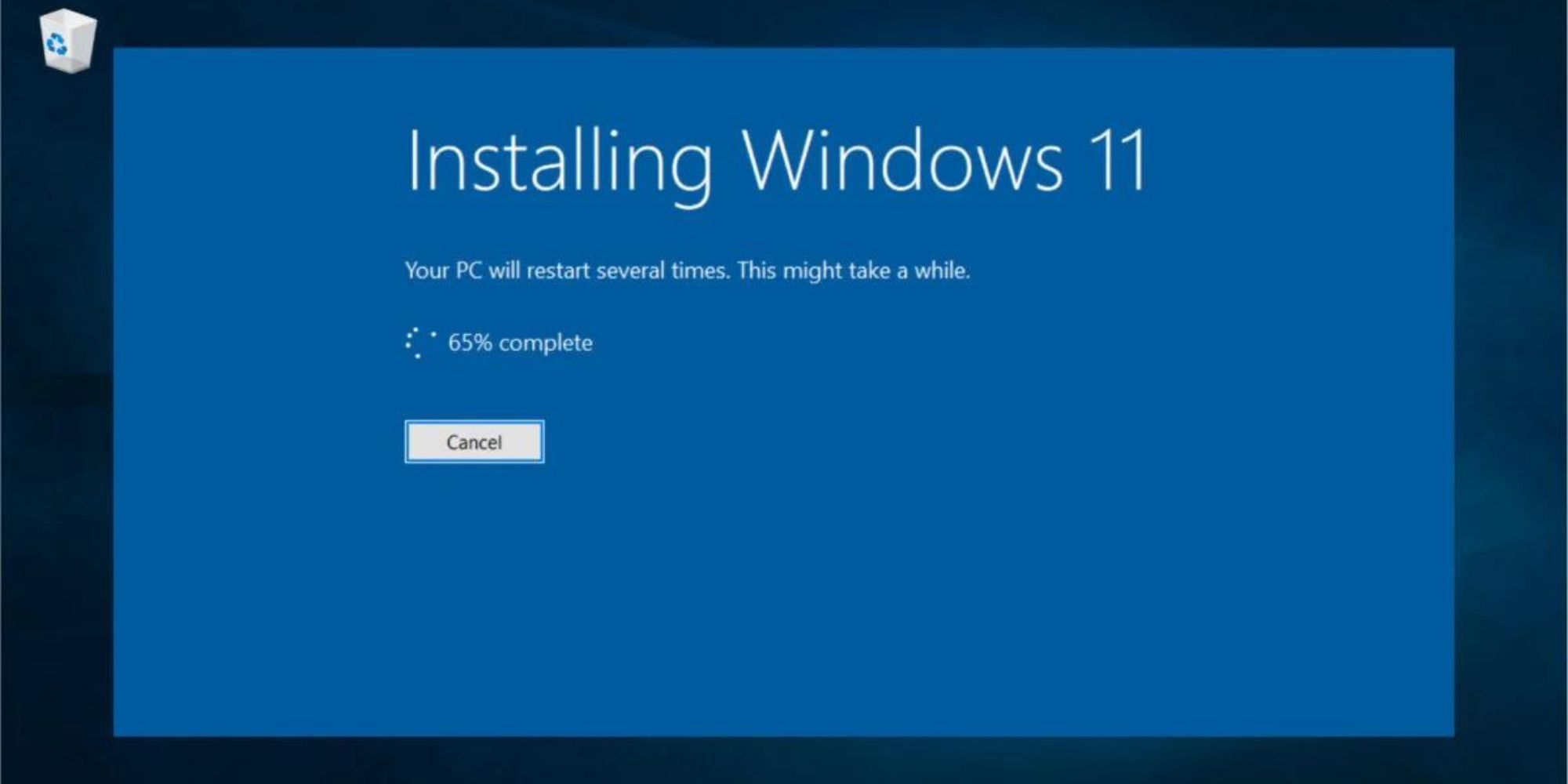
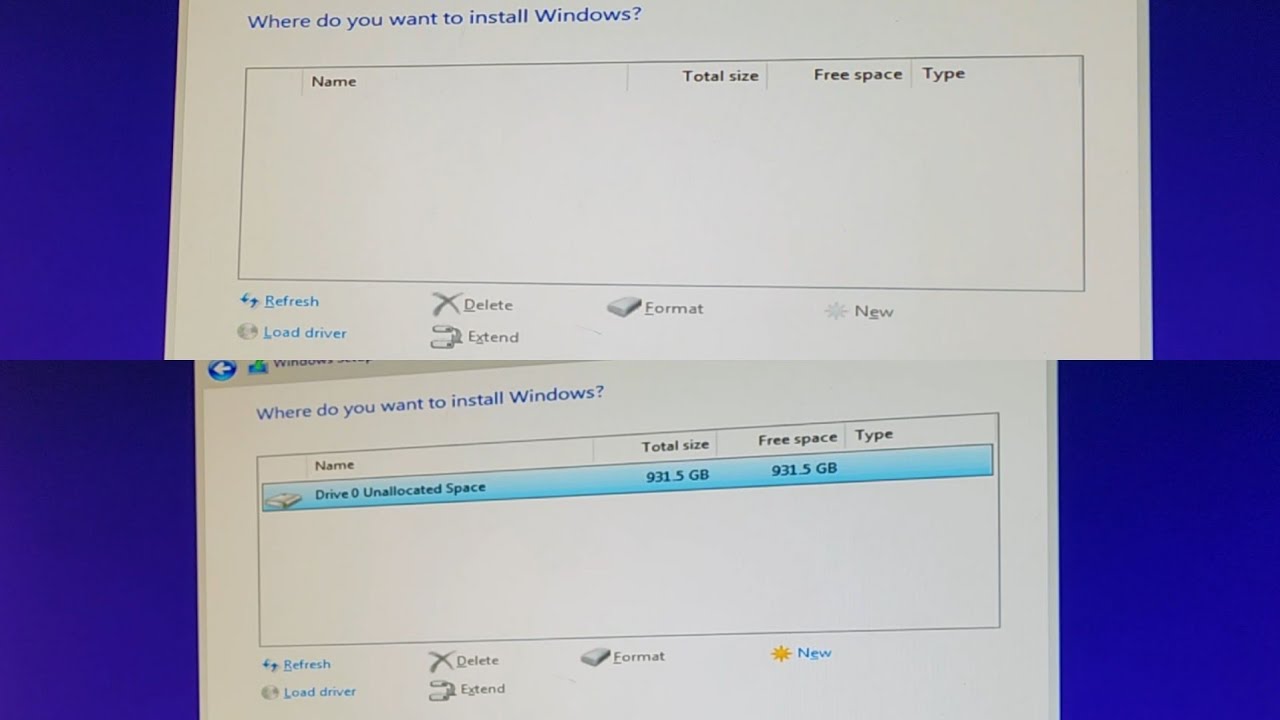
- Follow the installation prompts to install Windows 11 on the SSD
Step 4: Configure Windows 11
After installing Windows 11 on the SSD, configure the operating system by following these steps:
- Set up your account and language preferences
- Install any necessary drivers for your hardware
- Update Windows 11 to the latest version
- Install any necessary software or applications
Conclusion
Installing Windows 11 on a new SSD can seem daunting, but with this step-by-step guide, you can successfully complete the process. By following the steps outlined in this guide, you can optimize your PC's performance and enjoy a smoother experience with Windows 11.
Additional Tips
- Make sure to back up your important data before installing Windows 11 on a new SSD
- Use a compatible SSD with your PC's hardware
- Update Windows 11 to the latest version after installation