Active IPv4 Configuration on Router: A Comprehensive Guide
Configuring IPv4 on a router is an essential step in setting up a network. In this article, we will delve into the process of configuring and verifying IPv4 on Cisco routers, as well as troubleshooting common issues that may arise. Whether you're a seasoned network engineer or a beginner, this guide will provide you with the necessary knowledge to configure and manage IPv4 on your Cisco router.
Understanding IPv4 Configuration
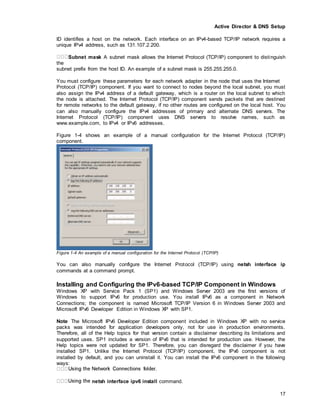
IP address (Internet Protocol address) is a unique number assigned to every device in a network. It ensures proper data routing and communication between devices. An IPv4 address is a 32-bit address, typically represented as a dotted decimal notation (e.g., 192.0.2.1).
Configuring IPv4 on Cisco Router
Configuring IPv4 on a Cisco router involves several steps. Here's a step-by-step guide to get you started:
- Enter Configuration Mode: Use the command-line interface (CLI) to enter configuration mode by typing `configure terminal` or `conf t`.
- Set the Interface: Select the interface you want to configure by typing `interface interface-name` (e.g., `interface fastethernet 0/0`).
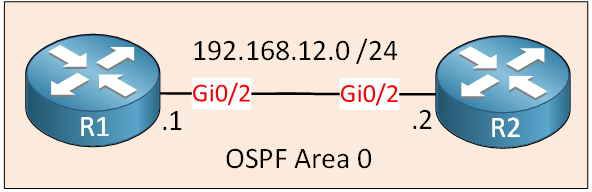
- Configure IPv4 Address: Configure the IPv4 address, subnet mask, and default gateway by typing the following commands:
- `ip address ip-address subnet-mask` (e.g., `ip address 192.0.2.1 255.255.255.0`)
- `ip default-gateway default-gateway-ip` (e.g., `ip default-gateway 192.0.2.254`)
- Verify Configuration: Use the command `show ip interface brief` to verify the IPv4 configuration.
- Save Configuration: Save the new configuration using the command `copy running-config startup-config`.
Configuring IPv4 Static Routes

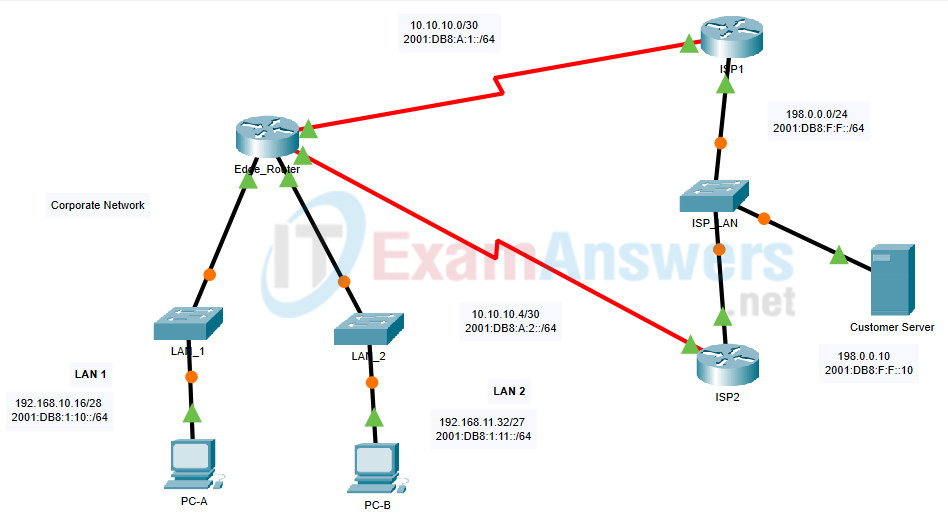
IP static routing is used to configure a static route in the routing table. Here's how to configure IPv4 static routes on a Cisco router:
- Enter Configuration Mode: Use the command `configure terminal` or `conf t` to enter configuration mode.
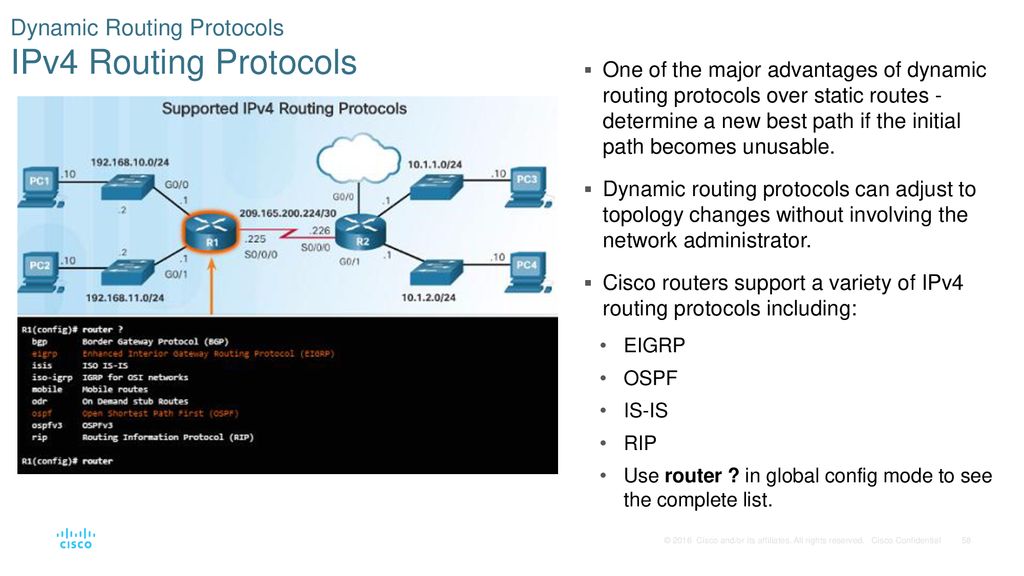
- Configure Static Route: Use the command `ip route ip-address subnet-mask next-hop-router` to configure a static route (e.g., `ip route 192.168.1.0 255.255.255.0 192.0.2.254`).
- Verify Configuration: Use the command `show ip route` to verify the static route.
- Save Configuration: Save the new configuration using the command `copy running-config startup-config`.
Troubleshooting IPv4 Issues
Common IPv4 configuration issues include DHCP conflicts, mismatched subnet masks, and incorrect IP addresses. Here are some tips for troubleshooting IPv4 issues:
- Verify IP Configuration: Use the command `show ip interface brief` to verify the IPv4 configuration.
- Check Routing Table: Use the command `show ip route` to verify the routing table and check for any errors.
- Check DHCP Configuration: Use the command `show ip dhcp binding` to verify DHCP configuration and resolve any conflicts.
Conclusion
Configuring IPv4 on a Cisco router is a crucial step in setting up a network. By following the steps outlined in this article, you can configure and verify IPv4 on your Cisco router. Remember to troubleshoot common issues and verify the configuration to ensure a smooth and efficient network performance.

![[OpenWrt Wiki] IPv4 configuration](https://www.noction.com/wp-content/uploads/2022/01/557xNxactive-flows-ipv4-flow-table-.png.pagespeed.ic.UNGyMuOzCg.png "[OpenWrt Wiki] IPv4 configuration")