How to Use OBS for YouTube Live
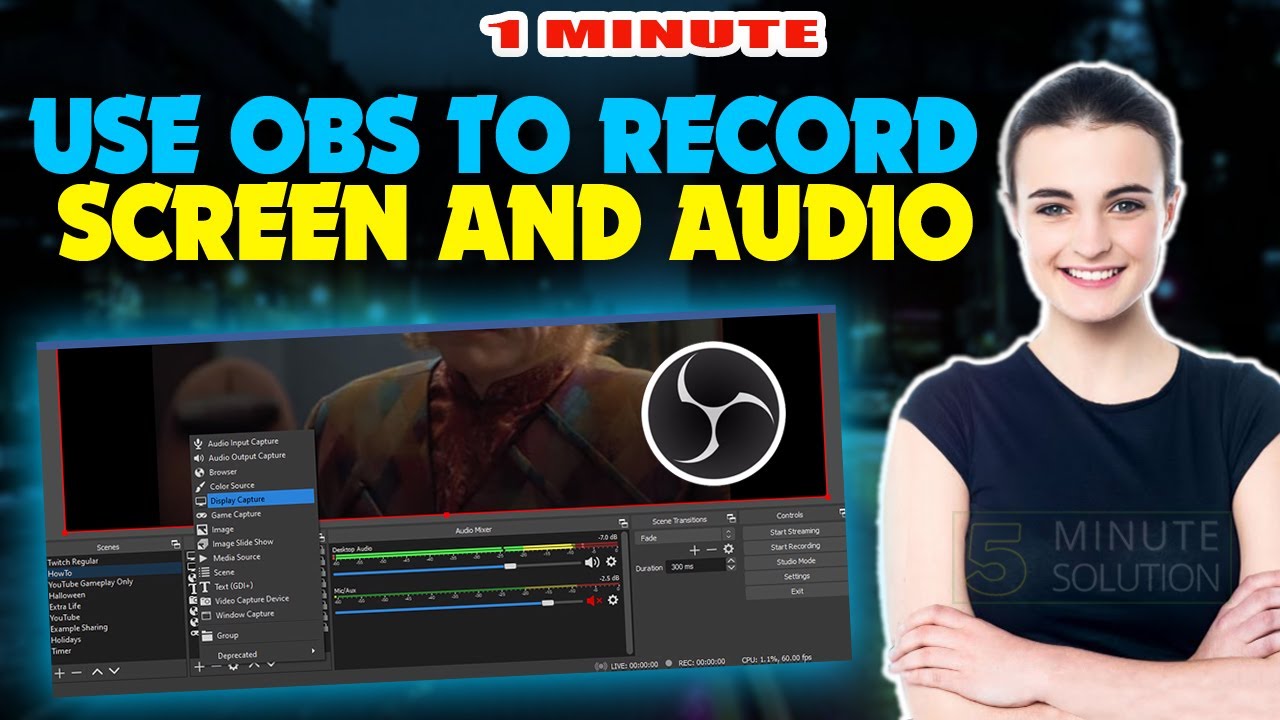
Streaming live on YouTube has become an essential part of a content creator's toolbox. With the rise of live streaming, OBS (Open Broadcaster Software) has emerged as a favorite among streamers due to its customization and versatile features. In this article, we'll guide you through the process of using OBS for YouTube Live, covering the necessary settings and best practices to ensure a smooth and high-quality stream.
Connecting OBS to YouTube
Before you start streaming, you need to connect OBS to your YouTube account. To do this, follow these steps:
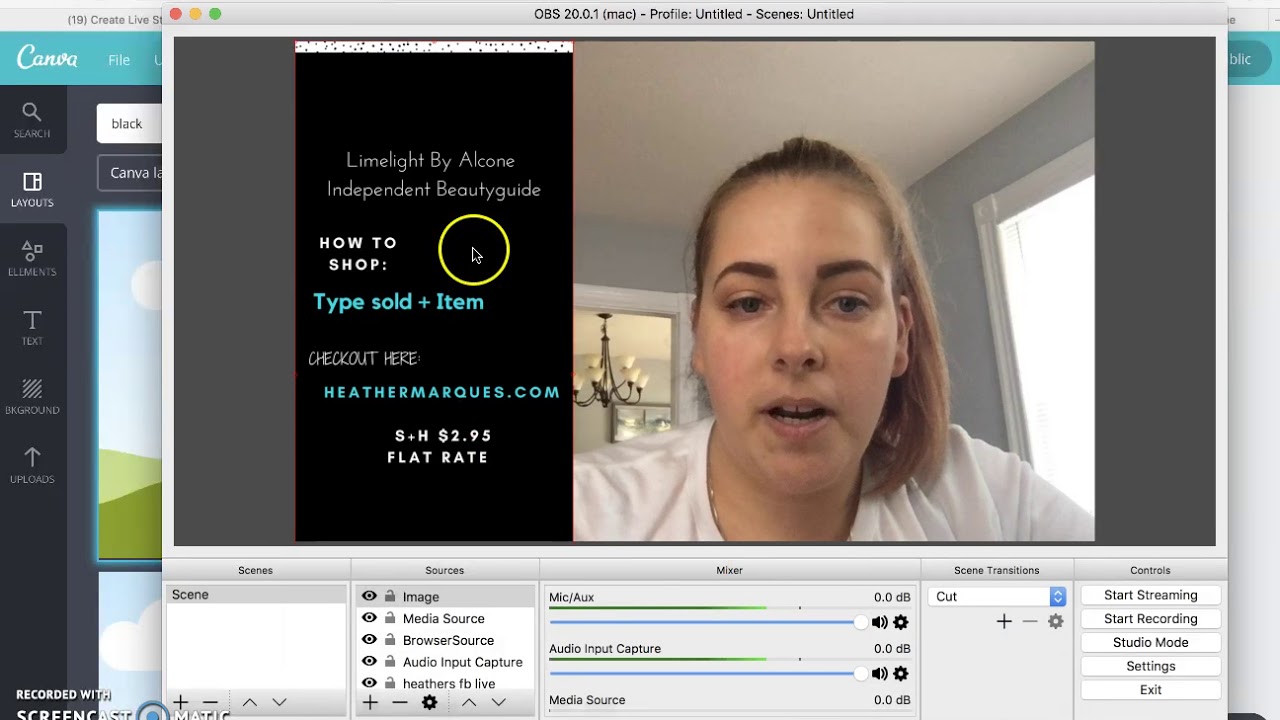
- Open OBS and go to Settings (Ctrl + P or Command + P on Mac).
- Click on the "Stream" tab and select "YouTube Live" as your streaming service.
- Enter your YouTube account credentials and click on the "Connect" button.
- Copy the Stream Key provided by YouTube and paste it into OBS under the "Stream" tab.
Once you've connected OBS to YouTube, you'll be able to start streaming live to your audience. Make sure to test your stream before going live to ensure that everything is working properly.
Configuring OBS Settings
To get the best possible stream quality, you'll need to configure your OBS settings according to your specific needs. Here are some key settings to consider:
- Resolution and Frame Rate: Set your resolution to 1080p or 4K, depending on your system's capabilities. For frame rates, 60fps is a good starting point, but you can experiment with higher or lower frame rates to find the sweet spot for your content.
- Bitrate: A higher bitrate will result in a better-quality stream, but it may also increase the load on your system. Start with a bitrate of 6000-15000 Kbps and adjust as needed.
- Encoder: OBS offers several encoder options, including NVIDIA NVENC, Intel QuickSync, and more. Choose the encoder that performs best on your system.
- Audio Settings: Make sure your audio settings are optimized for your specific content. You may want to use a dedicated audio interface or adjust your gain levels to achieve the best sound quality.

Best Practices for Streaming with OBS
Here are some additional best practices to keep in mind when streaming with OBS:
- Test Your Stream: Before going live, test your stream to ensure that everything is working properly. This will save you from any last-minute technical issues.
- Use a Stable Internet Connection: A stable internet connection is crucial for a smooth stream. Make sure you have a wired connection and a stable upload speed.
- Optimize Your System: Streaming can be demanding on your system. Make sure your computer is optimized for streaming by closing unnecessary programs and allocating sufficient resources to OBS.
- Monitor Your Stream: Keep an eye on your stream's performance using the OBS built-in monitoring tools or third-party software.
Common Issues and Solutions
Even with proper setup and best practices, you may encounter issues with your stream. Here are some common issues and solutions:
- Buffering Issues: If your stream is buffering, try reducing your bitrate or adjusting your internet connection.
- Audio Sync Issues: If your audio is out of sync, try adjusting your audio settings or using a dedicated audio interface.
- Freezing Issues: If your stream is freezing, try closing unnecessary programs, allocating more resources to OBS, or updating your system drivers.
Conclusion
Using OBS for YouTube Live is a powerful way to connect with your audience in real-time. By following these steps and best practices, you'll be able to create a high-quality stream that engages your viewers and helps you grow your channel. Remember to always test your stream, optimize your system, and monitor your performance to ensure a smooth and successful streaming experience.