Fix Dell Laptop BIOS Issue: A Comprehensive Guide
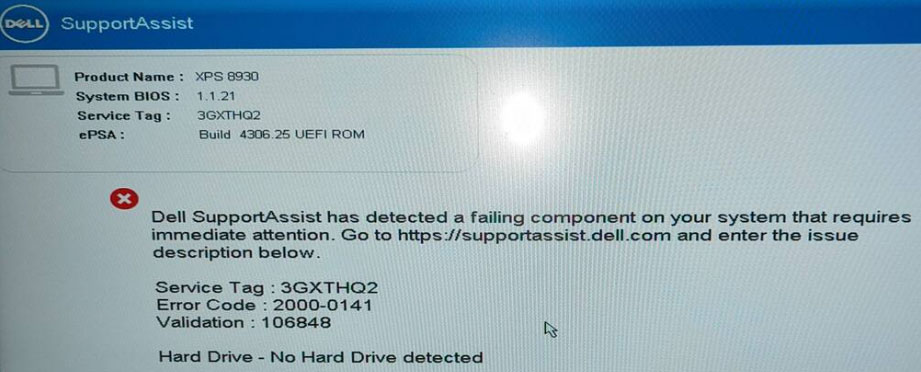
Are you experiencing issues with your Dell laptop's BIOS? If your Dell laptop is refusing to boot up due to a corrupted BIOS, don't panic! In this comprehensive guide, we'll walk you through the steps to diagnose and fix a corrupted Dell laptop BIOS.
Understanding BIOS and Its Importance
Before we dive into the troubleshooting process, it's essential to understand what BIOS (Basic Input/Output System) is and its importance. BIOS is a firmware that controls the fundamental system activities, including hardware detection, boot-up sequence, and troubleshooting. Corrupted BIOS can cause hardware issues, stop your computer from booting correctly, or result in unanticipated crashes.
Fixing Corrupted Dell Laptop BIOS: Step-by-Step Guide
Connect your Dell laptop to a power source and press the power button. Hold down the F2 key to access the BIOS settings.
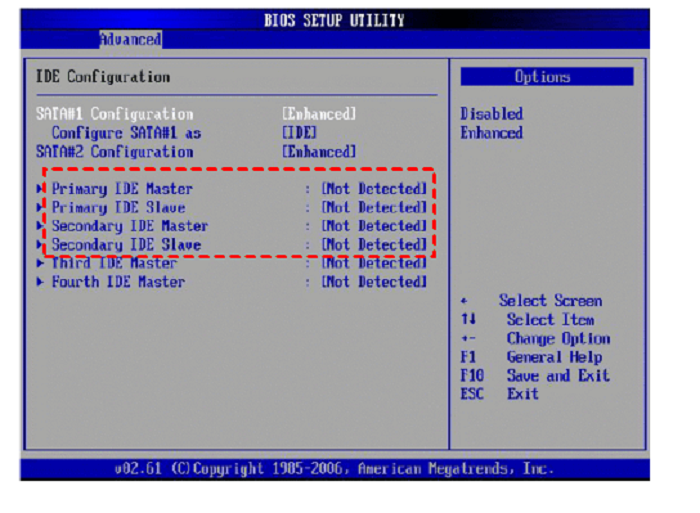
Open the BIOS settings by pressing F1 or F2 during boot-up (check your laptop's manual for the correct key).
Select "Advanced Boot Options" or "Boot Options" and change the boot order to prioritize the internal hard drive or SSD.
Save changes and exit the BIOS settings.
Press the power button to turn off your laptop.
Unplug the power cord and press the power button again to discharge any residual power.
Plug the power cord back in and press the power button to turn on your laptop.
alternative Method: Hard Drive Recovery
If the above steps don't resolve the issue, you can try using a hard drive recovery method. This involves formatting the hard drive and reinstalling the operating system.
Plug the hard drive into a different laptop or a computer with a working operating system.
Format the hard drive using the operating system's built-in formatting tool.
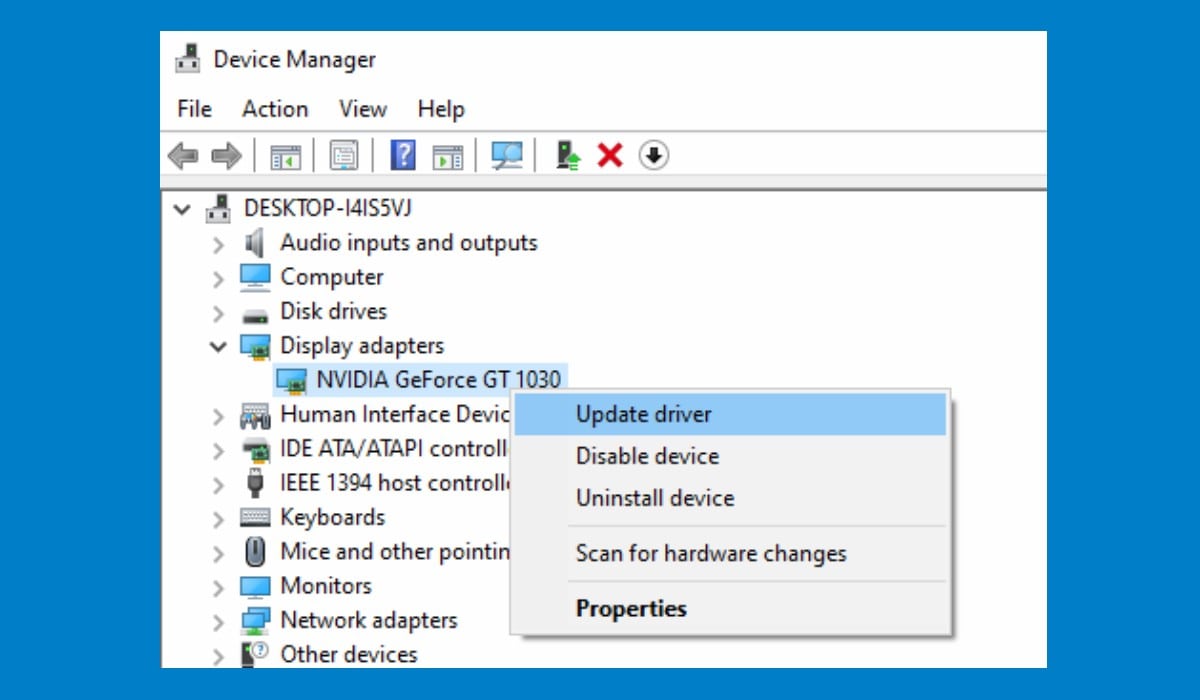
Install a new copy of the operating system and all necessary drivers.
Transfer your files and data from the old laptop to the new one.
Alternative Method: USB Recovery
If you don't have a working operating system, you can use a USB recovery method. This involves creating a bootable USB drive with the Dell recovery image.
Download the Dell recovery image from the official Dell website.
Download Rufus and create a bootable USB drive using the recovery image.
Insert the USB drive into the laptop and turn it on.
Select the USB drive as the first boot device and press enter to start the recovery process.
Follow the on-screen instructions to complete the recovery process.
Fixing BIOS Issues without Removing the Battery
Resetting the BIOS without removing the battery is a reliable method for resolving boot-up issues where a Dell laptop displays a black screen.
Connect your Dell laptop to a power source and press the power button. Hold down the F2 key to access the BIOS settings.
Open the BIOS settings by pressing F1 or F2 during boot-up (check your laptop's manual for the correct key).
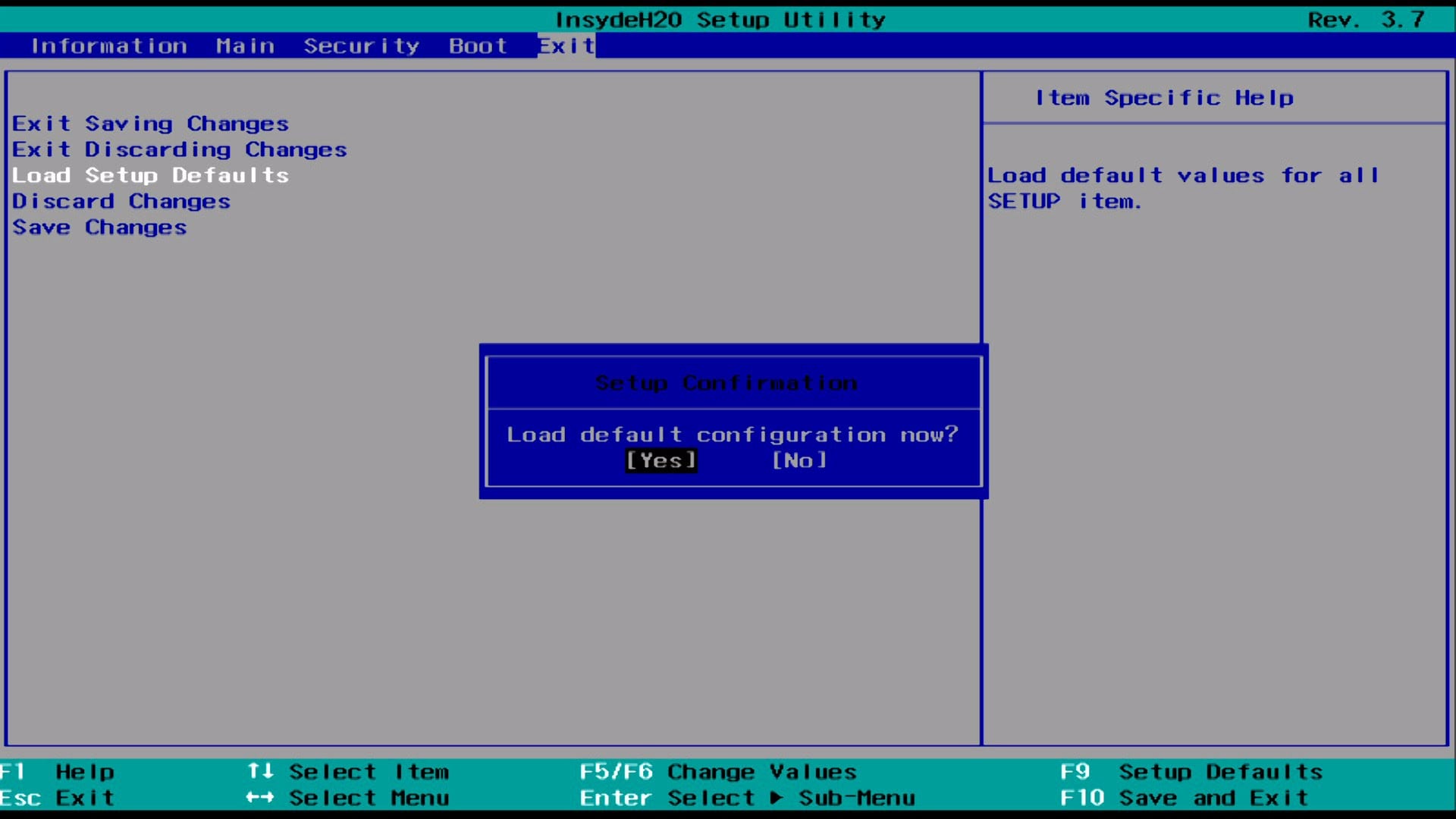
Go to the "Advanced" or "Boot" tab and select "Reset to Default" or "Reset BIOS Settings."
Save changes and exit the BIOS settings.
Press the power button to turn off your laptop.
Unplug the power cord and press the power button again to discharge any residual power.
Plug the power cord back in and press the power button to turn on your laptop.
Conclusion
Fixing a corrupted Dell laptop BIOS can be challenging, but it's not impossible. By following the steps outlined in this guide, you should be able to diagnose and resolve the issue. Remember to always be cautious when working with BIOS settings, as incorrect configurations can cause further issues.
Final Tips
Keep your BIOS up-to-date by regularly checking and updating the firmware using Dell's official website or utility tools.
References
DellBIOS recovery guide: February 6, 2026.
How to fix a Dell computer that doesn't boot into Windows: January 6, 2026.