Setup VPN with ProtonVPN: A Comprehensive Guide
In today's digital age, online security and privacy are more crucial than ever. With the rise of cyber threats and data breaches, it's essential to take proactive measures to protect your personal information. One effective way to achieve this is by setting up a VPN (Virtual Private Network) with ProtonVPN, a reputable and user-friendly service. In this article, we'll guide you through the setup process, highlighting the key features and benefits of using ProtonVPN.
What is ProtonVPN?
ProtonVPN is a Swiss-based VPN service that offers robust security, speed, and reliability. Founded by the same team behind ProtonMail, a secure email service, ProtonVPN has gained a reputation for its commitment to user privacy and security. With a vast network of servers across the globe, ProtonVPN provides users with a seamless and secure browsing experience.
Why Choose ProtonVPN?
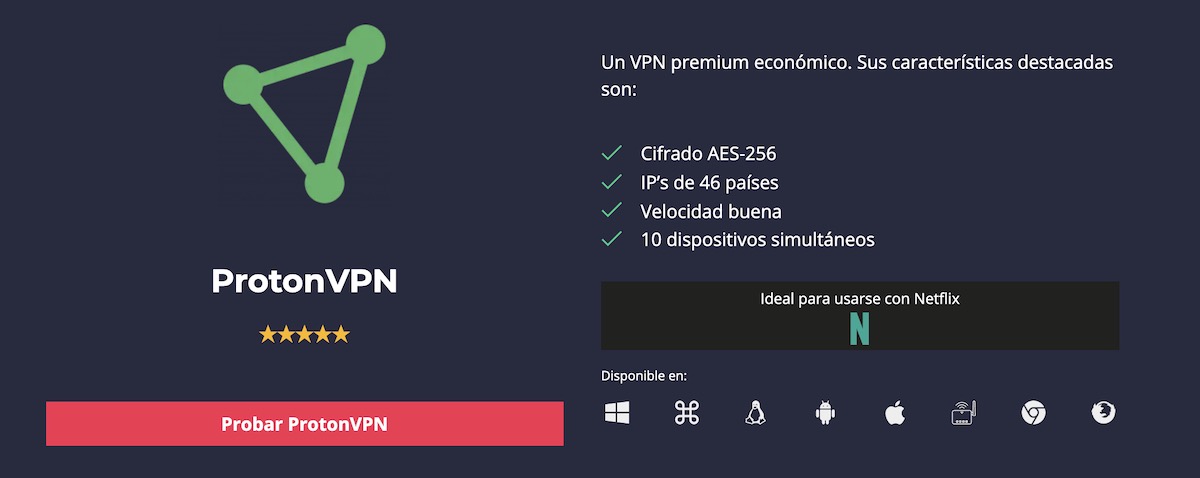
- Security:** ProtonVPN uses military-grade encryption (AES-256) to safeguard your data, ensuring that your online activities remain private and secure.
- Speed:** With high-speed servers and optimized routing, ProtonVPN ensures fast and uninterrupted internet connectivity.
- Reliability:** ProtonVPN's robust network and 24/7 support ensure that you stay connected and secure, even in areas with limited internet access.
- Global Coverage:** With servers in over 60 countries, ProtonVPN provides users with access to global content, streaming services, and social media platforms.
Setup ProtonVPN on Your Device
Setting up ProtonVPN is a straightforward process, and we'll guide you through it step by step. Follow these instructions to install and configure ProtonVPN on your device:
Setup Guide for Android Devices
To set up ProtonVPN on your Android device, follow these steps:
- Download the ProtonVPN app from the Google Play Store.
- Install the app and launch it.
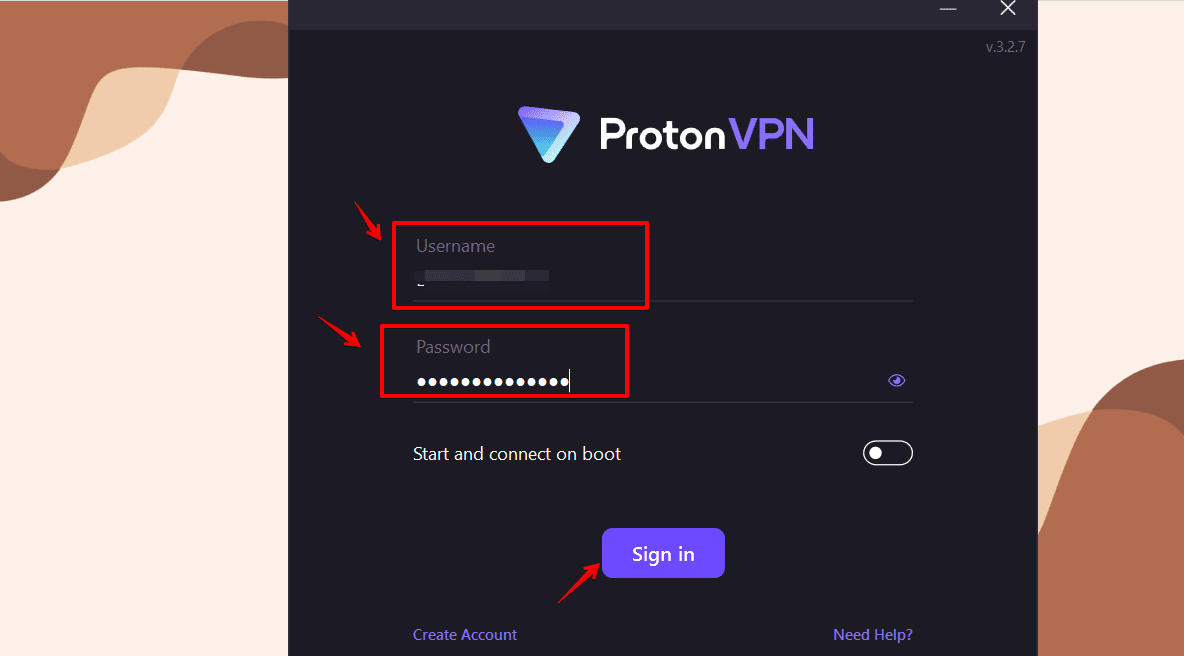
- Sign up for a ProtonVPN account or log in to an existing one.
- Choose a subscription plan that suits your needs.
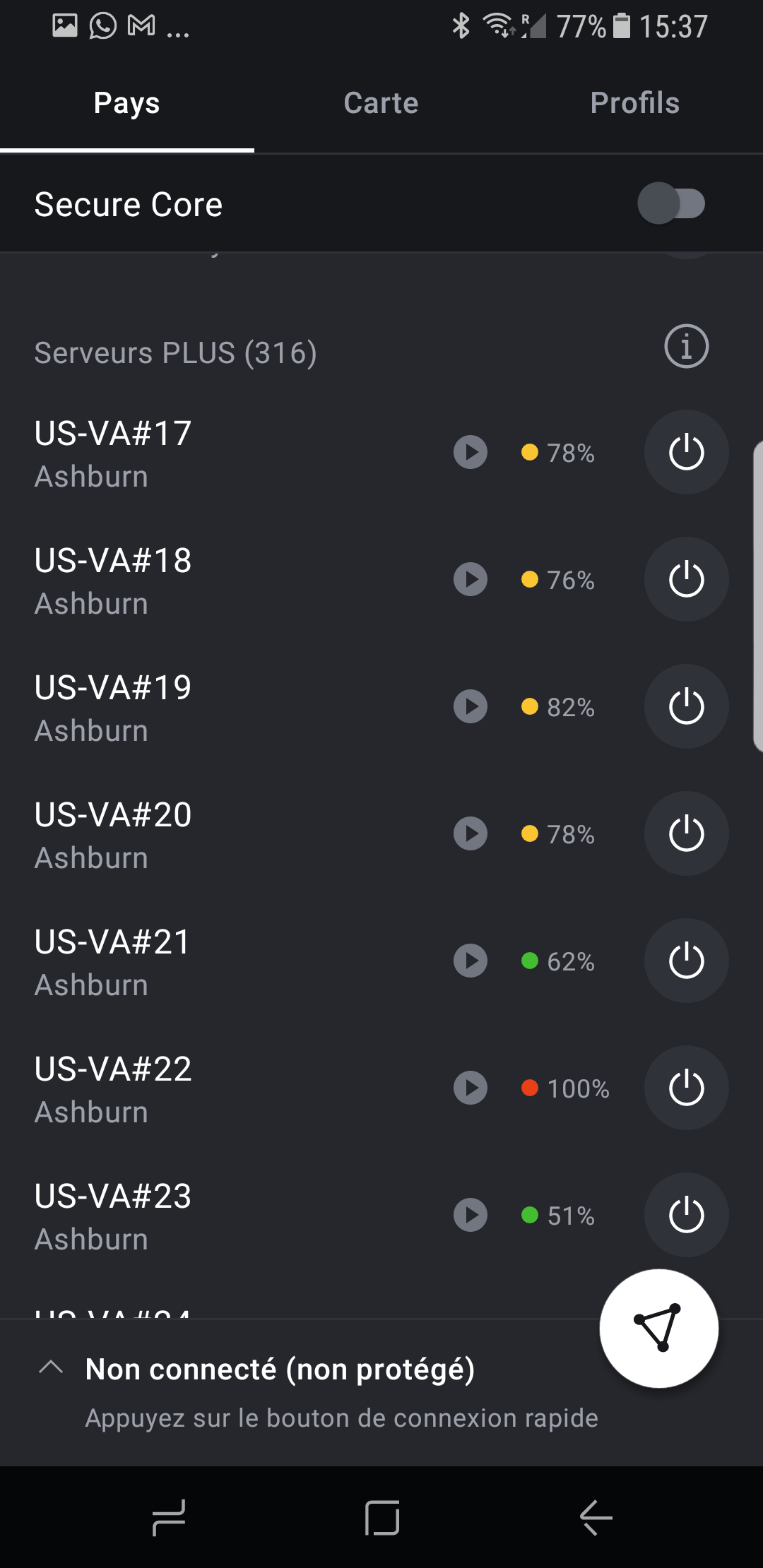
- Connect to a server by clicking the "Quick Connect" button or selecting a server from the list.
Setup Guide for iOS Devices
To set up ProtonVPN on your iOS device, follow these steps:
- Download the ProtonVPN app from the App Store.
- Install the app and launch it.
- Sign up for a ProtonVPN account or log in to an existing one.
- Choose a subscription plan that suits your needs.
- Connect to a server by clicking the "Quick Connect" button or selecting a server from the list.
Setup Guide for Windows, macOS, and Linux Devices
To set up ProtonVPN on your Windows, macOS, or Linux device, follow these steps:
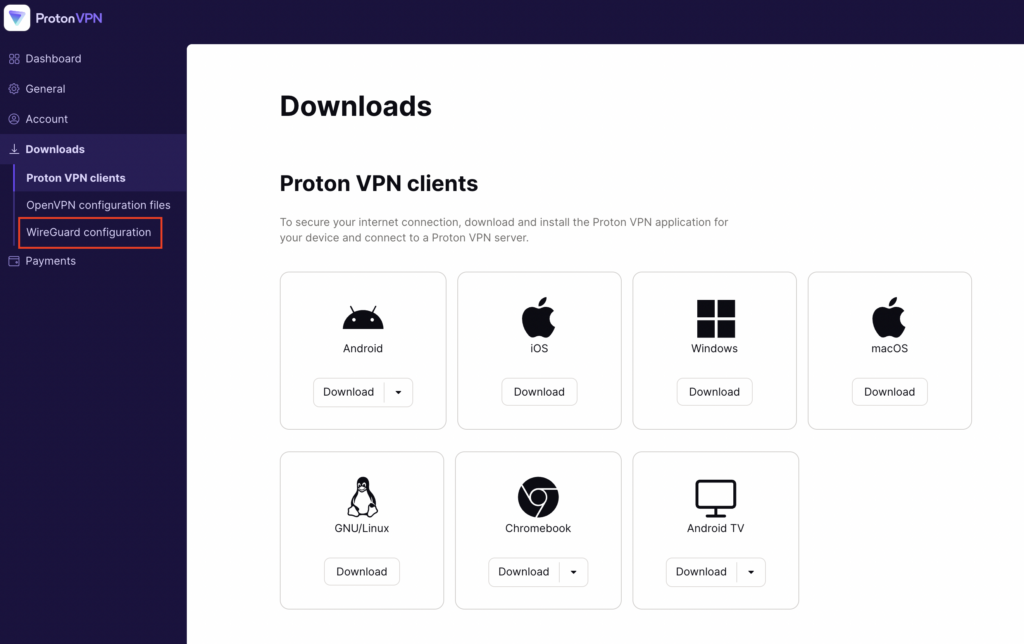
- Download the ProtonVPN installer from the official website.
- Run the installer and follow the prompts to install ProtonVPN.
- Sign up for a ProtonVPN account or log in to an existing one.
- Choose a subscription plan that suits your needs.
- Connect to a server by clicking the "Quick Connect" button or selecting a server from the list.
Troubleshooting Tips
While ProtonVPN is generally a reliable service, you may encounter some issues during setup or use. Here are some troubleshooting tips to help you resolve common problems:
- Slow Connection Speeds:** Check your internet connection speed, and try connecting to a different server.
- Difficulty Connecting:** Restart your device and try connecting to ProtonVPN again.
- Problems with Torrenting:** Ensure that you have enabled the "Torrenting" feature in your ProtonVPN settings.
Conclusion
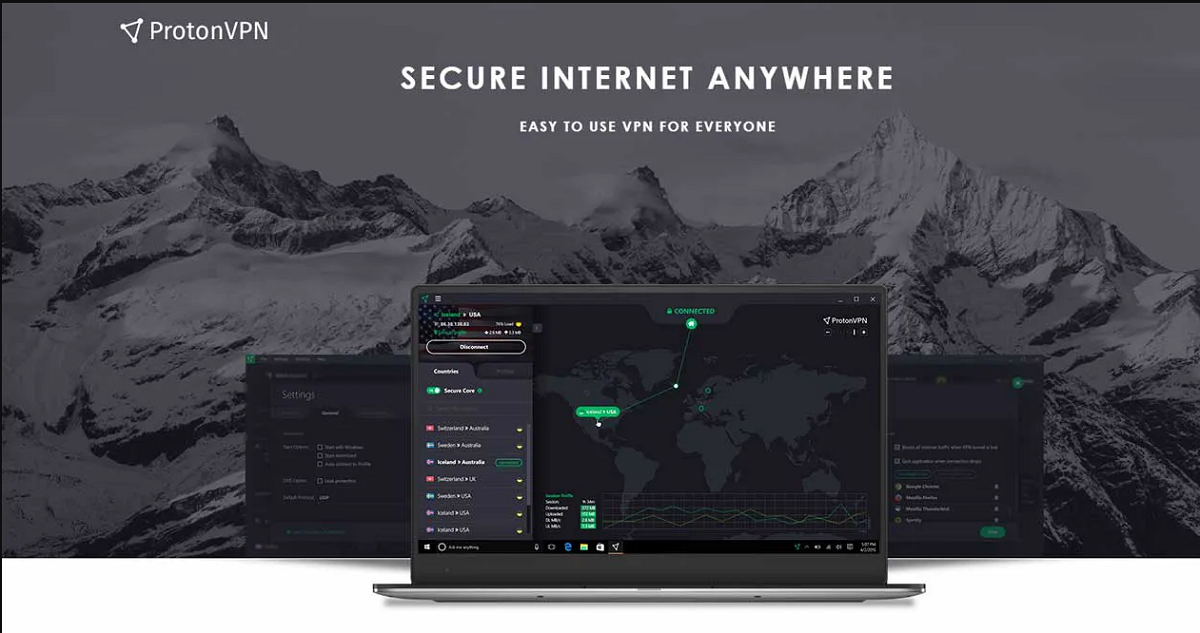
In conclusion, setting up a VPN with ProtonVPN is a straightforward process that provides users with robust security, speed, and reliability. By following the setup guides for Android, iOS, Windows, macOS, and Linux devices, you can enjoy a secure and seamless browsing experience. Remember to troubleshoot common issues and take advantage of ProtonVPN's features, such as "Quick Connect" and Secure Core, to enhance your online security and privacy.

![How to Use Proton VPN in 2026 [Complete Guide for All Versions]](https://vpnalert.com/wp-content/uploads/2023/12/protonvpn-platforms-1024x434.png "How to Use Proton VPN in 2026 [Complete Guide for All Versions]")