Setting Up Google Home with August Smart Locks: A Step-by-Step Guide
Are you looking to take your smart home experience to the next level with Google Home and an August smart lock? With the integration of August smart locks and Google Home, you can enjoy seamless voice control, remote monitoring, and enhanced security in your home. In this article, we will walk you through a step-by-step guide on how to set up Google Home with August smart locks for a smarter, more convenient home.
Prerequisites for Setting Up Google Home with August Smart Locks
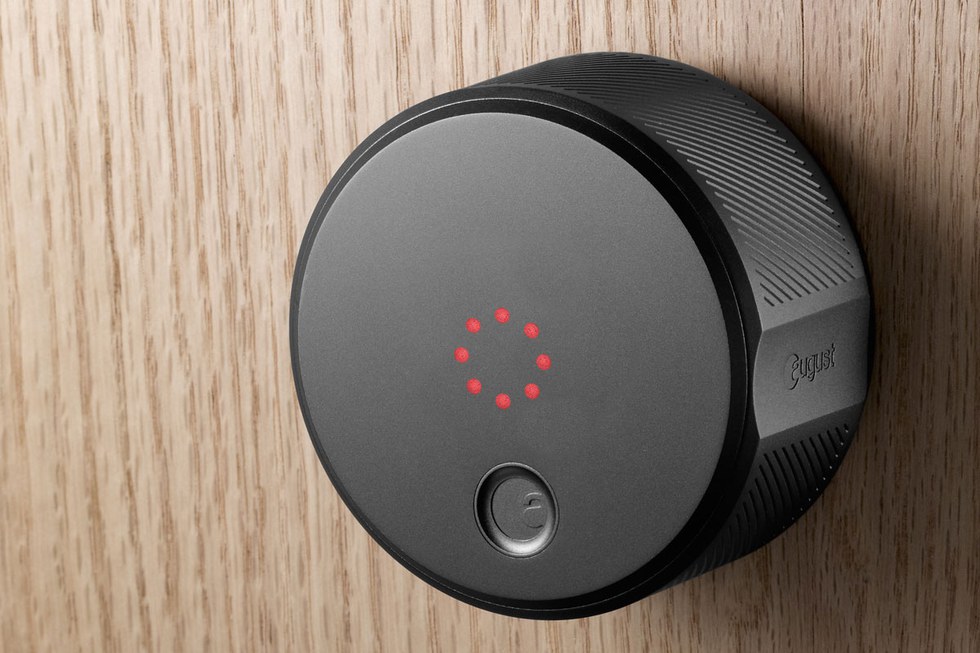
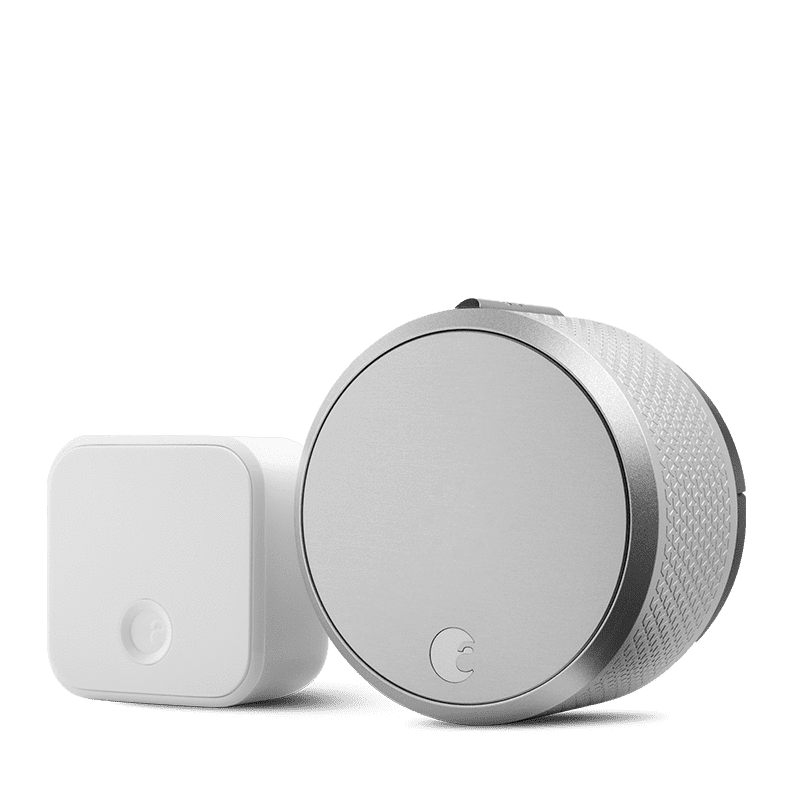
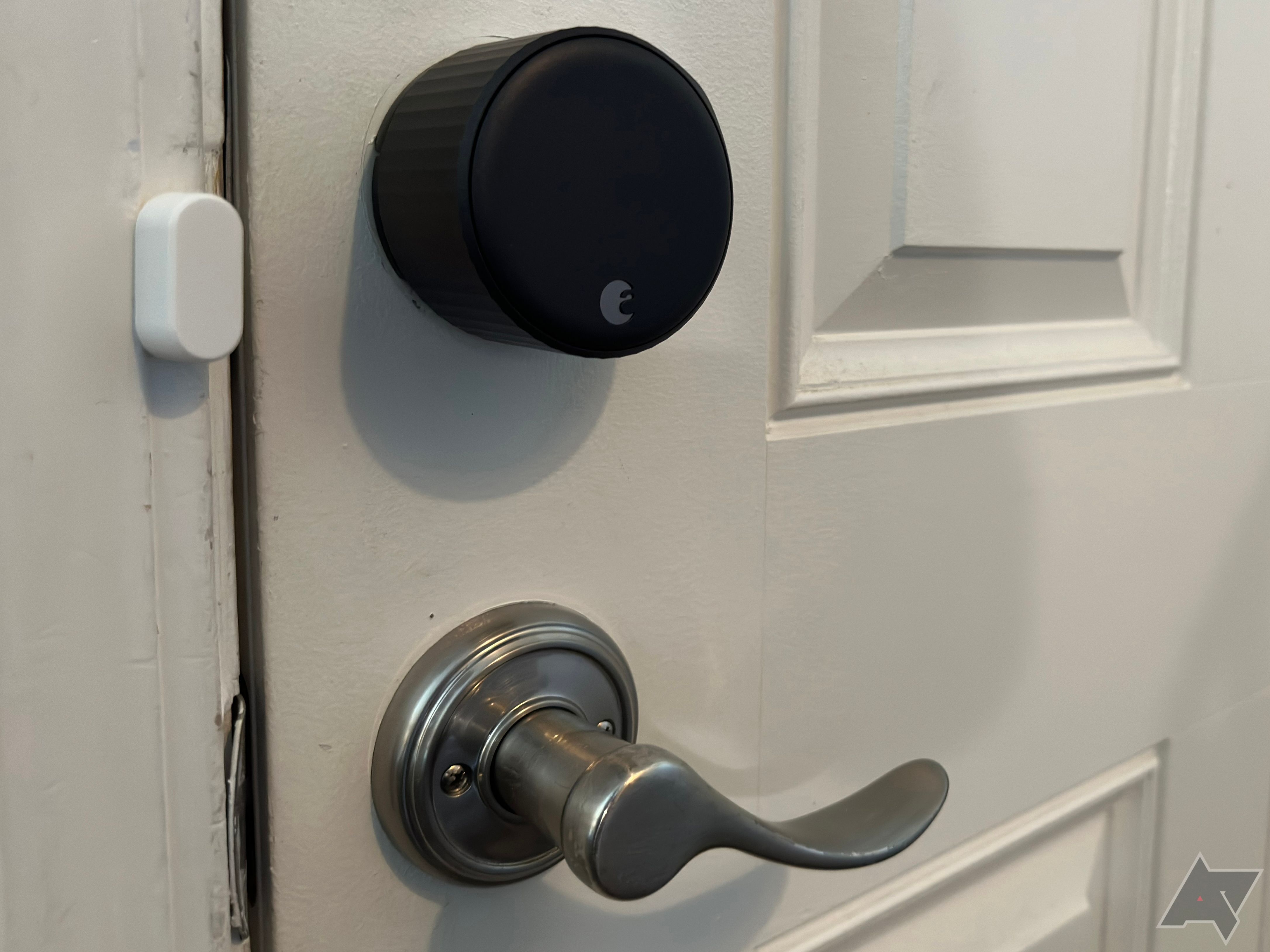
- Ensure that you have an August smart lock (August Smart Lock Pro or August Smart Lock) installed in your home.
- Have a Google Home device (e.g., Google Home Mini, Google Home, or Google Home Max) and an active Google account.
- Make sure both your Google Home device and August smart lock are connected to the same Wi-Fi network.
Step 1: Configure August Smart Lock in the August App
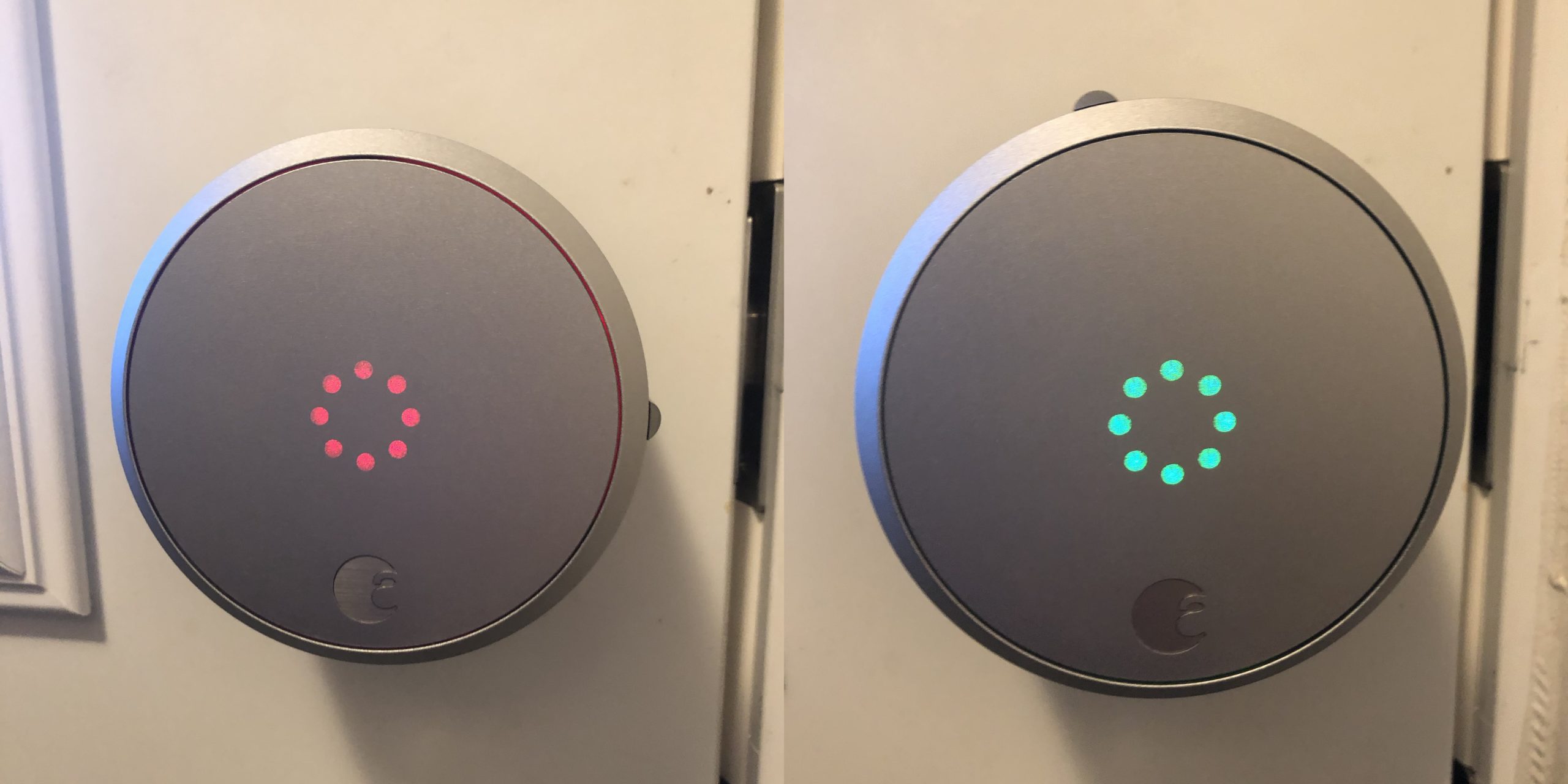
Before setting up Google Home with your August smart lock, first, ensure that your smart lock is configured and functioning properly in the August app. If you have not already done so, download and install the August app on your smartphone. Open the app and follow the on-screen instructions to complete the initial setup process.
Step 2: Set Up Google Home with August Smart Locks
Now, open the Google Home app on your smartphone and navigate to the "Settings" section. Select the option to integrate with Google Assistant and follow the on-screen instructions to link your August smart lock to your Google account.
Step 3: Verify Smart Lock Compatibility
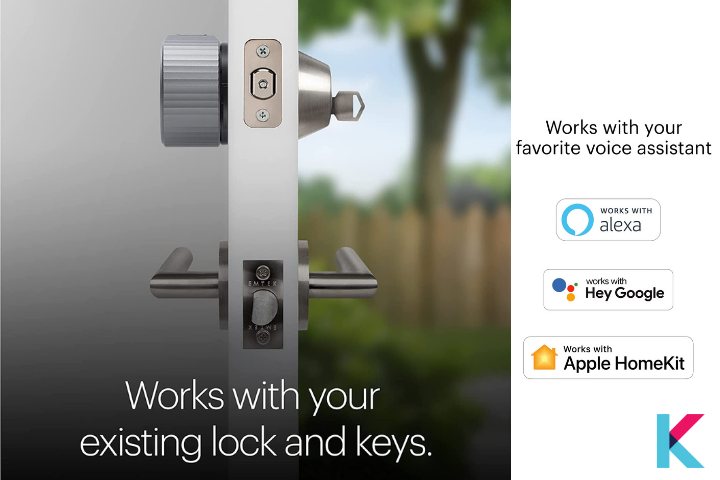
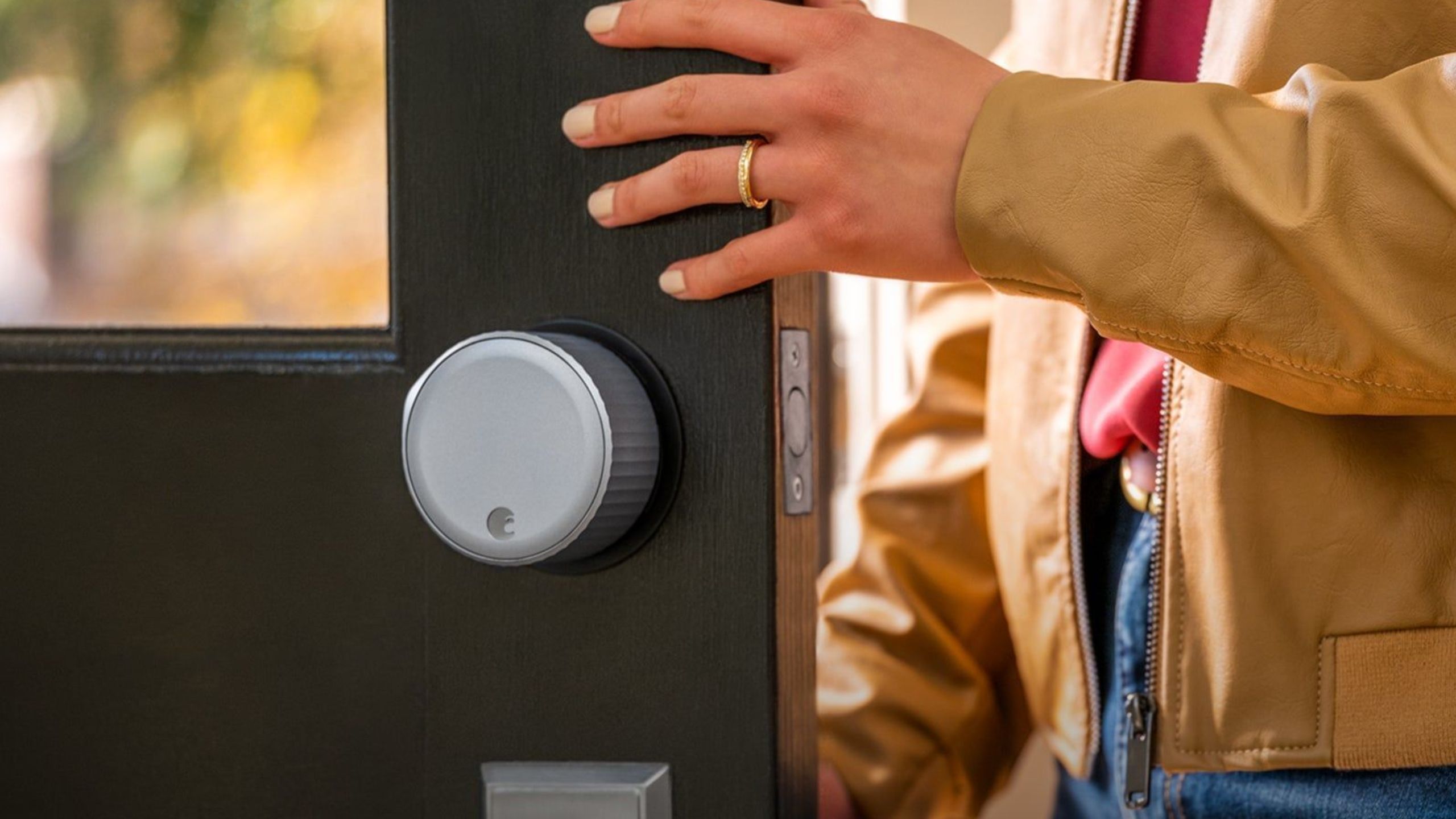
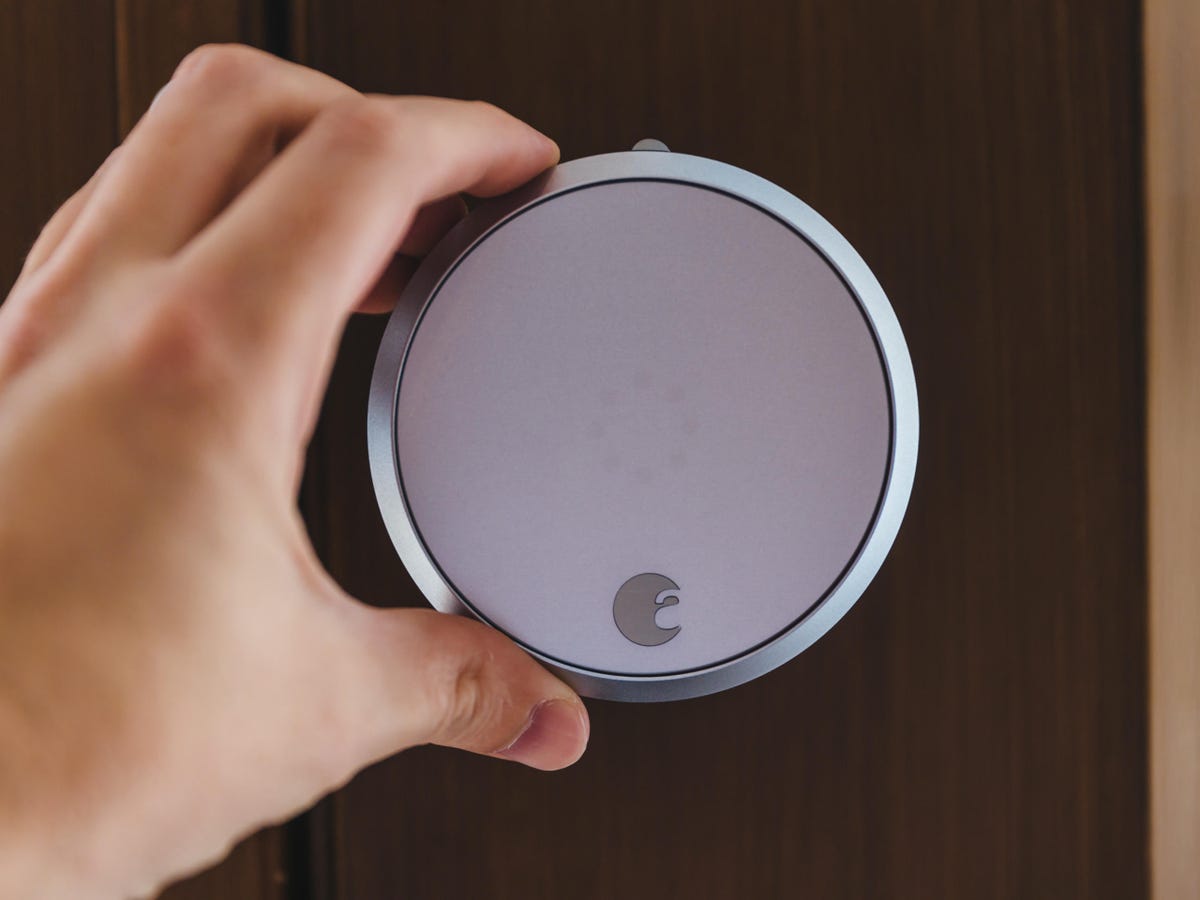
Ensure that your August smart lock is compatible with Google Home. August's Wi-Fi Smart Lock, Smart Lock Pro, and Smart Lock work with Google Home or any Google Assistant-enabled device. With the August Google Assistant integration, you can ask Google Assistant to control your door using your voice.
Step 4: Assign a Name and Location to Your Smart Lock
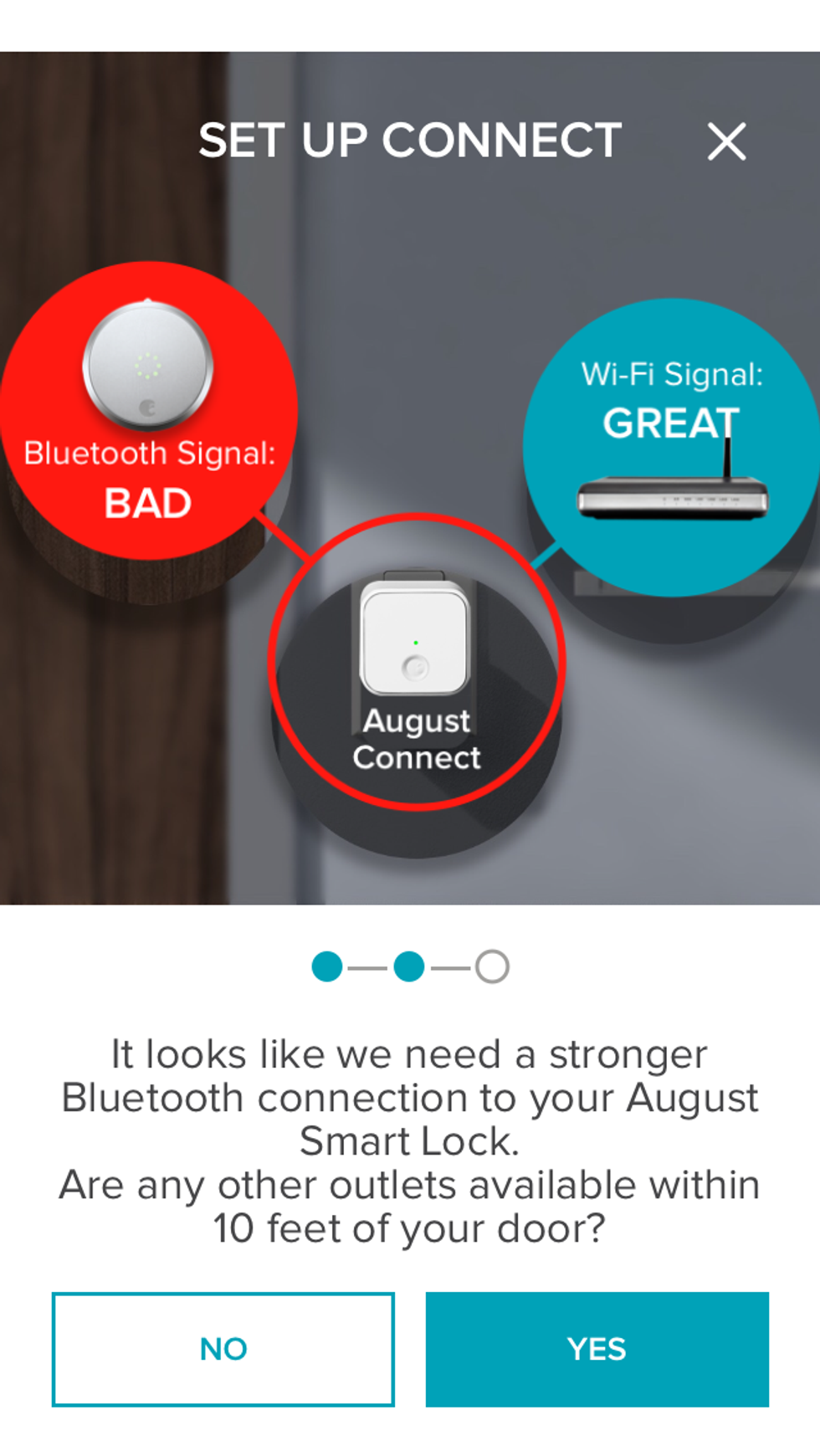
Once you have set up your August smart lock in the Google Home app, you need to assign a name and location to your smart lock. This will help Google Home recognize and communicate with your smart lock easily. You can name your smart lock and assign it to a specific location in your home.
Step 5: Configure Smart Lock Settings
Configure your smart lock settings according to your preferences. This includes setting up auto-lock features, enabling notifications, and customizing your smart lock's behavior.
Step 6: Test Google Home App Integration
Finally, test the integration of your August smart lock with your Google Home app. Ensure that you can lock and unlock your door using the Google Home app. If you encounter any issues, troubleshoot common problems by visiting the August support article for more information.
Tips for Optimizing Your August Smart Lock and Google Home Experience
- Make sure your Wi-Fi network is stable and strong to ensure seamless communication between your August smart lock and Google Home.
- Assign specific rooms to your smart lock(s) as needed to improve your home's organization and automation.
- Experiment with Google Routines to automate tasks, such as unlocking your door, turning off lights, and adjusting the thermostat when you arrive or depart.
Conclusion
Setting up Google Home with August smart locks is a straightforward process that enhances your home's security and convenience. By following the steps outlined in this guide, you can enjoy seamless integration, remote monitoring, and voice-controlled access to your home. With August's Wi-Fi Smart Lock and Google Home, you can simplify your daily life and upgrade your home's smart home experience.